Set Up Authentication Using OpenID Connect Identity Provider
For interactive user sign-in, GoodData uses OpenID Connect (OIDC). GoodData acts as an OIDC client of your organization’s identity provider (IdP), such as Okta or Auth0. The IdP authenticates the user, and GoodData uses the result to establish the user’s session.
External AI clients can also connect through GoodData’s separate OAuth 2.1 authorization server. This does not change your organization’s existing IdP configuration. See OAuth 2.1 for Interactive AI Clients.
IP Allowlist Policies
After a user is authenticated, GoodData can also enforce IP allowlist policies assigned to the user or their user groups. If a policy applies, requests from IP addresses outside the allowlist return 403 Forbidden.
By default, GoodData Cloud uses an Auth0 OIDC IdP. If you want to change the provider that your organization is using, follow these instructions:
- Ensure the OIDC IdP of your choice is supported.
- Set up your OAuth2 client.
- Update the OIDC settings of the organization.
- Map existing users to the organization, if there are any.
See Known limitations and Troubleshooting if you encounter any problems.
If you are using Amazon Cognito, or you just want to follow a worked example to help you set up your own OIDC IdP, see Use Amazon Cognito as Identity Provider.
OAuth 2.1 for Interactive AI Clients
Beta Feature
Interactive SSO is currently available in Beta.
GoodData provides an OAuth 2.1 authorization server for compatible external AI clients, including Model Context Protocol (MCP) clients and, where available, Agent-to-Agent (A2A) integrations. OAuth 2.1 is used for these client connections, not for configuring how users sign in to GoodData through an identity provider. For normal user login, GoodData remains an OpenID Connect (OIDC) client of your organization’s IdP.
When an external AI client connects, it starts the OAuth 2.1 authorization code flow with Proof Key for Code Exchange (PKCE S256). GoodData directs the user through the organization’s existing OIDC sign-in. After the user authenticates, GoodData issues its own access token to the AI client. The IdP does not issue a token to the AI client or communicate with it directly. The client sends the GoodData token in the Authorization: Bearer <TOKEN> header. Requests use the authenticated user’s GoodData permissions.
Interactive SSO is disabled by default. API tokens and signed JWTs remain available without enabling it.
Enable Interactive SSO
Open your organization’s Early Access settings and enable Interactive SSO. This setting enables the GoodData OAuth authorization server for both MCP and A2A clients. To require an approval screen when a user connects a local client, also enable Interactive SSO - Consent Screen.
For hosted clients, GoodData always shows a consent screen before sending an authorization code to an external HTTPS callback, even if Interactive SSO - Consent Screen is disabled. Local loopback callbacks are accepted under every redirect policy. Custom domains do not need additional SSO configuration; discovery and authentication use the organization’s configured hostname.
Configure Redirects for Hosted Clients
For hosted clients, the organization redirect policy determines which external HTTPS callback URLs can receive authorization codes.
| Policy | Accepted hosted callback URLs |
|---|---|
allowlist | Only exact URLs listed in allowedUris. An empty list accepts no hosted callback URLs. |
anyHttps | Any HTTPS callback URL except exact URLs in deniedUris. |
| No organization setting | Trial organizations accept any HTTPS callback. Other organizations accept no hosted callbacks. |
Local loopback callbacks work under every policy. Redirect-policy entries must be absolute HTTPS URLs with a DNS hostname; local hosts, IP addresses, URL user information, and fragments are not accepted as hosted entries. Matching is exact, including the scheme, path, port, and query. The organization setting replaces, rather than extends, the default policy. Changes take effect within seconds and can affect authorization requests already in progress.
Configure the policy through the organization settings API. For example, allow one hosted client callback:
curl -X POST "https://<GOODDATA_HOST>/api/v1/entities/organizationSettings" \
  -H "Authorization: Bearer <ADMIN_API_TOKEN>" \
  -H "Content-Type: application/vnd.gooddata.api+json" \
  -d '{"data":{"id":"authorizationServerRedirectPolicy","type":"organizationSetting","attributes":{"type":"AUTHORIZATION_SERVER_REDIRECT_POLICY","content":{"mode":"allowlist","allowedUris":["https://client.example.com/oauth/callback"]}}}}'
Alternatively, use these content objects:
{"mode":"anyHttps","deniedUris":["https://blocked.example.com/callback"]}{"mode":"allowlist","allowedUris":[]}The empty allowlist permits local callbacks only. To update the existing setting, use PUT /api/v1/entities/organizationSettings/authorizationServerRedirectPolicy. Deleting it restores the organization’s default policy.
GoodData checks the HTTPS callback against this policy during dynamic client registration (/oauth2/register) or, for clients using a client-metadata URL, when /oauth2/authorize is called. Under the anyHttps policy, malformed authorization requests produce an HTTP 400 error in the browser rather than redirecting the error to the external client. Under the allowlist policy, errors can be redirected to an allowed callback.
Review and Revoke Access
When consent is required, the screen identifies the requesting application and the destination to which GoodData will send the authorization result. The application name might come from published metadata or from self-registration; a self-registered name is not independently verified. Verify that you initiated the connection and recognize the destination before approving it.
Select Allow to approve the connection or Don’t allow to refuse it. The screen expires after ten minutes, so restart sign-in if it expires. Approval is not remembered across new connections.
By default, Interactive SSO connections expire after seven days of inactivity. Activity restarts that period, and compatible clients renew access automatically. An identity-provider session may end sooner. Signing out of GoodData in the browser does not terminate an existing client connection; disconnect the client or revoke its refresh token.
To revoke a token, send a request to POST /oauth2/revoke using application/x-www-form-urlencoded form data. Revoking a refresh token ends the connection; revoking only an access token does not prevent the client from renewing with its refresh token.
OAuth Discovery and Endpoints
Clients that support interactive OAuth can discover the endpoints automatically. When building your own client, use these endpoints on your organization’s GoodData hostname:
| Endpoint | Purpose |
|---|---|
/.well-known/oauth-protected-resource | Identifies the authorization server protecting the GoodData host. |
/.well-known/oauth-authorization-server | Advertises authorization endpoints and supported features. |
/oauth2/authorize | Starts browser-based sign-in. |
/oauth2/token | Exchanges the authorization result for an access token and renews access. |
/oauth2/register | Supports dynamic client registration. |
/oauth2/revoke | Revokes an access or refresh token. |
PKCE S256 is required. Public clients do not use a client secret. GoodData supports dynamic client registration or client identification through a client-metadata URL.
For protocol-specific connection examples, see GoodData MCP Server.
You can also connect through the Agent-to-Agent (A2A) Protocol.
Supported OIDC IdPs
GoodData supports OIDC IdPs that expose the OpenID configuration document. To find out whether your preferred OIDC IdP exposes the OpenID configuration document, check whether you are able to reach the following URL:
https://<your_issuer_url>/.well-known/openid-configuration
Tested Providers
We have tested the following OIDC IdPs and confirmed they can be successfuly integrated with GoodData:
If the provider of your choice is not on this list, but it does expose the OpenID configuration document, you should still be able to successfuly integrate the provider with GoodData. If you are having difficulties, please contact us on our support or community portals.
Set up an OAuth2 Client
The exact procedure depends on the OAuth2 client that you are using. The generic steps are as follows.
Steps:
Create an OAuth2 client with the following configuration:
- Callback URL:
https://<organization-hostname>/login/oauth2/code/<organization-hostname> - Flows:
- Authorization Code
- Scopes:
openidprofile- (optional)
offline_access
- Claims:
subnamenonce
- Endpoints:
/.well-known/openid-configurationauthorization_endpointjwks_uritoken_endpointuserinfo_endpoint
- Callback URL:
If your application will log users out of both GoodData and the IdP, ensure your OIDC IdP advertises an
end_session_endpointat thehttps://<your-issuer-url>/.well-known/openid-configurationendpoint.GoodData uses this endpoint automatically as part of OIDC RP-Initiated Logout: when the browser navigates to GoodData’s
/logoutendpoint, GoodData redirects it to your IdP’send_session_endpointto sign the user out there too. If your OIDC IdP requires CORS configuration, add the organization’s endpoint URL to the configuration. Note that IdP-initiated Single Logout (SLO), that is, front-channel or back-channel logout, is not supported. For details, see Logout.We recommend that you configure your OIDC IdP to issue a refresh token. This will prevent users from having to manually reauthenticate frequently.
If you are using a refresh token, ensure that it is set to be reusable for at least 10 times. The GoodData backend may generate multiple API calls at the same time, which may require the same refresh token to be used several times.
When the OAuth2 client is created, continue on to the Update the OIDC Settings of the Organization guide to copy and store the following parameters:
- The client ID
- The client secret
Update the OIDC Settings of the Organization
Identity providers (IdPs) are configured as separate entities and linked to an organization via a reference. This approach replaces the previous method where all IdP details were defined directly in the organization settings. It enables smoother transitions between GoodData Auth and custom IdPs, supports safer testing, and allows for easy rollback if needed.
You can define and configure multiple IdPs, and then simply switch between them by linking to the one you want to use.
If you are using GoodData’s built-in identity provider, you can switch to your own identity provider in a fully self-service way. First, create and configure your identity provider using the Identity Providers API, then switch the active identity provider using the switch endpoint. If your identity provider is misconfigured, you can switch back to the GoodData built-in identity provider at any time using the same endpoint.
To check which IdP is linked to your organization, use:
GET /api/v1/entities/admin/organizations/{id}?include=identityProvidersIn the response, look for this section:
"identityProvider": {
  "data": {
    "id": "my-idp-123",
    "type": "identityProvider"
  }
}
To link the active IdP, use:
POST /api/v1/actions/organization/switchActiveIdentityProviderPayload:
{
  "idpId": "my-idp-123"
}
This replaces the older way of setting OIDC configuration parameters (like oauthClientId, oauthIssuerLocation, and others) directly in the organization attributes. These older parameters will soon become obsolete.
Obsolete Fields
The following fields should no longer be used in organization settings:
"oauthClientId": "string",
"oauthClientSecret": "string",
"oauthCustomAuthAttributes": {
  "property1": "string",
  "property2": "string"
},
"oauthCustomScopes": [
  "string"
],
"oauthIssuerId": "myOidcProvider",
"oauthIssuerLocation": "string",
"oauthSubjectIdClaim": "oid"
Instead, define all these settings when creating or updating the identity provider object itself. Then use the identityProvider link in the organization settings to point to it.
Create, Read, and Delete the Identity Provider Object
You can create, list, and delete Identity Providers (IdPs) using API calls.
Create an Identity Provider
Create a new IdP using:
POST /api/v1/entities/identityProvidersRequest body example:
{
  "data": {
    "id": "id1",
    "type": "identityProvider",
    "attributes": {
      "identifiers": ["gooddata.com"],
      "idpType": "CUSTOM_IDP",
      "oauthClientId": "string",
      "oauthClientSecret": "string",
      "oauthIssuerId": "myOidcProvider",
      "oauthIssuerLocation": "string",
      "oauthSubjectIdClaim": "oid"
    }
  }
}
See our API Reference Guide for more details.
Defining the oauthIssuerLocation Parameter
Ensure the oauthIssuerLocation URL Matches Exactly
Pay extra attention to the URL that you provide in the oauthIssuerLocation parameter. You must specify this URL exactly as it is provided by the OIDC IdP. For example, if the URL provided ends with a trailing slash, keep the slash when passing the URL to the API as a value of the oauthIssuerLocation parameter.
Microsoft Azure and oauthIssuerLocation
For Microsoft Azure, the oauthIssuerLocation parameter looks different than for other providers. Normally, you would get the issuer location from https://<your_issuer_url>/.well-known/openid-configuration, but for Azure B2C, you need to use the direct link, i.e. https://<your_issuer_url> without /.well-known/openid-configuration.
Configurable Claim Mapping for AuthenticationId
By default, the user claim is set to sub. You can change the value of the attribute oauthSubjectIdClaim to use a different claim, provided it is part of the ID token sent to GoodData.
For example, if you are using Azure Active Directory as your OIDC provider, ensure that you change the value of oauthSubjectIdClaim to oid.
Redirect URI Format for Google OIDC
When using Google as the OIDC identity provider and the oauthIssuerId is defined in your IdP settings, you must follow this specific format for the redirect URI:
https://<your-gooddata-domain>/login/oauth2/code/<oauthIssuerId>For example, with the following organization settings:
"oauthIssuerLocation": "https://accounts.google.com",
"oauthClientId": "1234567890-abcdefg.apps.googleusercontent.com",
"oauthIssuerId": "google"
The correct redirect URI would be:
https://example.gooddata.com/login/oauth2/code/googleBe sure to register this URI in your Google OAuth client configuration. Once oauthIssuerId is set in the IdP configuration, it becomes required in the redirect URI. If you omit it, Google will revert to expecting the default format, resulting in redirect URI mismatch errors during authentication:
https://<organization-hostname>/login/oauth2/code/<organization-hostname>Once you have updated the OIDC settings, map the users stored in the IdP to your organization.
Get All Identity Providers
List all available IdPs in your organization:
GET /api/v1/entities/identityProvidersSee our API Reference Guide for more details.
Example response:
{
  "data": [
    {
      "id": "id1",
      "type": "identityProvider",
      "attributes": {
        "identifiers": ["gooddata.com"],
        "oauthIssuerId": "myOidcProvider",
        "idpType": "CUSTOM_IDP"
      }
    }
  ]
}
Use the id from this list (e.g. "id": "id1") when linking or switching identity providers.
Delete an Identity Provider
To delete an existing IdP:
DELETE /api/v1/entities/identityProviders/{id}Replace {id} with the IdP ID (e.g. id1).
See our API Reference Guide for more details.
Custom Authentication Attributes
You can add custom authentication attributes to your authentication request when integrating with an OAuth identity provider.
By default, if a user is not authenticated, they are redirected to an authorization URL that looks something like this:
https://<oauthIssuerLocation>/oauth2/authorize?response_type=code&client_id=<oauthClientId>&scope=openid%20profile%20email&state=xyz&redirect_uri=<organization_hostname>/login/oauth2/code/<oauthIssuerId>&nonce=xyzThe oauth... parameters are configured in your organization settings. You can find more details in the GoodData API documentation.
To include additional parameters in the authentication request, define them using the oauthCustomAuthAttributes field in your organization configuration, like this:
"oauthCustomAuthAttributes": {
  "property1": "stringA",
  "property2": "stringB"
}
With this configuration, the authentication URL will include the additional parameters:
https://<oauthIssuerLocation>/oauth2/authorize?response_type=code&client_id=<oauthClientId>&scope=openid%20profile%20email&state=xyz&redirect_uri=<organization_hostname>/login/oauth2/code/<oauthIssuerId>&nonce=xyz&property1=stringA&property2=stringBThis can be especially useful when working with specific identity providers, such as Google IdP, that may require additional parameters during authentication.
Map Users to the Organization
When it comes to mapping users to an organization, you can choose from the following two methods:
API-based user provisioning is robust, offering precise control over user management processes. Organizations can automate the creation, update, and deletion of user accounts, making it ideal for complex user management scenarios.
Just-In-Time (JIT) user provisioning is very flexible. It allows users to be created and updated dynamically at the time of login, based on the information provided by an identity provider. This method provides an effortless and immediate way to onboard users, making it ideal for enhancing user experience and reducing overhead.
For mapping, GoodData uses the sub claim. The value of a user’s sub claim is provided by your OIDC IdP.
API-Based Provisioning
To map a user, submit a POST request to /api/v1/entities/users and provide the value of the sub claim in the authenticationId attribute in the API request body:
Avoid Assigning the Same AuthenticationId to Multiple Users
Although the API will let you map multiple users to the same authenticationId, only the alphabetically first userId will be able to log in.
curl --request POST \
  --header "Authorization: Bearer $API_TOKEN" \
  --header 'Content-Type: application/vnd.gooddata.api+json' \
  --data '{
      "data": {
        "id": "john.doe",
        "type": "user",
        "attributes": {
          "authenticationId": "<user-sub-claim>"
        },
        "relationships": {
          "userGroups": {
            "data": [ {
              "id": "adminGroup",
              "type": "userGroup"
            } ]
          }
        }
      }
}' $HOST_URL/api/v1/entities/users
For further details on user and user-groups see Manage Users.
Just-In-Time (JIT) User Provisioning
JIT provisioning automates the creation and updating of user accounts at the very moment a user attempts to log in. Here is an example of how it works:
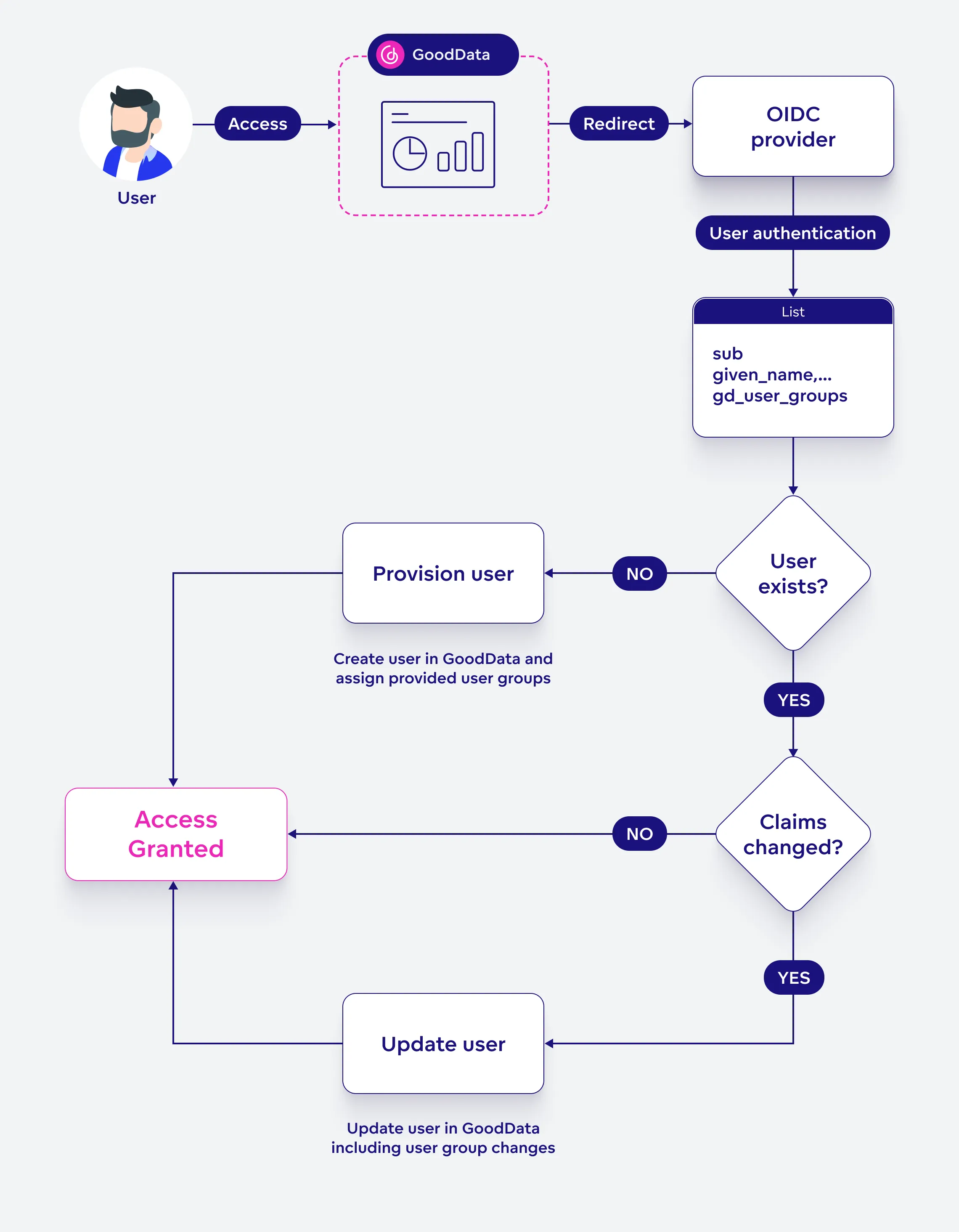
- First Login Attempt: A new user wants to access GoodData for project analytics. They open GoodData and are redirected to log in via their company’s OIDC provider.
- Authentication: The user logs in using their company credentials. The OIDC provider sends the user’s attributes (claims) back to GoodData as a part of the OAuth authentication token. GoodData recognizes the access of a new user, as their authentication ID (sub-claim) does not exist in our database, and initiates JIT provisioning.
- Seamless Account Creation: The user is immediately taken to their GoodData dashboard. Meanwhile, their account has just been created in the background.
- Regular Updates: Each time the user logs in after that, any changes in their details are automatically updated in GoodData.
Setting Up JIT User Provisioning
Follow these simple steps to set up JIT user provisioning:
Configure Your Authentication Provider: Make sure your authentication provider supports the following scopes:
openIdprofileemailurn.gooddata.scope/user_groups(Optional GoodData-specific scope for user group memberships. You can rename or omit this if you don’t want to assign users to groups based on ID token claims. See Step 2 for more details.)
These scopes will allow us to obtain the following claims for user provisioning:
sub(Subject, the user’s identifier)given_name,family_nameemailurn.gooddata.user_groups(GoodData-specific claim for user group memberships. To remove a user from groups, include this claim with an empty list. If omitted, group memberships remain unchanged unless a default user group is defined. See Step 2 for more details.)
Enable JIT Provisioning: After configuring your authentication provider, enable JIT provisioning using the organization settings API. See the Configuration in Organization Settings for details.
Configuration
Be cautious when configuring the urn.gooddata.user_groups claim. If it includes user groups that don’t exist in your organization, these groups will be automatically created. As access rights are derived from users’ user groups, creating such groups can be a potential security issue.
JIT ID Token Example
When set up correctly, the ID token payload will look like this:
{
  "sub": "<Subject - Identifier for the end-user at the issuer>",
  "name": "User Name",
  "given_name": "User",
  "family_name": "Name",
  "email": "user.name@gooddata.com",
  "ver": 1,
  "iss": "https://issuer/oauth2/default",
  "aud": "<aud>",
  "iat": 1234567890,
  "exp": 1234567890,
  "jti": "ID.example",
  "amr": ["pwd"],
  "idp": "<idp>",
  "nonce": "nonce",
  "preferred_username": "user.name@gooddata.com",
  "auth_time": 1000,
  "at_hash": "preview_at_hash",
  "urn.gooddata.user_groups": [
    "userGroupA",
    "userGroupB",
    "adminUserGroup"
  ]
}
If your provider does not support lists as token attribute values, the urn.gooddata.user_groups attribute can also be specified as a comma-separated string:
urn.gooddata.user_groups: "userGroupA,userGroupB,adminUserGroup"JIT Provisioning Configuration
JIT provisioning is configured through the organization settings. See the Configuration in Organization Settings for details.
JIT Provisioning with Shared Identity Providers
Enable Just-In-Time (JIT) user provisioning only with an identity provider whose user membership you control.
Do not enable JIT provisioning with an identity provider that has an open or shared user pool. This includes public social identity providers, such as Google, where anyone with a Google account can authenticate, and the GoodData-managed Auth0 identity provider.
The GoodData-managed Auth0 identity provider is a shared tenant, not an isolated tenant dedicated to your organization. Any internet user can create an account in it. The GoodData-managed Auth0 identity provider is intended for getting started and evaluation purposes, is not recommended for production use, and must not be used with JIT provisioning in production.
If you enable JIT provisioning with an open or shared identity provider, anyone in that identity provider’s user pool may be able to authenticate into your organization. At minimum, they can be provisioned with a GoodData user account. If JIT provisioning is configured with default or automatic user group assignment, those users may also inherit the workspace and data access granted to those user groups.
For evaluation only, if you must enable JIT provisioning with an open or shared identity provider, do not configure default or automatic user group assignment in the JIT settings. This means self-provisioned users can be created without workspace or data access. This reduces risk, but it is not a complete fix and limits the usefulness of JIT provisioning.
For production, configure your own OIDC identity provider whose membership you manage. Enable JIT provisioning, including default user group assignment, only with such a controlled identity provider.
Configuration Options
- enabled (mandatory) – Turns JIT on or off. By default, user groups are not included in JIT. (See below for enabling user group provisioning.)
- userGroupsDefaults (optional) – Used when you want to assign users to a predefined set of user groups. It also serves as a fallback option if user groups are shared via a custom scope, but the authentication response does not include the user group claim.
- userGroupsScopeEnabled (optional) – Allows passing unique user groups for each user through the authentication token. By default, it uses
urn.gooddata.scope/user_groupsas the scope andurn.gooddata.user_groupsas the claim. - userGroupsScopeName (optional) – Overrides the default user groups scope name. If not set,
urn.gooddata.scope/user_groupsis used. - userGroupsClaimName (optional) – Overrides the default user groups claim name. If not set,
urn.gooddata.user_groupsis used.
Example Configuration
{
  "data": {
    "attributes": {
      "content": {
        "enabled": true,
        "userGroupsScopeEnabled": true,
        "userGroupsScopeName": "gd_user_groups_scope",
        "userGroupsClaimName": "gd_user_groups_claim",
        "userGroupsDefaults": ["defaultUserGroup"]
      },
      "type": "JIT_PROVISIONING"
    },
    "id": "id1",
    "type": "organizationSetting"
  }
}
Examples of Use
Basic JIT provisioning
If you only need user creation, set:"enabled": trueJIT provisioning with predefined user groups
If you want users to be assigned to specific user groups, set:"enabled": true, "userGroupsDefaults": ["defaultUserGroup"]JIT provisioning with dynamic user groups
If you want each user to have unique group assignments, set:"enabled": true, "userGroupsScopeEnabled": trueOverriding the default scope/claim names
If an identity provider does not allow certain characters in the default scope/claim names, you can override them:"userGroupsScopeName": "gd_user_groups_scope", "userGroupsClaimName": "gd_user_grops_claim"Setting a default user group as a fallback
If a user group scope is requested, but the authentication response does not contain the expected user groups claim, you can set a fallback:"userGroupsDefaults": ["defaultUserGroup"]
Note: If the claim is present but contains an empty user group list, it will not be overridden by userGroupsDefaults. The defaults apply only if the user group claim is missing entirely.
Limitations
If you want to use JIT Provisioning with Federated Identity Management, we currently support only the following use cases:
- Basic JIT provisioning
- JIT provisioning with predefined user groups
Sharing user groups through the authentication token is not supported.
Logout
GoodData and your identity provider (IdP) maintain separate user sessions. To terminate the GoodData session, call the /logout endpoint. For GoodData Cloud, use:
https://<your_subdomain>.cloud.gooddata.com/logoutOIDC Logout Behavior
GoodData supports OIDC RP‑Initiated Logout. Navigating the browser to /logout ends the GoodData session and redirects to your IdP’s end_session_endpoint (with id_token_hint) or a provider‑specific fallback (for example, Auth0/Cognito), signing the user out of both.
Not supported: IdP‑initiated Single Logout (front‑channel/back‑channel). Ending the session at the IdP does not end an active GoodData session.
Important:
/logoutis GET‑only (POST returns 405).- The redirect chain to the IdP must run as top‑level browser navigation (for example,
window.location = "/logout"or a normal link). XHR/fetch will not complete IdP logout. - With Federated Identity Management (Cognito brokering an external IdP),
/logoutends the Cognito/GoodData leg only; also sign the user out of the upstream IdP. - If your IdP does not expose
end_session_endpointand is not covered by a built‑in fallback, implement sign‑out at the IdP explicitly.
See the OpenID Connect RP‑Initiated Logout specification for details.
Consider using shorter token refresh and expiry intervals on your side if users close the app without completing sign‑out.
Known limitations
If you are using one of the following OIDC IdPs, make note of their limitations when used together with GoodData.
Auth0
Auth0 Issuer has a trailing slash in its configuration. When configuring the
external OIDC provider for your organization, make sure that the oauthIssuerLocation
value ends with a trailing slash, like https://mycompany.eu.auth0.com/. Otherwise,
the authentication will not work.
The GoodData-managed Auth0 identity provider is a shared tenant intended for getting started and evaluation. It is not an isolated per-customer tenant and is not recommended for production use. Do not combine the GoodData-managed Auth0 identity provider with Just-In-Time (JIT) provisioning. For production, configure your own Auth0 tenant or another OIDC identity provider whose membership you control.
There is a known issue where users the Auth0 logout procedure does not work if you are using Auth0 and GoodData with a custom domain. We are working on delivering a fix for this issue.
Google IdP does not support custom scopes, so Just-In-Time provisioning with dynamic user group assignment cannot be used with Google. In addition, because Google is a public identity provider with an open user pool, do not enable JIT provisioning with Google for production use. See JIT Provisioning Configuration for details.
Additionally, a known issue with Google IdP may prevent successful logout.
Azure Active Directory
GoodData is not currently part of the Active Directory Marketplace, you will need to register it manually. To register GoodData with Azure Active Directory, we recommend you follow this guide.
Amazon Cognito
RP Initiated Logout does not work at the moment. We plan to implement the functionality in a future release.
Troubleshooting
Here are some common issues you may run into when using an OIDC, and how to address them.
Issues With Silent Login
If you block 3rd party cookies in your browser and the domain of GoodData is different from the domain of your application - most probably, a silent login will not work. You can fix that by putting GoodData on the same domain as your application (GoodData should be on a subdomain, for example, analytics.<your-domain>.com).
Also, if your application is running in a different domain than Identity Server, you can also have a problem with a silent login. It is possible to fix that by using Okta custom URL domain or Auth0 custom URL domain.
SalesForce
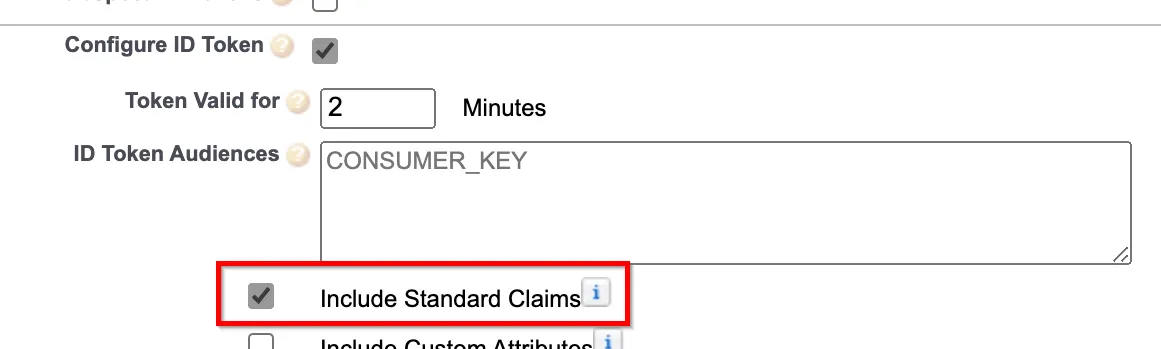
If you are using SalesForce as your OIDC provider, ensure that you have checked the Include Standard Claims option. Without this option, the provider will not provide the name claim in the ID token and the authentication will fail.
Content Is blocked
When your user session times out, a session timeout overlay is displayed. When you click the Log in button some GoodData.CN users may get the following error message:
This content is blocked. Contact the site owner to fix the issue.
There is no easy fix available to Auth0 users at the moment. We have temporarily extended the inactivity timeout to 3 days and the required re-login to 7 days, for Auth0, to minimize the chances of this issue occuring.
If you are using a different OIDC, such as Okta or Cloud IAM, you can fix this issue by creating CSP directives to allow the blocked content from your OIDC IdP. Ensure you have the following CSP directives configured:
curl -X POST -H "Authorization: Bearer <token>" \
    -H "Content-type: application/vnd.gooddata.api+json" $HOST_URL/api/v1/entities/cspDirectives \
    -d @data.json
where data.json contains the CSP directive allowing frame-src content from your OIDC IdP:
{
    "data": {
        "id": "frame-src",
        "type": "cspDirective",
        "attributes": {
            "sources": [
                "<oidc-provider-hostname>",
                "'self'"
            ]
        }
    }
}
Replace the <oidc-provider-hostname> with an appropriate URL. For example:
*.okta.comfor Oktaaccounts.google.comfor Google