Manage Workspace Permissions
Workspace permissions give users access to a workspace and enable tasks such as creating analytics, exporting data, and administering the logical data model. Object permissions control access to the individual objects already in that workspace.
To configure access, choose a workspace access level, add any required capabilities, and decide whether the grant should include child workspaces. Then assign the grants to users or organization-level user groups.
For multiple tenants, combine these grants with object permissions and data filters. See Permissions and Multitenancy for the overall setup and Set Up Multiple Tenants for workspace and data-filter configuration.
For the API examples in this article, set $HOST_URL to your GoodData organization URL and replace the placeholders in angle brackets with your own resource IDs and API token.
Access Levels
| Permission | What it allows |
|---|---|
VIEW | Open shared dashboards and use content the user can access. |
ANALYZE | Everything in VIEW, plus access to Catalog, Analytical Designer, and the Metric editor. Includes creating dashboards and visualizations. Access to existing objects is evaluated separately. |
MANAGE | Administer the workspace and its logical data model. Access and manage all objects within its scope, regardless of object restrictions. Includes authoring and export capabilities. |
ANALYZE provides a set of capabilities for authoring analytics. It does not include CREATE_METRIC, and it does not by itself allow editing every saved metric or visualization. Add the creation capabilities and object grants users need.
Reserve MANAGE for administrators. A modeler who works with a connected data source also needs at least <data_source>.USE; workspace administration alone does not grant data source access.
Additional Capabilities
Add capabilities for specific tasks. Check what the user’s access level already includes before assigning another grant.
| Permission | What it allows |
|---|---|
CREATE_METRIC | Save new metrics. Add it to VIEW or ANALYZE; included in MANAGE. |
CREATE_VISUALIZATION | Save new visualizations. Add it to VIEW; included in ANALYZE, MANAGE_VISUALIZATIONS, and MANAGE. |
MANAGE_VISUALIZATIONS | Create visualizations and view, edit, share, or delete every saved visualization within the grant’s scope. Included in MANAGE. |
EXPORT | View shared content and export to PDF or tabular formats. Includes EXPORT_PDF and EXPORT_TABULAR. |
EXPORT_PDF | View shared dashboards and export to PDF. |
EXPORT_TABULAR | View shared content and export data to XLSX or CSV. |
CREATE_AUTOMATION | Create alerts and scheduled exports. Content and export permissions still apply. |
CREATE_FILTER_VIEW | Save dashboard filter states. Add it to VIEW; included in ANALYZE and MANAGE. |
USE_AI_ASSISTANT | Use AI Assistant. Reading, computing, and saving content still require the corresponding permissions. |
CREATE_COMPUTED_ATTRIBUTE | Create computed attributes. |
MANAGE_VISUALIZATIONS bypasses individual visualization restrictions. It does not grant access to restricted metrics or columns used by those visualizations.
Export permissions do not provide authoring rights or access to restricted objects. Before distributing restricted content, review exports and scheduled delivery.
Creation, Editing, and Authoring Tools
Creation capabilities apply when saving a new object, including a copy. To change an existing object, users need its edit permission or applicable administrator access. To compute a result, they also need access to its inputs.
| Task | Required permissions for a non-administrator |
|---|---|
| Create a metric in the Metric editor | <workspace>.ANALYZE and <workspace>.CREATE_METRIC, plus access to the inputs. |
| Create a metric through the API | Workspace access and <workspace>.CREATE_METRIC, plus access to the inputs. |
| Edit an existing metric in the Metric editor | <workspace>.ANALYZE and <metric>.EDIT. |
| Edit an existing metric through the API | Workspace access and <metric>.EDIT. |
| Save a new visualization in Analytical Designer | <workspace>.ANALYZE, which includes CREATE_VISUALIZATION, plus access to the inputs. |
| Create a dashboard | <workspace>.ANALYZE. |
| Edit an existing dashboard | Workspace access and <dashboard>.EDIT. Saved visualizations inside it have their own edit requirements. |
For example, an analyst with ANALYZE and EDIT on an existing metric can maintain it without CREATE_METRIC. Saving a copy of that metric requires CREATE_METRIC because the copy is a new object.
Adding a creation capability to VIEW supports API, SDK, AI, or supported embedded workflows. It does not open Catalog, standalone Analytical Designer, or the Metric editor, which require ANALYZE or MANAGE. Building an unsaved analysis does not require permission to save a new object, but access to the authoring tool and all inputs is still required.
Parameters and computed attributes do not use the individual sharing controls described for columns, metrics, and visualizations. Creating, editing, or deleting parameters requires MANAGE; users with VIEW can read parameter definitions.
Workspace Hierarchies
Choose the scope of each workspace grant:
- Local: Applies only to the selected workspace.
- Hierarchy: Applies to the selected workspace and all its descendants.
For example, consider a parent workspace with two child workspaces, labeled Child A and Child B in the table below. Each grant has the following effect when considered on its own:
| Grant | Parent workspace | Child A | Child B |
|---|---|---|---|
Local MANAGE on the parent | Applies | Does not apply | Does not apply |
Hierarchy MANAGE on the parent | Applies | Applies | Applies |
Local MANAGE on Child A | Does not apply | Applies | Does not apply |
Inherited Objects
Object grants follow inherited columns, metrics, visualizations, and dashboards into child workspaces. A child can add access to an inherited object, but cannot remove or lower access granted by its parent. A grant added in a child does not apply to the parent or to a sibling workspace.
Edit an inherited object’s definition in the workspace where it was created. An EDIT grant in a child does not let the child change the parent’s definition.
For an object defined in a parent, an All workspace members grant made there refers to the parent’s membership. Check access for the child’s audience and add grants in the child where needed.
User groups belong to the organization and have the same membership wherever they are used. Use separate groups for separate tenant audiences. See Build a Workspace Hierarchy.
Plan Tenant Access
Give each tenant group access to its own child workspace. Use a hierarchy grant only when the group should also access descendants of that workspace. Review any grants on a shared parent before adding tenant users to a group that receives them.
Grant the tenant audience access to every inherited object it needs, including the columns and metrics behind its visualizations and dashboards. Put grants that apply to a particular tenant in that tenant’s workspace. A shared parent grant cannot be narrowed in a child.
Configure workspace data filters to select tenant rows, and user data filters when users within a tenant need further restrictions. Workspace membership and object inheritance do not select rows by themselves.
For a worked configuration covering the dashboard and its dependencies, see Share Analytics Across Tenant Workspaces. For the distinction between workspace and user-group hierarchies, see Permission Hierarchies.
Set Workspace Permissions
Use groups for recurring access patterns, such as analysts who can create metrics. Assign both the workspace access level and any additional capabilities to the group.
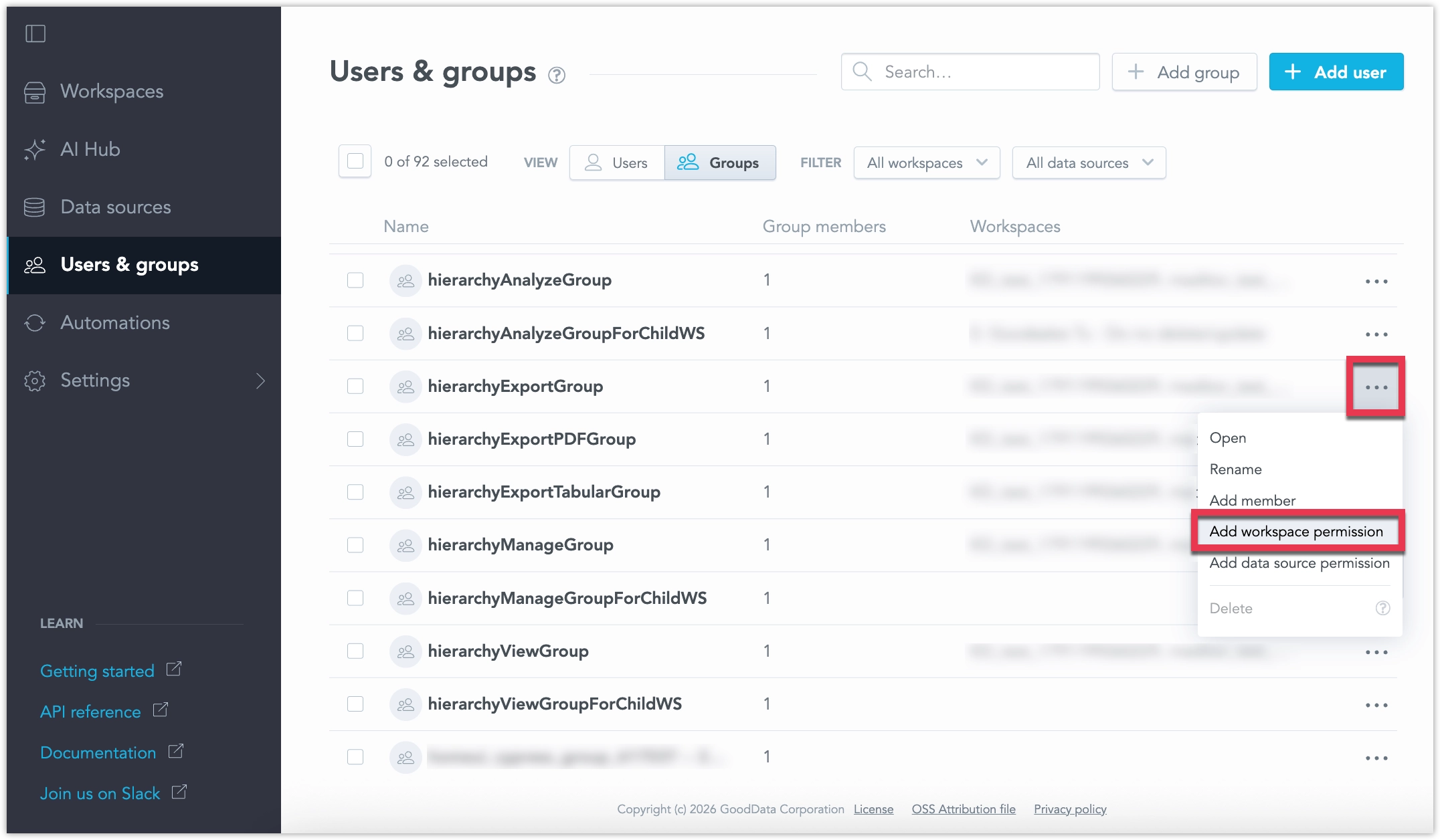
Open Users & groups and select the Users or Groups view.
Open the three-dot menu for the user or group and select Add workspace permission.
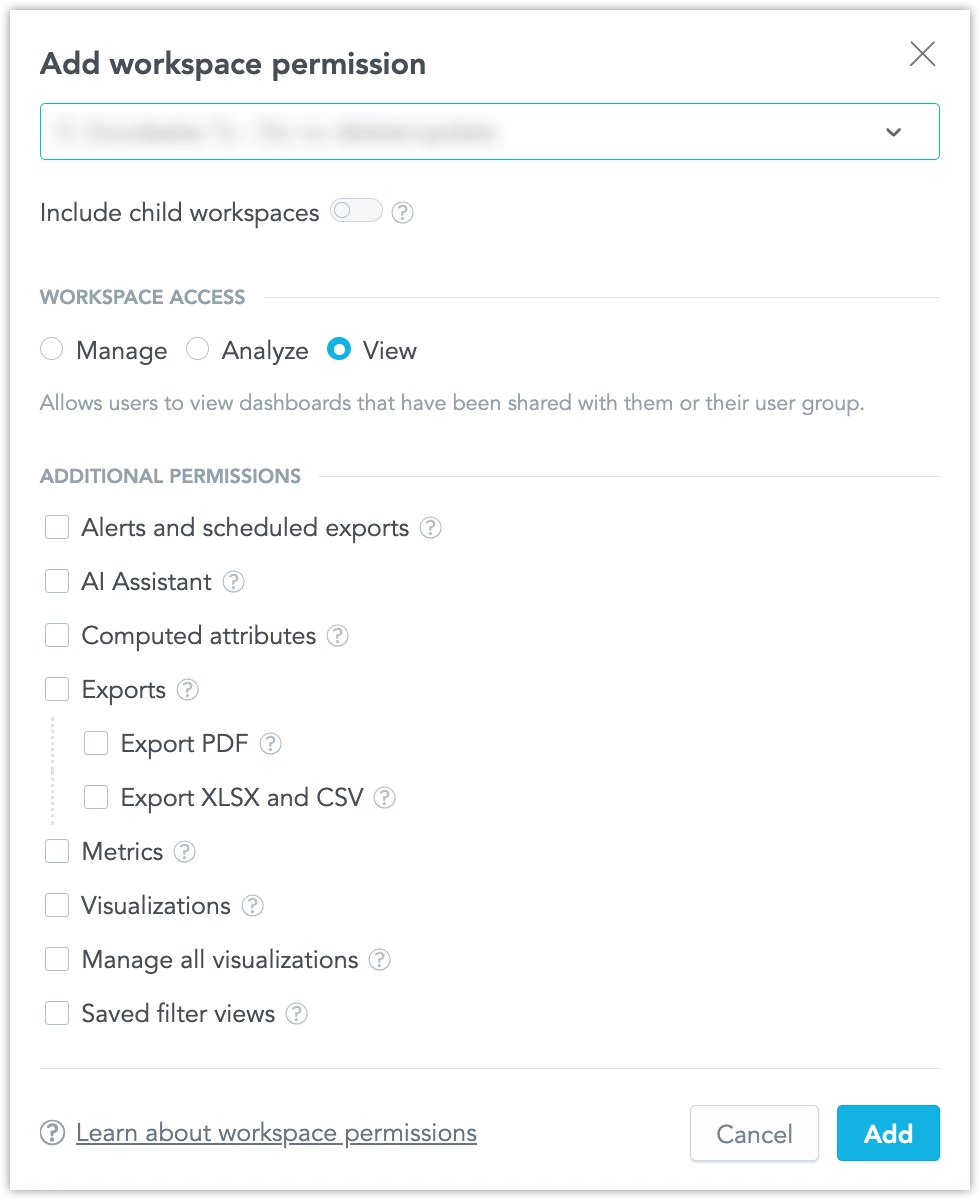
Select the workspace. Enable Include child workspaces for a hierarchy grant, or leave it off for a local grant.
Under Workspace access, select View, Analyze, or Manage.
Under Additional permissions, select the required capabilities. Metrics and Visualizations allow creation. Manage all visualizations also allows managing every saved visualization in the grant’s scope.
Click Add.
To review or update grants, open the user or group and select Workspaces. Removing a direct grant does not remove access provided by another group or an ancestor workspace.
The workspace managePermissions API uses separate fields for local and hierarchy grants:
| Field | Scope |
|---|---|
permissions | The specified workspace only. |
hierarchyPermissions | The specified workspace and all its descendants. |
To update grants through this endpoint, you need <organization>.MANAGE or <workspace>.MANAGE granted as a hierarchy permission.
First, retrieve the current definition:
curl "$HOST_URL/api/v1/layout/workspaces/<WORKSPACE_ID>/permissions" \
  -H "Content-Type: application/json" \
  -H "Accept: application/json" \
  -H "Authorization: Bearer <API_TOKEN>" \
  -X GET | jq .
For each assignee and scope you update, include every permission the assignee should retain. Other assignees are unchanged.
For this example, suppose you create two groups named Metric Authors and Tenant Administrators. The request gives the first group local ANALYZE and CREATE_METRIC, and the second group hierarchy MANAGE. Replace <METRIC_AUTHORS_GROUP_ID> and <TENANT_ADMINISTRATORS_GROUP_ID> with the actual IDs of the groups you want to configure:
curl "$HOST_URL/api/v1/actions/workspaces/<WORKSPACE_ID>/managePermissions" \
  -H "Content-Type: application/json" \
  -H "Accept: application/json" \
  -H "Authorization: Bearer <API_TOKEN>" \
  -X POST \
  -d '[
      {
          "assigneeIdentifier": {
              "id": "<METRIC_AUTHORS_GROUP_ID>",
              "type": "userGroup"
          },
          "permissions": ["ANALYZE", "CREATE_METRIC"]
      },
      {
          "assigneeIdentifier": {
              "id": "<TENANT_ADMINISTRATORS_GROUP_ID>",
              "type": "userGroup"
          },
          "hierarchyPermissions": ["MANAGE"]
      }
  ]'
Use "permissions": [] or "hierarchyPermissions": [] to clear the assignee’s direct grants in that scope. Group and inherited grants can still provide access.
Organization and all-workspaces layouts can also manage workspace grants. They require <organization>.MANAGE and can overwrite changes made in the UI. Keep the layout’s permission definitions up to date if a deployment pipeline manages them. See the Permissions API reference.
Creation Defaults
Creation capabilities determine who can save new objects. Creation defaults determine whether those objects start restricted or visible to everyone in the workspace.
| Newly created object | New organizations | Organizations migrated to object-level permissions |
|---|---|---|
| Metric | Restricted | All workspace members |
| Saved visualization | Restricted | All workspace members |
| Fact, attribute, or secondary label | All workspace members | All workspace members |
| Dashboard | Restricted | Restricted |
Existing dashboard sharing is preserved. The metric and visualization defaults in migrated organizations preserve workspace-wide visibility until an administrator changes them.
New metrics, saved visualizations, and dashboards grant EDIT to their creator. For API requests made by a service account, that account is the creator. Administrators retain access.
Defaults also apply to objects created through integrations and deployment pipelines, unless the creation request supports and supplies explicit permissions. Check the resulting grants and share new content with its audience. See Share or Restrict an Object.
Configure Settings
Use these settings to choose the default audience for new metrics and saved visualizations:
| Setting | Applies to | Values |
|---|---|---|
DEFAULT_METRIC_VISIBILITY | New metrics | RESTRICTED or WORKSPACE |
DEFAULT_VISUALIZATION_VISIBILITY | New saved visualizations | RESTRICTED or WORKSPACE |
WORKSPACE means All workspace members. Changing a setting affects future objects only; update existing objects’ access settings separately. Columns have no configurable default visibility setting.
A local workspace setting overrides the inherited value. Without a local override, the workspace follows its parent and then the organization.
Set a Workspace Default
As a workspace or organization administrator, retrieve the workspace settings and check whether the setting already exists locally:
curl "$HOST_URL/api/v1/entities/workspaces/<WORKSPACE_ID>/workspaceSettings" \
  -H "Content-Type: application/vnd.gooddata.api+json" \
  -H "Accept: application/vnd.gooddata.api+json" \
  -H "Authorization: Bearer <API_TOKEN>" \
  -X GET | jq .
If there is no local DEFAULT_METRIC_VISIBILITY setting, create one. This example makes new metrics restricted:
curl "$HOST_URL/api/v1/entities/workspaces/<WORKSPACE_ID>/workspaceSettings" \
  -H "Content-Type: application/vnd.gooddata.api+json" \
  -H "Accept: application/vnd.gooddata.api+json" \
  -H "Authorization: Bearer <API_TOKEN>" \
  -X POST \
  -d '{
      "data": {
          "id": "<SETTING_ID>",
          "type": "workspaceSetting",
          "attributes": {
              "type": "DEFAULT_METRIC_VISIBILITY",
              "content": {
                  "value": "RESTRICTED"
              }
          }
      }
  }' | jq .
If the setting already exists locally, use its existing ID in both the URL and data.id:
curl "$HOST_URL/api/v1/entities/workspaces/<WORKSPACE_ID>/workspaceSettings/<SETTING_ID>" \
  -H "Content-Type: application/vnd.gooddata.api+json" \
  -H "Accept: application/vnd.gooddata.api+json" \
  -H "Authorization: Bearer <API_TOKEN>" \
  -X PUT \
  -d '{
      "data": {
          "id": "<SETTING_ID>",
          "type": "workspaceSetting",
          "attributes": {
              "type": "DEFAULT_METRIC_VISIBILITY",
              "content": {
                  "value": "RESTRICTED"
              }
          }
      }
  }' | jq .
For saved visualizations, use DEFAULT_VISUALIZATION_VISIBILITY instead.
Set an Organization Default
Use the organization settings API to configure the default for workspaces without an override. Retrieve /api/v1/entities/organizationSettings first. Create a missing setting with POST to that collection, or update an existing one with PUT and its existing ID.
This example updates an existing organization setting for new metrics:
curl "$HOST_URL/api/v1/entities/organizationSettings/<SETTING_ID>" \
  -H "Content-Type: application/vnd.gooddata.api+json" \
  -H "Accept: application/vnd.gooddata.api+json" \
  -H "Authorization: Bearer <API_TOKEN>" \
  -X PUT \
  -d '{
      "data": {
          "id": "<SETTING_ID>",
          "type": "organizationSetting",
          "attributes": {
              "type": "DEFAULT_METRIC_VISIBILITY",
              "content": {
                  "value": "RESTRICTED"
              }
          }
      }
  }' | jq .
Review workspace overrides when changing an organization default.
Visualization Access in Migrated Organizations
Migrated organizations preserve analysts’ ability to manage saved visualizations by granting MANAGE_VISUALIZATIONS alongside ANALYZE.
The organization or workspace setting GRANT_MANAGE_VISUALIZATIONS_WITH_ANALYZE controls automatic assignment. It is enabled for migrated organizations and disabled for new organizations.
To limit analysts to their individual visualization grants:
- Set
GRANT_MANAGE_VISUALIZATIONS_WITH_ANALYZEtofalseat the applicable scope, using the settings APIs described above. Check for workspace overrides. - Remove existing
MANAGE_VISUALIZATIONSgrants from users and groups that should no longer manage every visualization. Changing the setting alone does not remove these grants. - Give those users or groups
EDITon the visualizations they should maintain. - Update any workspace-permission layouts managed by your deployment pipeline so later uploads do not restore the broader grants.
See the object-level permissions rollout notes for migration details.