Get GoodData.CN
The easiest way to start with GoodData Cloud Native (GoodData.CN) is to use the GoodData.CN Community Edition Docker image.
This image comes with a pre-installed PostgreSQL database with sample data so that you can start your journey right away. After walking through GoodData.CN with the sample data, you will be able to connect a database with your own data.
Before you start, allocate at least 5 GB of RAM and four CPU cores for Docker to start the container smoothly.
Steps:
Open your terminal application, and pull the image from the Docker registry:
BashPowerShell 7docker pull gooddata/gooddata-cn-ce:1.3.0docker pull gooddata/gooddata-cn-ce:1.3.0Start the image with exposed ports and an interactive terminal:
BashPowerShell 7docker run -i -t -p 3000:3000 -p 5432:5432 -v gd-volume:/data \ gooddata/gooddata-cn-ce:1.3.0docker run -i -t -p 3000:3000 -p 5432:5432 -v gd-volume:/data ` gooddata/gooddata-cn-ce:1.3.0The command will create and attach a data volume for your container. The volume can be reused for a new container when the old container is stopped. Data in the container are going to be upgraded automatically in case you start a new version of GoodData.CN Community Edition.
Use
docker volume rm gd-volumeto remove the volume in case you want to start from scratch.When the docker container starts for the first time, you will be presented with the GoodData Non-Production License Agreement (“License”), including GoodData’s Privacy Policy. Please read it carefully. In order to use GoodData.CN, you must agree to the terms and conditions therein.
Depending on your hardware configuration, starting the container may take approximately two minutes before it becomes fully initialized. During that time, it creates an extensive log in the standard output.When the output contains the following message, the container is ready to use:
  /============= All services of GoodData.CN are ready ==============\
  |                                                                  |
  | Navigate your browser to http://localhost:3000/                  |
  |                                                                  |
  | You can log in as user demo@example.com with password demo123    |
  | To access API, use Bearer token YWRtaW46Ym9vdHN0cmFwOmFkbWluMTIz |
  |                                                                  |
  \============= All services of GoodData.CN are ready ==============/
Navigate to http://localhost:3000/ in the browser.
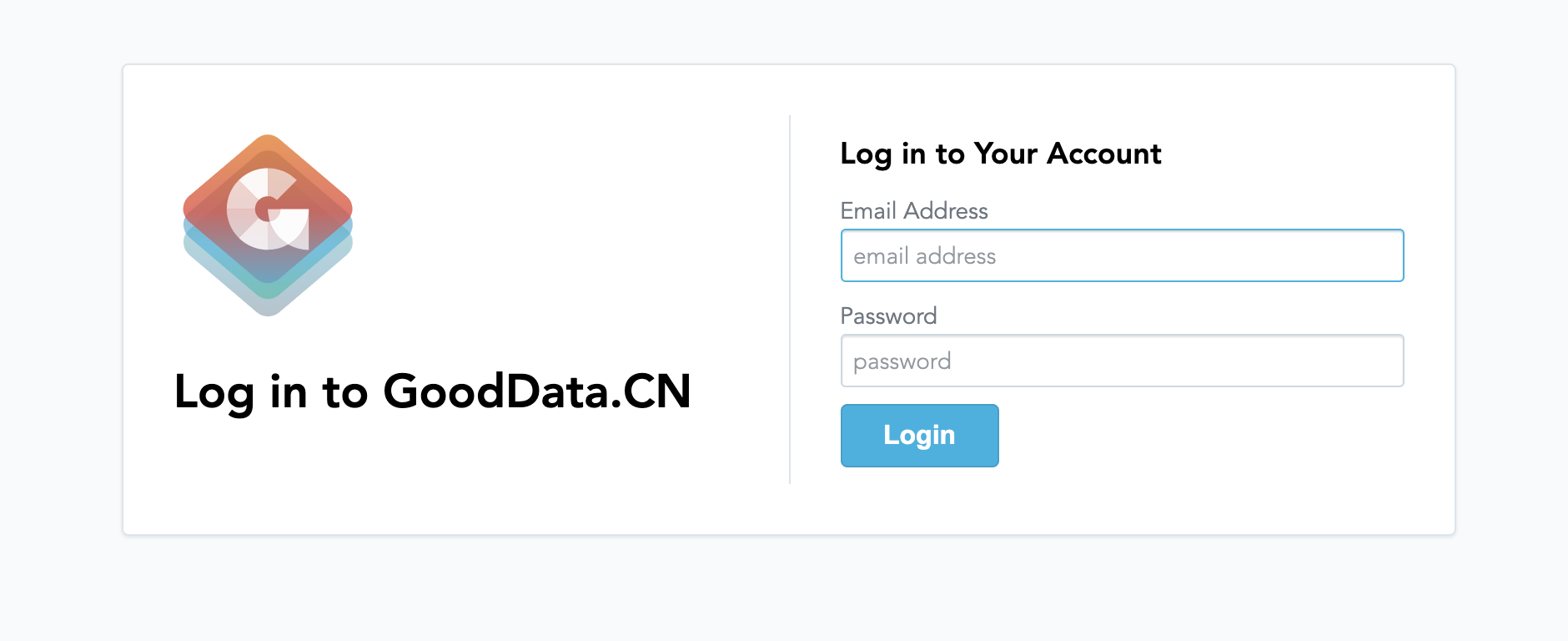
Log in using the following credentials of a demo user that is prepared in the GoodData.CN Community Edition:
- email:
demo@example.com - password:
demo123 - token:
YWRtaW46Ym9vdHN0cmFwOmFkbWluMTIz
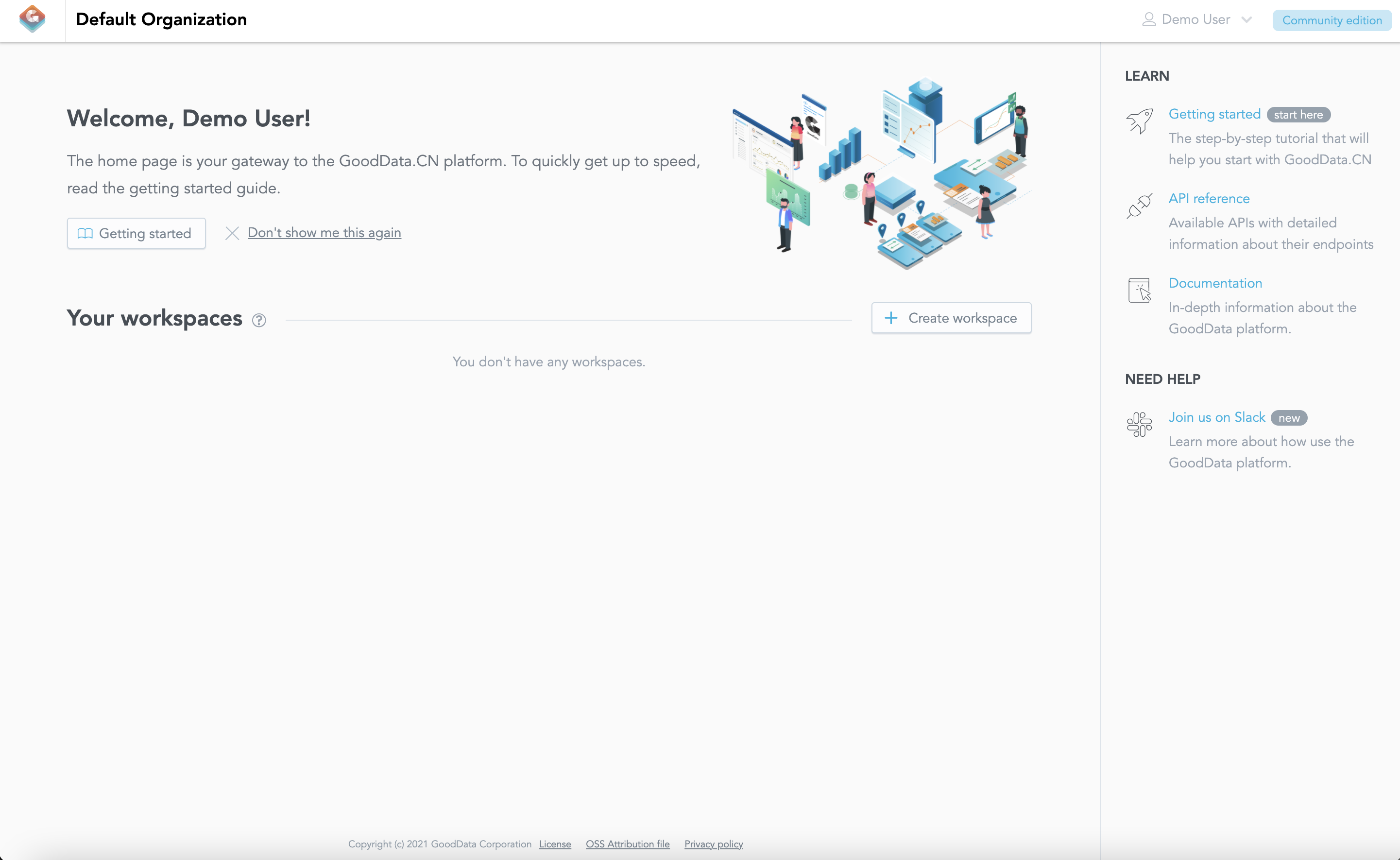
After you log in, the home page opens, and you can start exploring GoodData.CN.
- email:
You can now continue with creating a workspace.