Embed an Insight
Learn how to use GoodData.UI to embed an Insight into your web application.
Embed an Insight Using GoodData.UI
Steps:
Generate a React application skeleton using the GoodData.UI Accelerator Toolkit.
npx @gooddata/create-gooddata-react-app --backend tigerWhen prompted, enter the application name and the hostname of your GoodData.CN deployment.
? What is your application name? gooddata-cn-demo
? Insert your hostname: http://localhost:3000
? What is your application desired flavor?
  JavaScript
❯ TypeScript
The toolkit generates the application skeleton and it will guide you through the next steps.
Success! Your GoodData-powered application "gooddata-cn-demo" was created.
You can start it using the following commands:
    cd gooddata-cn-demo
    yarn start
Start the application.
cd gooddata-cn-demo
yarn start
The application starts running in your browser. If port
8443is available the application should run onlocalhost:8443by default.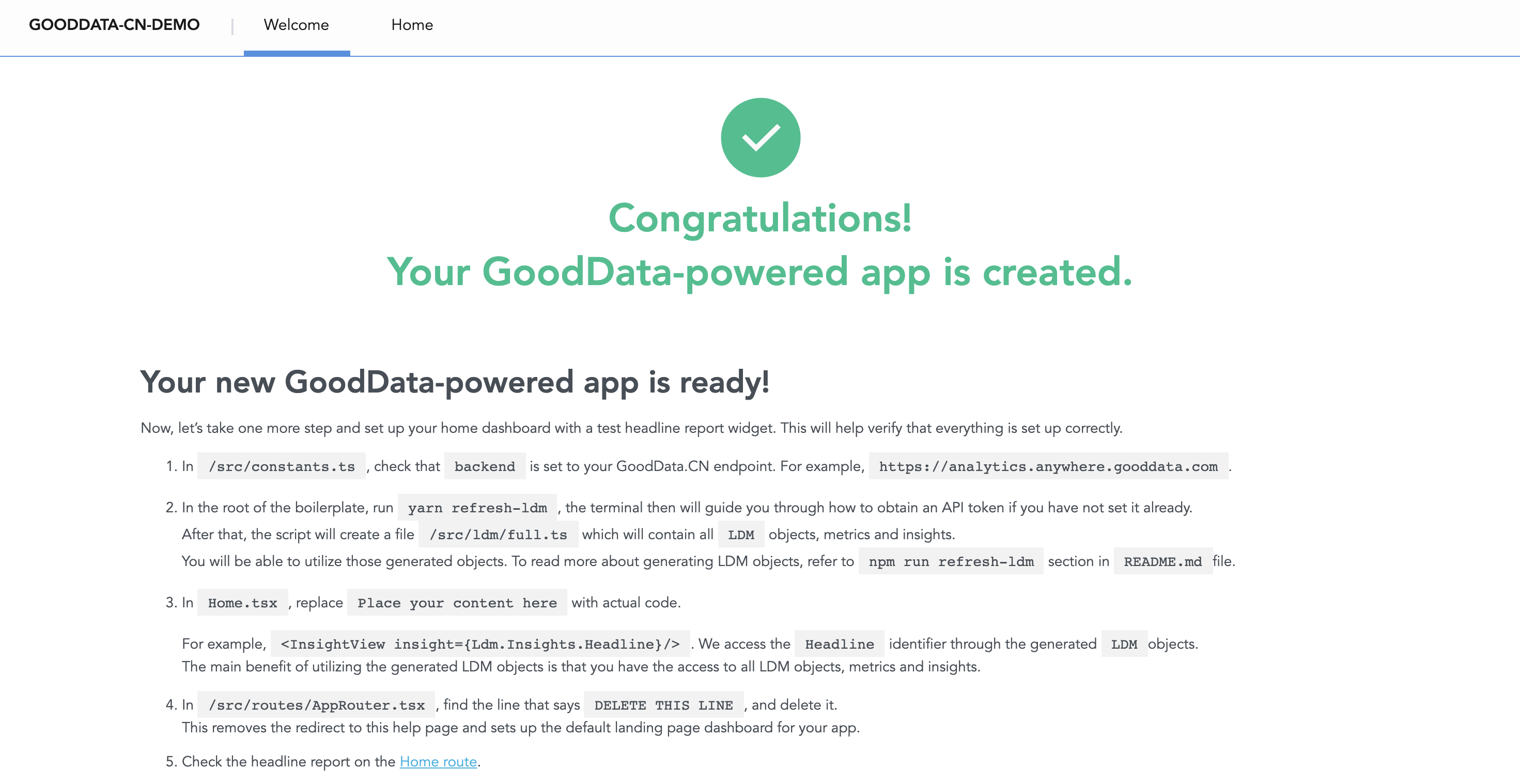 Running the application this way is intended only for development purposes. It sets your GoodData.CN as a local proxy so that it can be used without setting up CORS.
Provide your workspace identifier in
src/constants.ts.export const workspace = "<your-workspace-id>";Load the logical data model and all its entities to the application.
export TIGER_API_TOKEN=<tiger-api-token>
yarn refresh-md
If you are running GoodData.CN locally, you can check the install page where the Bearer token is mentioned.
An output is generated:
*----------------------------------------------*
|  GoodData Catalog Export Tool v8.5.0         |
*----------------------------------------------*
✔ Catalog loaded
✔ Date data sets loaded
✔ Insights loaded
✔ Analytical dashboards loaded
 ✔ SUCCESS  All data have been successfully exported
*---------------------------------------------------------------------------------*
|  The result generated from workspace with id demo is located at src/md/full.ts  |
*---------------------------------------------------------------------------------*
✨  Done in 2.65s.
Review the
src/md/full.tsfile to validate the generated content.Embed the insight into the prepared home page. To do so, open
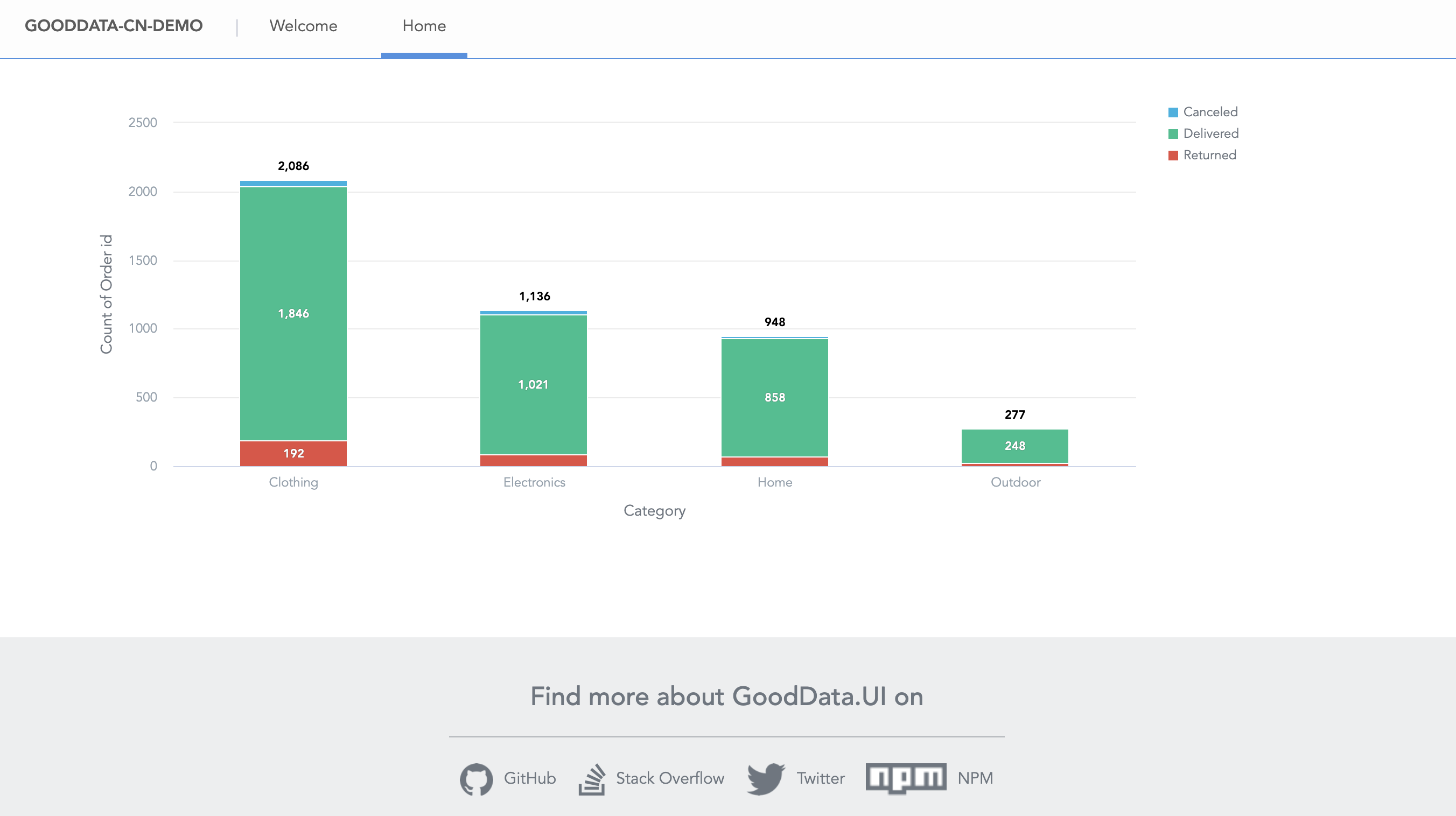
src/routes/Home.tsxand update the content to the following:import React from "react"; import { InsightView } from "@gooddata/sdk-ui-ext"; import Page from "../components/Page"; import { Insights } from "../md/full"; const Home = () => { return ( <Page> <div style={{ height: 400 }}> <InsightView insight={Insights.OrdersByStatusAndCategory} /> </div> </Page> ); }; export default Home;Note
Notice that the example is referencing the
OrdersByStatusAndCategoryinsight. You will probably have different name of the insight but the principle is the same. All insights from your workspace are listed in the filesrc/md/full.ts.Return to your application in the browser, and click Home in the navigation bar. The embedded insight opens.