Get Started with GoodData for VS Code
This article will get you started with the VS Code extension and the CLI tool.
Prerequisites
Before getting started, ensure that you have the following:
- VS Code 😉
- Node.js version 16.17 or newer installed
- A running instance of GoodData.
Use Trial
We recommend using the GoodData Trial. This makes it easy to follow this guide without risking tampering with your production environment.
Install VS Code Extension
Install the GoodData Visual Studio Code Extension (VS Code Extension). It provides tools for developer effectiveness, such as IntelliSense, syntax highlighting, and validation.
Steps:
- Open the extensions tab in your VS Code.
- In the search bar, look for “GoodData”.
- Select the GoodData extension and install it.
The extension may require you to reload your VS Code.
Install CLI
To install the GoodData Command-line Interface (CLI), run npm i -g @gooddata/code-cli.
Now that you have a new CLI command available, try running gd -v. This should return something along the lines of 0.1.0.
CLI shortcut
The CLI command is gd. Some terminal frameworks, e.g. OMZ, have preset the gd alias as a git diff.
If you experience problems with the alias, try to run unalias gd and consider adding this line to your .zshrc (or another) profile file.
How to Use
Initialize Project
Projects are initialized using the CLI.
Steps:
Add an environmental variable that stores your API access token. For example:
GOODDATA_API_TOKEN="<your_API_access_token>"For the easiest workflow, add the variable to your
.env.Be sure to add the
.envto the.gitignore, so you don’t expose your API key.
Token Persistence
Using the export GOODDATA_API_TOKEN="<YOUR_API_TOKEN>" command
will work only with the CLI tool, as the token will be persisted only in the given terminal instance and the extension does not operate on it.
This means that even though you will be able to successfully use gd init and gd clone, the extension will not work.
In your terminal, navigate to a folder where you want to build and store your analytics.
Run the following command to initialize your project:
gd initFollow the instructions to create a
gooddata.yamldefinition file.The result should look like this:
profiles:
dev:
    host: https://mamma_mia.trial.cloud.gooddata.com/
    token: $GOODDATA_API_TOKEN
    workspace_id: gdc_demo_730b50f8-8a93-4723-a872-64dca815a616
    data_source_id: gdc_demo_c2066bb5-bb14-419a-8172-239a380ffb49
source_dir: analytics
default_profile: dev
Run the following command to clone your GoodData analytical environment to your local machine:
gd cloneYou should now have an
analyticsfolder that contains yourdatasetsandmetrics.The resulting folder structure should look like this:
 root_directory
         └── analytics
         │       ├── datasets
         │       │       ├── dataset1.yaml
         │       │       ├── dataset2.yaml
         │       │       └── ...
         │       └── metrics
         │       │       ├── metric1.yaml
         │       │       ├── metric2.yaml
         │       │       └── ...
         └── gooddata.yaml
Create and Preview Metrics
Once you set up your project, you can create new Analytical Objects using code.
Steps:
Create a new yaml file in your metrics folder to represent your new metric. For example,
revenue_per_customer.yaml.Define a metric:
type: metric
id: revenue_per_customer

title: Revenue per Customer
description: The average revenue generated by each customer

maql: SELECT AVG(SELECT {metric/net_sales} BY {label/customer_id})
Notice the Run button.
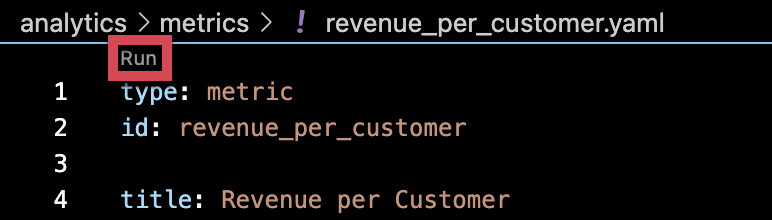
Click Run to run your metric.
You will be prompted whether you want to deploy your local environment.
Click Deploy only if you are sure you will not break anything.
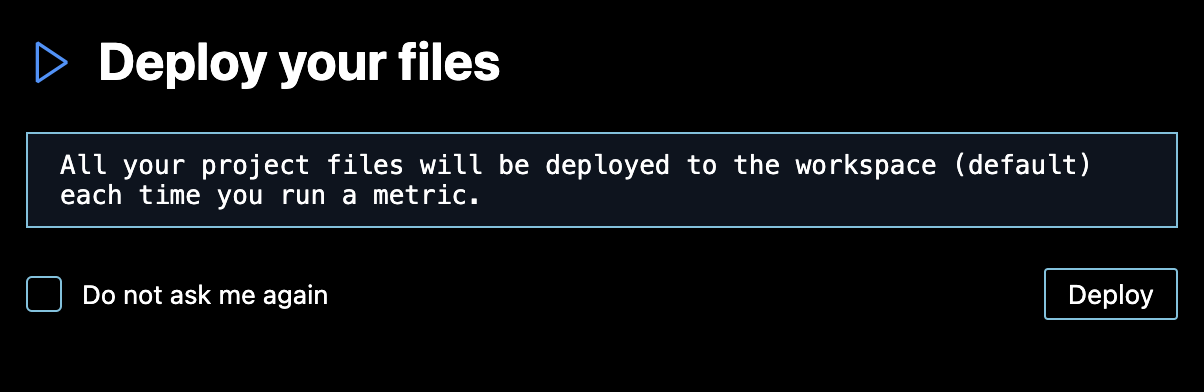
Running metrics deploys local environment
When you run the metric, it automatically deploys your local environment to the server. This is because we assume your directory to be the source of truth. To avoid breaking your production, create a new development workspace.Result:
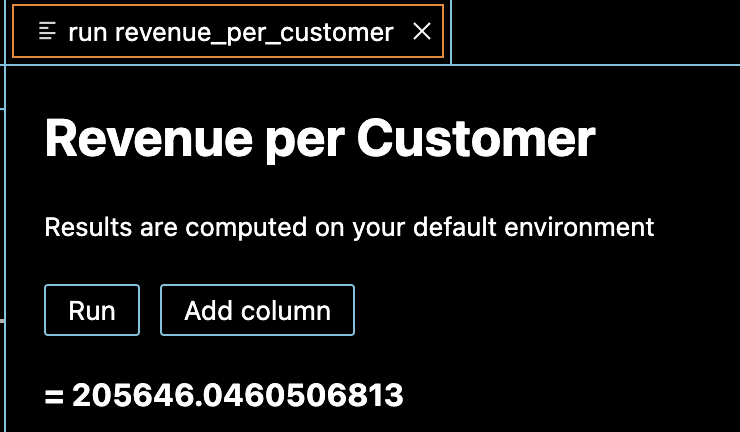
Save the file.
Deploy Your Changes
To deploy your project to a GoodData server, ensure all your changes are saved and run the following command:
gd deployYour changes will be deployed to the hostname and workspace you defined in the gooddata.yaml definition file.