Change Display Language
GoodData localizes three separate layers. Each layer has its own setting. Changing one layer does not translate the others.
| Layer | What it translates | Where it stops |
|---|---|---|
| User interface | Product text that GoodData ships: menus, buttons, and section names such as Settings, Dashboards, and Save. | Names you give to dashboards, metrics, and other objects, and the values stored in your data. |
| Metadata | Names and descriptions you give to objects: dashboards, visualizations, metrics, facts, attributes, and free-form text on a dashboard. | The product menus, and the values in each row of your data. |
| Data | Attribute values shown to the reader, such as a country or product name. | The identifier used for filters, drills, and shared links, and the names of dashboards and metrics. |
On one dashboard, the three layers meet like this. Display language changes the word Dashboards and the Save button. Metadata localization changes a dashboard title such as “Revenue by Region” and a metric name such as “Gross Profit”. Data localization shows an attribute value such as “Germany” as “Deutschland”. The filter still uses the original value, so a shared link opens the same data.
You can set each layer for the organization, a workspace, or a user.
User Interface

By default, GoodData displays the user interface in US English. Change it with the Display language setting (LOCALE).
The change applies to Dashboards, Analytical Designer, the Home page, and sections such as Getting Started, Workspaces, Data Sources, Users and Groups, Automations, and Settings, including the titles and descriptions of those sections.
Available Languages
The GoodData user interface supports the following languages, listed alphabetically:
- Bahasa Indonesian
- Chinese
- Chinese (Cantonese)
- Chinese (Traditional)
- Dutch
- English (Australia)
- English (Great Britain)
- English (USA)
- Finnish
- French
- French (Canada)
- German
- Italian
- Japanese
- Korean
- Polish
- Portuguese (Brazil)
- Portuguese (Portugal)
- Slovenian
- Spanish
- Spanish (Latin America)
- Thai
- Turkish
- Ukrainian
- Vietnamese
Note
Unless you set a specific display language for a workspace or a user, the settings are inherited from their parents:
- Workspaces inherit the settings from their parent entity, i.e. parent workspace or organization.
- Users inherit the language settings from their workspaces.
Change the Language
To change the display language:
- Create the
localesetting. - Enable the language that you want to use.
Below is a table of language IDs that you can use to enable different languages. The IDs are listed in alphabetical order:
| Language | Language ID |
|---|---|
| Bahasa Indonesian | id-ID |
| Chinese | zh-Hans |
| Chinese (Cantonese) | zh-HK |
| Chinese (Traditional) | zh-Hant |
| Dutch | nl-NL |
| English (American - default) | en-US |
| English (Australian) | en-AU |
| English (British) | en-GB |
| Finnish | fi-FI |
| French | fr-FR |
| French (Canadian) | fr-CA |
| German | de-DE |
| Italian | it-IT |
| Japanese | ja-JP |
| Korean | ko-KR |
| Polish | pl-PL |
| Portuguese | pt-PT |
| Portuguese (Brazilian) | pt-BR |
| Slovenian | sl-SI |
| Spanish | es-ES |
| Spanish (Latin American) | es-419 |
| Thai | th-TH |
| Turkish | tr-TR |
| Ukrainian | uk-UA |
| Vietnamese | vi-VN |
Note
You cannot change the texts nor add additional languages.
If you use an invalid language ID, English (en-US) will be used instead.
Organization
To change the display language for the whole organization, use one of the following methods:
Steps:
Go to Settings.
Under Localization > Display language, click Change.
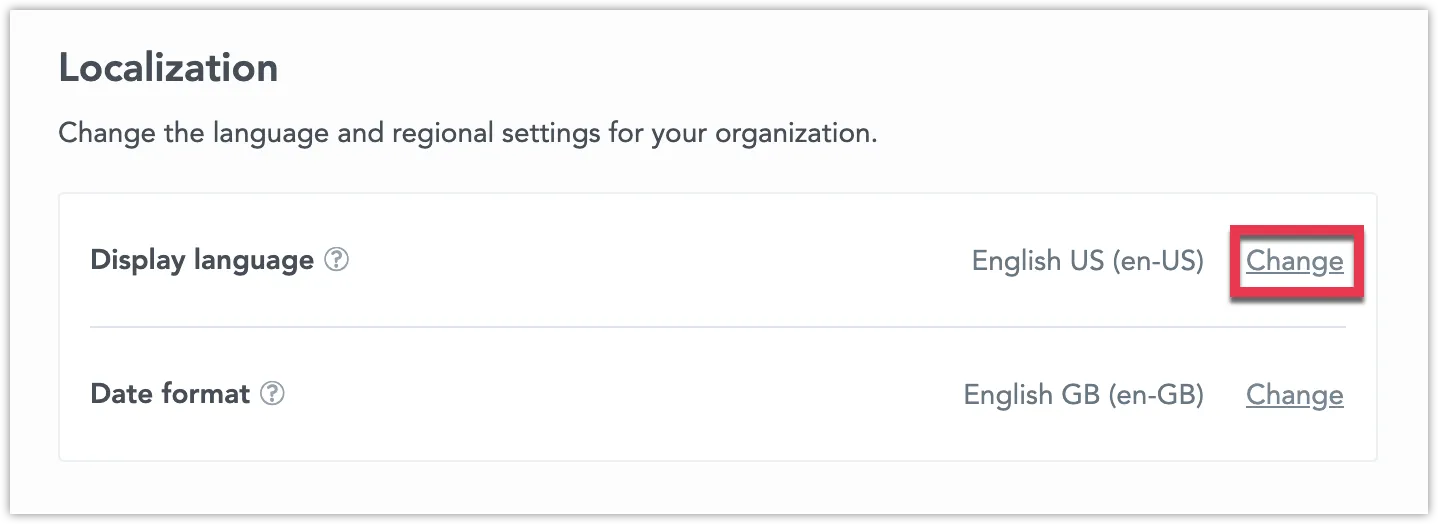
Select one of the supported languages and click Apply.
To create the locale organization settings, send the following POST request /api/v1/entities/organizationSettings:
curl $ENDPOINT/api/v1/entities/organizationSettings \
  -H "Content-Type: application/vnd.gooddata.api+json" \
  -H "Accept: application/vnd.gooddata.api+json" \
  -H "Authorization: Bearer {API_TOKEN}" \
  -X POST \
  -d '{
    "data":
    {
        "type": "organizationSetting",
        "id": "{some_id}",
        "attributes": {
            "content": {"value": "LANGUAGE_ID"},
            "type": "LOCALE"
        }
    }
}' | jq .
To enable a different language, send the following PUT request /api/v1/entities/organizationSettings/locale:
curl $ENDPOINT/api/v1/entities/organizationSettings/locale \
  -H "Content-Type: application/vnd.gooddata.api+json" \
  -H "Accept: application/vnd.gooddata.api+json" \
  -H "Authorization: Bearer {API_TOKEN}" \
  -X PUT \
  -d '{
    "data":
    {
        "type": "organizationSetting",
        "id": "{some_id}",
        "attributes": {
            "content": {"value": "LANGUAGE_ID"},
            "type": "LOCALE"
        }
    }
}' | jq .
To create the locale organization settings, send the following POST request /api/v1/entities/organizationSettings:
Invoke-RestMethod -Method Post -Uri '$ENDPOINT/api/v1/entities/organizationSettings' `
-ContentType 'application/vnd.gooddata.api+json' `
-H @{
    'Accept' = 'application/vnd.gooddata.api+json'
    'Authorization' = 'Bearer {API_TOKEN}'
} `
-Body '{
    "data":
    {
        "type": "organizationSetting",
        "id": "{some_id}",
        "attributes": {
            "content": {"value": "LANGUAGE_ID"},
            "type": "LOCALE"
        }
    }
}' | ConvertTo-Json
To enable a different language, send the following PUT request /api/v1/entities/organizationSettings/locale:
Invoke-RestMethod -Method Put -Uri '$ENDPOINT/api/v1/entities/organizationSettings/locale' `
-ContentType 'application/vnd.gooddata.api+json' `
-H @{
    'Accept' = 'application/vnd.gooddata.api+json'
    'Authorization' = 'Bearer {API_TOKEN}'
} `
-Body '{
    "data":
    {
        "type": "organizationSetting",
        "id": "{some_id}",
        "attributes": {
            "content": {"value": "LANGUAGE_ID"},
            "type": "LOCALE"
        }
    }
}' | ConvertTo-Json
Workspace
To change the display language for individual workspaces, use one of the following methods:
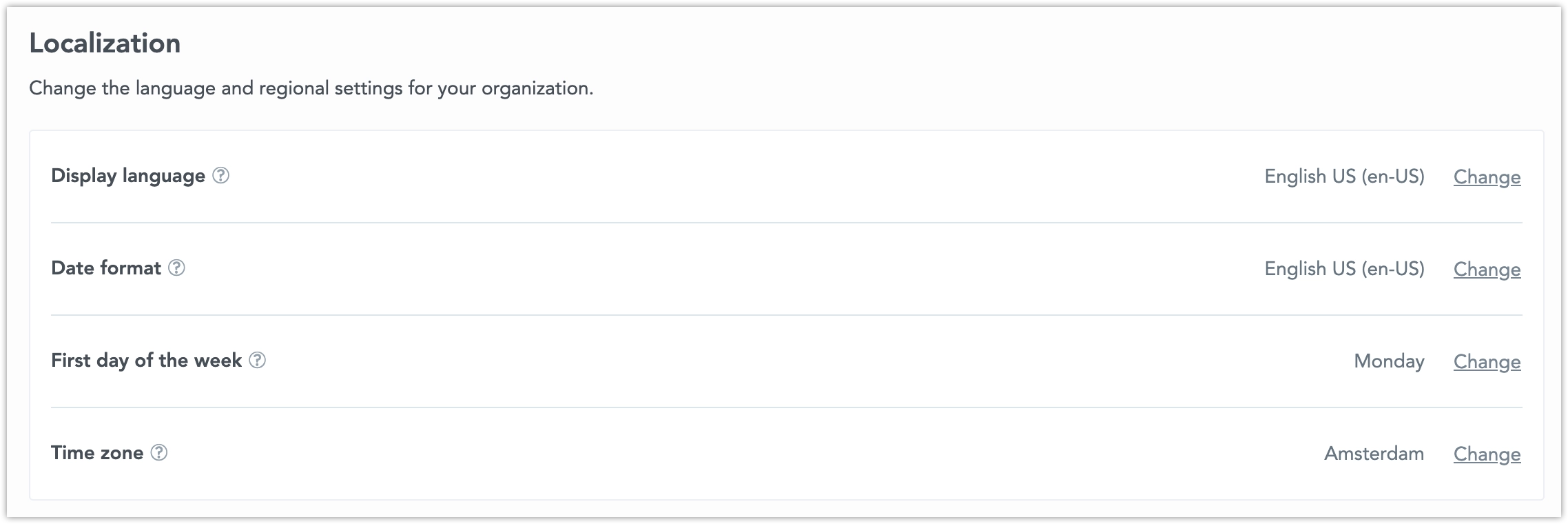
Go to the Workspaces tab and open the workspace you want to edit. Open the Settings tab and click Change in the Display language section.
To create the locale workspace settings, send the following POST request /api/v1/entities/workspaceSettings:
curl $ENDPOINT/api/v1/entities/workspaces/{WORKSPACE_ID}/workspaceSettings \
  -H "Content-Type: application/vnd.gooddata.api+json" \
  -H "Accept: application/vnd.gooddata.api+json" \
  -H "Authorization: Bearer {API_TOKEN}" \
  -X POST \
  -d '{
    "data":
    {
        "type": "workspaceSetting",
        "id": "{some_id}",
        "attributes": {
            "content": {"value": "LANGUAGE_ID"},
            "type": "LOCALE"
        }
    }
}' | jq .
To enable a different language, send the following PUT request /api/v1/entities/workspaceSettings/locale:
curl $ENDPOINT/api/v1/entities/workspaces/{WORKSPACE_ID}/workspaceSettings/locale \
  -H "Content-Type: application/vnd.gooddata.api+json" \
  -H "Accept: application/vnd.gooddata.api+json" \
  -H "Authorization: Bearer {API_TOKEN}" \
  -X PUT \
  -d '{
    "data":
    {
        "type": "workspaceSetting",
        "id": "{some_id}",
        "attributes": {
            "content": {"value": "LANGUAGE_ID"},
            "type": "LOCALE"
        }
    }
}' | jq .
To create the locale workspace settings, send the following POST request /api/v1/entities/workspaceSettings:
Invoke-RestMethod -Method Post -Uri '$ENDPOINT/api/v1/entities/workspaces/{WORKSPACE_ID}/workspaceSettings' `
-ContentType 'application/vnd.gooddata.api+json' `
-H @{
    'Accept' = 'application/vnd.gooddata.api+json'
    'Authorization' = 'Bearer {API_TOKEN}'
} `
-Body '{
    "data":
    {
        "type": "workspaceSetting",
        "id": "{some_id}",
        "attributes": {
            "content": {"value": "LANGUAGE_ID"},
            "type": "LOCALE"
        }
    }
}' | ConvertTo-Json
To enable a different language, send the following PUT request /api/v1/entities/workspaceSettings/locale:
Invoke-RestMethod -Method Put -Uri '$ENDPOINT/api/v1/entities/workspaces/{WORKSPACE_ID}/workspaceSettings/locale' `
-ContentType 'application/vnd.gooddata.api+json' `
-H @{
    'Accept' = 'application/vnd.gooddata.api+json'
    'Authorization' = 'Bearer {API_TOKEN}'
} `
-Body '{
    "data":
    {
        "type": "workspaceSetting",
        "id": "{some_id}",
        "attributes": {
            "content": {"value": "LANGUAGE_ID"},
            "type": "LOCALE"
        }
    }
}' | ConvertTo-Json
User
To change the display language for individual users, you need to use the API:
To create the locale user settings, send the following POST request /api/v1/entities/userSettings:
curl $ENDPOINT/api/v1/entities/users/{USER_ID}/userSettings \
  -H "Content-Type: application/vnd.gooddata.api+json" \
  -H "Accept: application/vnd.gooddata.api+json" \
  -H "Authorization: Bearer {API_TOKEN}" \
  -X POST \
  -d '{
    "data":
    {
        "type": "userSetting",
        "id": "{some_id}",
        "attributes": {
            "content": {"value": "LANGUAGE_ID"},
            "type": "LOCALE"
        }
    }
}' | jq .
To enable a different language, send the following PUT request /api/v1/entities/userSettings/locale:
curl $ENDPOINT/api/v1/entities/users/{USER_ID}/userSettings/{locale_id} \
  -H "Content-Type: application/vnd.gooddata.api+json" \
  -H "Accept: application/vnd.gooddata.api+json" \
  -H "Authorization: Bearer {API_TOKEN}" \
  -X PUT \
  -d '{
    "data":
    {
        "type": "userSetting",
        "id": "{some_id}",
        "attributes": {
            "content": {"value": "LANGUAGE_ID"},
            "type": "LOCALE"
        }
    }
}' | jq .
To create the locale user settings, send the following POST request /api/v1/entities/userSettings:
Invoke-RestMethod -Method Post -Uri '$ENDPOINT/api/v1/entities/users/{USER_ID}/userSettings' `
-ContentType 'application/vnd.gooddata.api+json' `
-H @{
    'Accept' = 'application/vnd.gooddata.api+json'
    'Authorization' = 'Bearer {API_TOKEN}'
} `
-Body '{
    "data":
    {
        "type": "userSetting",
        "id": "{some_id}",
        "attributes": {
            "content": {"value": "LANGUAGE_ID"},
            "type": "LOCALE"
        }
    }
}' | ConvertTo-Json
To enable a different language, send the following PUT request /api/v1/entities/userSettings/locale:
Invoke-RestMethod -Method Put -Uri '$ENDPOINT/api/v1/entities/users/{USER_ID}/userSettings/{locale_id}' `
-ContentType 'application/vnd.gooddata.api+json' `
-H @{
    'Accept' = 'application/vnd.gooddata.api+json'
    'Authorization' = 'Bearer {API_TOKEN}'
} `
-Body '{
    "data":
    {
        "type": "userSetting",
        "id": "{some_id}",
        "attributes": {
            "content": {"value": "LANGUAGE_ID"},
            "type": "LOCALE"
        }
    }
}' | ConvertTo-Json
Metadata Localization
Metadata localization translates the names and text you write on analytical objects, such as a dashboard title or a metric name. Set it with METADATA_LOCALE. It leaves the product menus in the display language, and it leaves attribute values such as country names in the data language.

In the following dashboard, METADATA_LOCALE is set to de-DE. The dashboard title, section header, visualization titles, filter names, and metric names are in German. The menus and buttons stay in the display language, and the country names stay in the data language.
When you extend your analytics across various regions and languages, it’s beneficial to adapt the embedded analytics to fit local contexts. This includes translating the content within visualizations and adjusting date or currency formats as needed.
Language settings can be customized at different levels: organization-wide, for individual tenants (workspaces), or even for specific users. Typically, the metadata language aligns with the user interface (UI) language. However, situations may arise where you prefer the metadata in one language and the UI in another. For instance, while using the Analytics Designer in English, you might wish to provide the embedded visualizations to your end-users in multiple languages, which they can select from their account settings.
XLIFF Files
Metadata localization within GoodData uses standard XLIFF files (version 2.0 or 2.1). These files contain all translatable text strings. The translations are stored within the workspace that originates the entities, i.e. translations of entities must be added to workspaces that have ownership of them. A single XLIFF file can serve multiple workspaces, assuming they are copies of an original workspace and remain unaltered. Modifications to a cloned workspace or the creation of a new workspace necessitate generating new XLIFF files for each case.
Entities subject to localization include titles, descriptions, tags (in attributes, labels, facts, datasets, metrics, attribute hierarchies, dashboards, visualizations, and filters), along with free-form content in dashboards, visualizations, and filters. The Declarative API does not support localization.
This localization feature is designed for scenarios where modifications to workspace metadata, dashboards, or visualizations are carried out in the original English version, which is then translated and distributed to users in other languages. Translation between languages (e.g., German to French) is not supported; translations can only be made from the default language (en-US) to the target language. Should a translation for a string/entity not exist, GoodData defaults to using the original language values.
Metadata Localization Process
The process of localizing metadata involves three main steps:
- Export an XLIFF file for localization purposes.
- Translate the content into the desired languages.
- Import the localized XLIFF file back into GoodData.
Exporting an XLIFF File
To begin the localization process, use the GET API to export metadata strings that require translation for each language. This action will generate an XLIFF file for any specified language.
To retrieve the original text strings, use the following API call:
POST {"locale":"<locale-identifier>"} to api/v1/actions/workspaces/<id>/translations/retrieveIf translations already exist, specify a locale identifier in the above API call to obtain translations for a specific language.
To show a list of already translated locales, use the following API call:
GET api/v1/actions/workspaces/<id>/translationsTranslating the XLIFF File
Within the XLIFF file, specify the target language using the standard IETF RFC 5646 language tag (for example, es-ES for Spanish or ja-JP for Japanese). Translate the strings contained within the <source> tags and add your translations within the same segment, enclosed in <target> tags.
Example structure of an XLIFF file:
<xliff xmlns="urn:oasis:names:tc:xliff:document:2.0" version="2.0"
       srcLang="en-US" trgLang="cs-CZ">
 <file id="cz-cz-translation">
  <group id="fact">
   <group id="fact.volume">
    <unit id="fact.volume.title">
     <segment>
        <source>tagA</source>
        <target>Translation of tagA</target>
     </segment>
     <segment>
        <source>tagB</source>
        <target>Translation of tagB</target>
     </segment>
    </unit>
   </group>
  </group>
 </file>
</xliff>
To aid translators in understanding the context of free-form segments, each segment contains JSON paths within the source text. This is accomplished using mrk inline elements, making it easier for translators to navigate and comprehend the document structure.
Example:
<segment id="<hashed_value>">
  <source>
    <mrk id="1" type="free-form:path" value="<json_path>"/>Source text
  </source>
  <target>Translated text</target>
</segment>
Importing the XLIFF File
After translating the strings in the XLIFF files, they can be imported back into GoodData. Administrators will use an API call with the corresponding XLIFF file for each language.
To create or update translations, use:
POST the XLIFF document to api/v1/actions/workspaces/<id>/translations/setTo remove translations for a specific locale, use:
POST {"locale":"<locale-identifier>"} to api/v1/actions/workspaces/<id>/translations/cleanSetting Up Metadata Localizations
To choose a specific metadata localization through the API, it is necessary to set the METADATA_LOCALE setting. It must be set at the organization, workspace, or user level for the metadata to be translated.
To do so, follow the same steps as described in the sections above. See Change the Language for Organization, Workspace, or User for details.
Below is an example API payload for this configuration:
"data": {
  "type": "workspaceSetting",
  "id": "my_id",
  "attributes": {
    "content": { "value": "pt-PT" },
    "type": "METADATA_LOCALE"
  }
}
Only users with organization.MANAGE or workspace.MANAGE permissions can configure metadata localizations for a workspace. Once set up, users can choose their preferred language for metadata.
Limitations of Metadata Localizations
Whenever a metadata string of an object is modified (for example, if the author of a dashboard changes its title), all associated translations are reset. To ensure that translations remain up-to-date, the organization’s administrator is required to perform a new export-import process for localization for each language.
The default language,
en-US, cannot be targeted for translations. If attempted, such translations will be ignored by the backend.Multi-line text strings should not include indentation. For instance:
    <target>Multi-line
text.
    </target>
Automatic formatting by some code editors might indent these elements, potentially causing issues with backend processing.
Filtering operations use the original language.
In the XLIFF file, translations must maintain the original tag values’ order. Changing the order of segments can result in lost ordering and incorrect segment returns in XLIFF exports for that language, as illustrated by the example of improper segment order.
Localized versions are intended solely for content consumption. For instance, a user with a German localized version will see metrics and reports in German but cannot alter the names of these metrics or reports.
Localized Data Labels
Data localization translates attribute values shown to the reader, such as a country, product, or region name. Set it with DATA_LOCALE. It leaves dashboard and metric names in the metadata language, and it leaves menus and buttons in the display language. Filters, drills, and shared links still use the original value, so the same selection opens for every reader.
In the following dashboard, DATA_LOCALE is set to de-DE and METADATA_LOCALE is not set. The country names come from the German translation column, such as Vereinigte Staaten, Frankreich, and Deutschland. The dashboard title, visualization titles, and filter names stay in English.

Localized Data Labels let you show these dimension values in the user’s preferred language while keeping analytics logic stable.
How it works
- The primary label drives logic. Filtering, saved views, drills, and shared links store and resolve values using the primary label (canonical).
- Secondary (text) labels can have translations for specific locales. GoodData displays the translation that matches the user’s
dataLocale. If no translation exists for that locale, GoodData falls back to the secondary label value (not the primary label). For example, the primary label stores ISO codes (e.g.GER). The secondary label stores the base display name (e.g.Germany). A German translation can provideDeutschland. If a user’s locale is Spanish and no Spanish translation exists, GoodData showsGermany.
Filters and Metrics
When enabled, localized secondary labels are used broadly across the platform, including filters and metrics. This can affect results if you use localized labels and localized literals in definitions.
Secondary label values are localized, but content is shared across users regardless of their locale. If you create a metric or filter that references a localized secondary label and uses localized text literals, users in different locales can get different results.
Example: If you define a metric filter like ... WHERE {label/place} = "Office" and place is a localized secondary label, the literal "Office" may not exist in German or Spanish. The condition can become false for those locales, and the metric returns incorrect results.
Recommendation: If possible, do not create filters or metric conditions based on localized secondary labels and localized literals. Opt for:
- Attributes or primary labels whose values are the same across locales
- Stable identifiers or non-localized values
Setup
- Provide translation columns in your data
Add one column per language to the dimension table (denormalized), for example:
region_name(default)region_name_esregion_name_de
- Map translations in the Logical Data Model
Define locale and translations on a secondary label.
locale(optional) is a BCP 47 locale including extensions. It overridesldmDefaultLocalewhen set. Default isnull(no locale).translationsis an array of objects, each with:sourceColumn(database column name)locale(BCP 47 locale including extensions)
Example:
"labels": [
  {
    "locale": "en-US",
    "sourceColumn": "region_name",
    "translations": [
      { "locale": "es-ES", "sourceColumn": "region_name_es" },
      { "locale": "de-DE", "sourceColumn": "region_name_de" }
    ]
  }
]
Rules:
- Translations can be defined only on secondary labels.
- Translation source columns must be STRING.
- Each translation must use a valid locale (BCP 47). Locales must be unique.
- Set the data locale
To display localized data values (for example, translated attribute values) and keep the experience consistent across dashboards, filters, visualizations, and exports, set the DATA_LOCALE setting.
You can set DATA_LOCALE at the organization, workspace, or user level. Users can also change it for themselves if allowed, in the same way as metadata locale.
DATA_LOCALE uses a BCP 47 locale without extensions (for example es-ES, de-DE, cs-CZ).
Example API payload:
"data": {
  "type": "workspaceSetting",
  "id": "my_id",
  "attributes": {
    "content": { "value": "es-ES" },
    "type": "DATA_LOCALE"
  }
}
Only users with organization.MANAGE or workspace.MANAGE permissions can configure settings for a workspace or organization.
Behavior in the product
Dashboards, filters, and collaboration
- Dashboards and filters show localized values.
- Filter states persist across language changes because selections are stored using the primary label.
- Shared links remain correct across languages. The recipient sees the same data, with labels in their locale.
Exports and scheduled exports
Exports reflect the localized values the user sees.
Scheduled exports:
- Internal recipients use the recipient’s data locale
- External recipients use the schedule creator’s data locale
Sorting
- When translated labels are displayed, sorting follows the displayed text by default.
- If you define a custom sort column, it overrides alphabetical sorting.
- If a user locale is not set, sorting behavior can be controlled by
sortCaseSensitive(case-sensitive on or off). Locale extensions can also affect case sensitivity when a locale is used.
The sorting of text values can be influenced by workspace settings:
LDM_DEFAULT_LOCALESets the default locale used for sorting text values in the workspace. When set, text values are sorted according to this locale without requiring you to definelocaleon each label.This setting can be set at the workspace level (and typically also at organization level if your settings model supports it), using the same settings API shape, with
type: "LDM_DEFAULT_LOCALE".SORT_CASE_SENSITIVEControls case-sensitive sorting behavior. This is useful when no explicit locale-based sorting is applied (for example, when a user locale is not set). Set it usingtype: "SORT_CASE_SENSITIVE".
Example payload:
{
  "data": {
    "type": "workspaceSetting",
    "id": "sort_case_sensitive",
    "attributes": {
      "content": { "value": false },
      "type": "SORT_CASE_SENSITIVE"
    }
  }
}
Sorting behavior example:
Default sorting:
- Adam
- Barbara
- adam
- barbara
With SORT_CASE_SENSITIVE = false:
- Adam
- adam
- Barbara
- barbara
Limitations
- Translation columns must be
STRING. - Translations are intended for localized display. Avoid using localized secondary labels with localized literals in metric/filter logic as described above.
- Translation labels are not intended for MAQL conditions to avoid language-specific logic.
- Language-specific collation rules (for example accents or umlauts) are not guaranteed unless you configure label locale/collation appropriately.