Agents
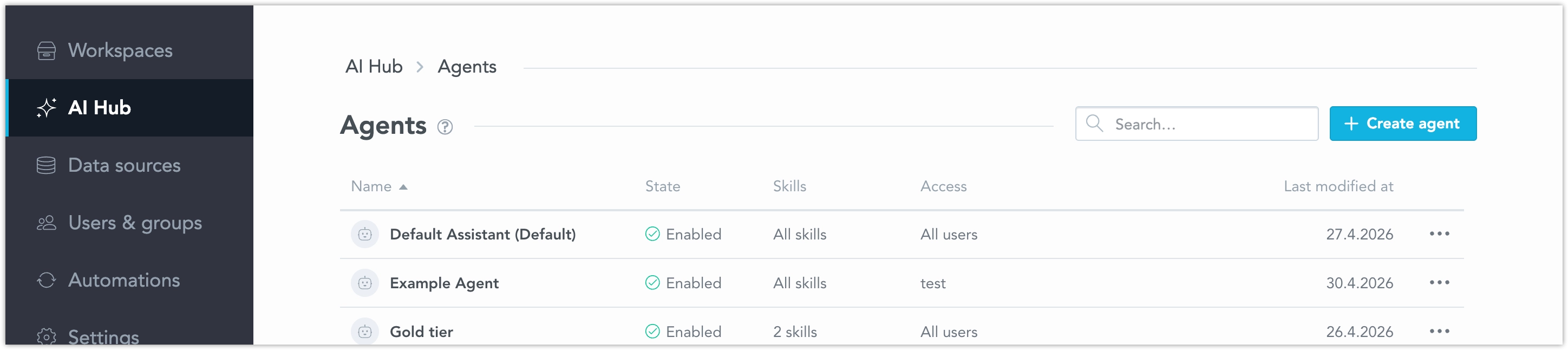
Agents let organization administrators define different AI Assistant experiences for different groups of users. Each agent controls how the AI Assistant communicates, which skills it can use, whether it can use AI Knowledge, and who can receive that configuration.
Agents are configured at the organization level in AI Hub. End users continue to interact with the AI Assistant. The active agent configuration is resolved automatically and is not shown to the user.
Before You Start
You must be an organization administrator to create and manage agents.
For a user to use an agent in a workspace, both of the following must be true:
- the user must be included in Who can use this agent, either through a selected user group or All users
- the user must have the AI Assistant workspace permission (
Workspace.AI_USE_Assistant) in that workspace
Assigning an agent to a user group does not grant the AI Assistant workspace permission.
Workspace permissions and data filters continue to apply. An agent can answer only using data the user is allowed to access in the workspace.
For general AI Assistant setup, including how to grant the AI Assistant workspace permission, see Configure AI Assistant.
Create an Agent
- Open AI Hub at the organization level.
- In the Agents tile, click Manage.
- Click Create agent.
- Enter a name and, optionally, a description.
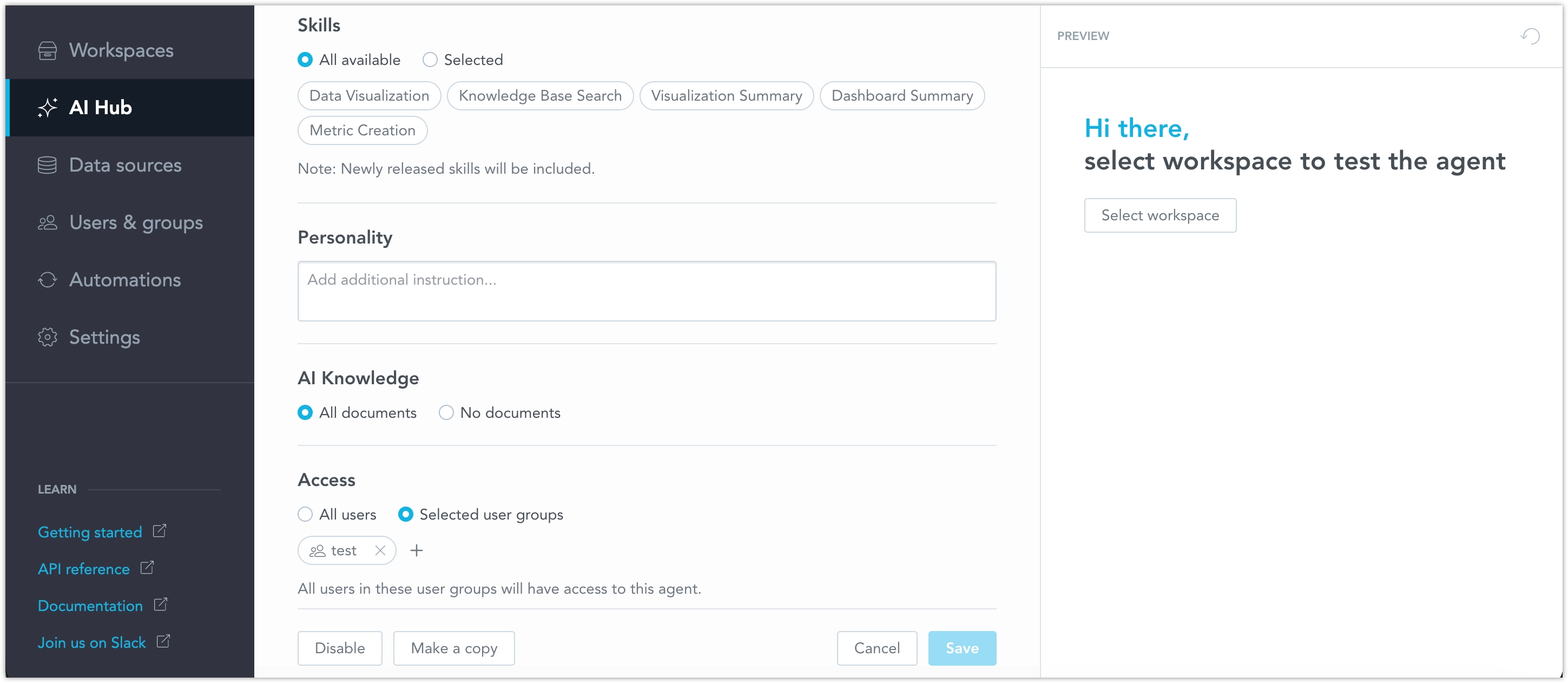
- Configure the agent:
- choose which skills are enabled
- add a Personality instruction
- turn AI Knowledge access on or off
- configure Who can use this agent
- Use the Preview panel to test the agent in a selected workspace.
- Click Create and confirm the change.
The agent becomes active immediately after you create it.
Configure an Agent
An agent configuration contains Personality, Skills, AI Knowledge, and Who can use this agent settings.
Personality
Personality is a free-text instruction that tells the agent how to communicate and behave. Use it to define tone, response style, level of detail, or rules for how the agent should handle ambiguous requests.
Keep the instruction specific and practical. For example:
- Keep answers short and business-friendly. Ask a clarifying question when a request is ambiguous.
- Start with a short summary. Explain analytical terms in plain language and state assumptions clearly.
- For finance users, explain acronyms on first use and separate observed results from recommendations.
- Prefer concise answers. Add more detail only when the user asks for it.
Personality is not a security or capability setting. Do not use the instruction to:
- grant access to data or override workspace permissions or data filters
- enable skills that are not available to the agent
- change whether the agent can use AI Knowledge
- assign the agent to users or user groups
- replace information that should be maintained as trusted content in AI Knowledge
These controls are configured separately and cannot be overridden by the Personality instruction.
Skills
Skills determine what the agent can do for its users. They add capabilities such as creating visualizations, detecting anomalies, or performing analytical tasks.
You can choose:
- All enabled: the agent can use all available platform skills. Newly available skills are included automatically.
- Only selected: the agent can use only the skills you select.
The exact list of available skills depends on the AI capabilities enabled for your organization and workspace.
Available skills may include:
- Alert creation: creates metric alerts with automatic notifications.
- Anomaly detection: finds anomalies, outliers, and unusual patterns in your data.
- Clustering: groups data points into clusters based on similarity.
- Dashboard summary: summarizes dashboard tabs or dashboard content.
- Data visualization: creates charts, tables, and visualizations from metrics and dimensions.
- Description: generates or improves business-friendly descriptions for analytics objects.
- Forecasting: forecasts future metric values based on historical data.
- Key driver analysis: interprets why a metric changed between two time periods.
- Knowledge search: searches AI Knowledge for documents and information.
- Metric creation: creates MAQL metrics.
- Scheduled export: creates scheduled exports for recurring delivery.
- Visualization summary: summarizes ad hoc or saved visualizations.
- What-if analysis: compares projected metric values under different business assumptions.
AI Knowledge
AI Knowledge controls whether the agent can use documents uploaded to AI Knowledge as trusted context when answering questions.
Enable AI Knowledge when the agent should use curated documents such as product documentation, internal guides, playbooks, or business definitions.
Disable AI Knowledge when:
- the agent should rely only on governed analytics metadata and data
- the assigned users should not receive document-based guidance
- the available documents are not curated for the target audience
- you want to limit the agent to a narrower, task-specific experience
Who Can Use This Agent
Who can use this agent determines which users are eligible to receive the agent configuration.
You can make the agent available to:
- All users
- one or more user groups
Individual user assignment is not supported.
The setting does not change the data a user can access. The agent can answer only using data from workspaces the user already has access to, respecting the user’s workspace permissions and data filters.
Required Workspace Permission
Agents are available only in workspaces where users have the AI Assistant permission.
Each user must have Workspace.AI_USE_Assistant in the workspace where they want to use the AI Assistant. Being included in Who can use this agent does not grant this permission.
To grant the permission:
- Open Users & groups.
- Next to a user or group, click the … (ellipsis) button and select Add workspace permission.
- Select the workspace.
- Enable AI Assistant and click Add.
For more information about the AI Assistant permission, see Assign Permissions.
Preview an Agent
When you create or edit an agent, use the Preview panel to test its behavior before saving the configuration.
Select a workspace and ask test questions to verify the agent’s Personality, Skills, and AI Knowledge behavior. The preview can include unsaved changes, so you can validate the configuration before applying it to users.
Manage Existing Agents
From the Agents page, you can edit, duplicate, enable, disable, and delete agent configurations.
Edit an Agent
Open an agent to update its name, description, Personality, Skills, AI Knowledge setting, or Who can use this agent configuration.
Changes take effect immediately after you save them.
Make a Copy
Use Make a copy to create a new agent based on an existing configuration. The new agent starts with the copied settings, which you can adjust before creating it.
Enable or Disable an Agent
An enabled agent is available to users who match its Who can use this agent configuration and have the required workspace permission.
A disabled agent is not available to users until it is enabled again.
Delete an Agent
Delete an agent when you no longer need the configuration.
The Default Assistant is managed by GoodData and cannot be deleted.
How Agent Selection Works
The active agent is shown in the AI Assistant input area. When a conversation starts, GoodData selects an available agent automatically. It uses the last-used available agent when that information is available. If no available agent has last-used information, GoodData uses the agent from the most recently updated previous conversation, as long as that agent is still available to the user. If there is no usable previous agent, GoodData uses the most recently edited available agent.
If a user has access to multiple agents, they can switch agents directly in the AI Assistant. Switching keeps the current conversation history, but subsequent messages are handled by the newly selected agent using its own Personality, Skills, and AI Knowledge configuration.
The Default Assistant remains available according to its configuration, but it is not necessarily the active agent for every user.
Changes to agent configuration or user group membership do not require changes to the AI Assistant integration. The available agents and the automatically selected agent are resolved for the user by GoodData.