AI Hub
AI Hub is an organization-level configuration section where administrators can configure and govern AI capabilities in GoodData. From AI Hub, you can manage AI agents, organization-level AI Knowledge, LLM providers, AI observability, and other AI settings.
AI agents control how the AI Assistant behaves, which skills it can use, whether it can access AI Knowledge, and which user groups receive that experience. Changes to agent configurations take effect immediately.
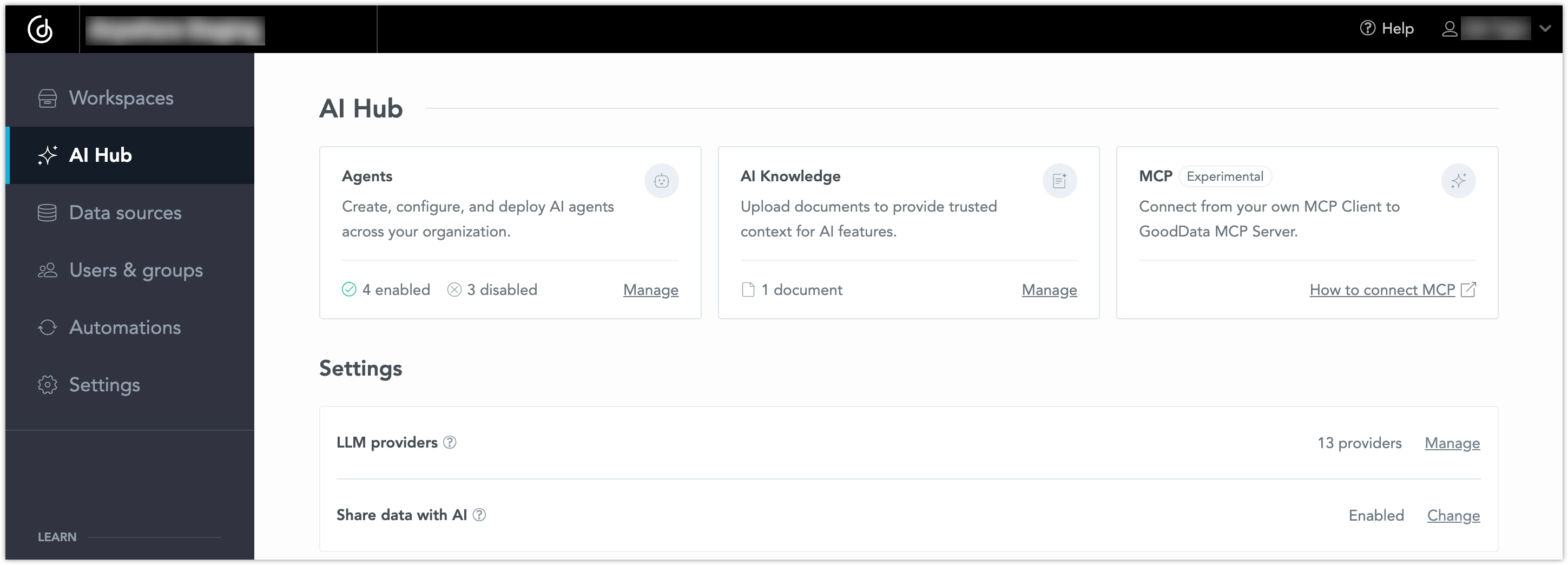
AI Hub Overview
The AI Hub page contains capability tiles, AI observability metrics, and AI settings. When AI Hub is enabled, the AI settings that were previously available in the main organization Settings section are managed from AI Hub instead.
The capability tiles include:
- Agents: opens the Agents page, where you can create, configure, and manage AI Assistant agent configurations.
- AI Knowledge: opens the organization-level AI Knowledge page, where you can upload and manage documents that the AI Assistant can use as trusted context.
- MCP: opens the documentation for connecting a custom MCP client to the GoodData MCP Server. MCP configuration is not managed in the GoodData UI.
The AI Observability section gives organization administrators a quick view of AI adoption and usage without leaving AI Hub.
The settings section includes:
- LLM providers: lets you add and manage providers, select models, and set defaults for the organization.
- Share data with AI: lets you control the organization-level data sharing setting for AI features that support data sharing.
- Query limits: lets you set organization-level limits for how many AI queries users can make within a defined time window.
Important Notice
The exact AI Hub capabilities available in your organization depend on your GoodData plan, entitlements, and enabled AI features. Some capabilities may appear only after they are enabled for your organization.
AI Knowledge
When AI Knowledge is available for your organization, click Manage on the AI Knowledge tile to open the organization-level AI Knowledge page.
AI Observability
AI Observability helps organization administrators understand whether AI features are being used and how adoption changes over time. The AI Hub landing page includes three aggregate observability tiles so administrators can monitor AI usage directly from the same place where they configure agents, AI Knowledge, model providers, and data-sharing settings.
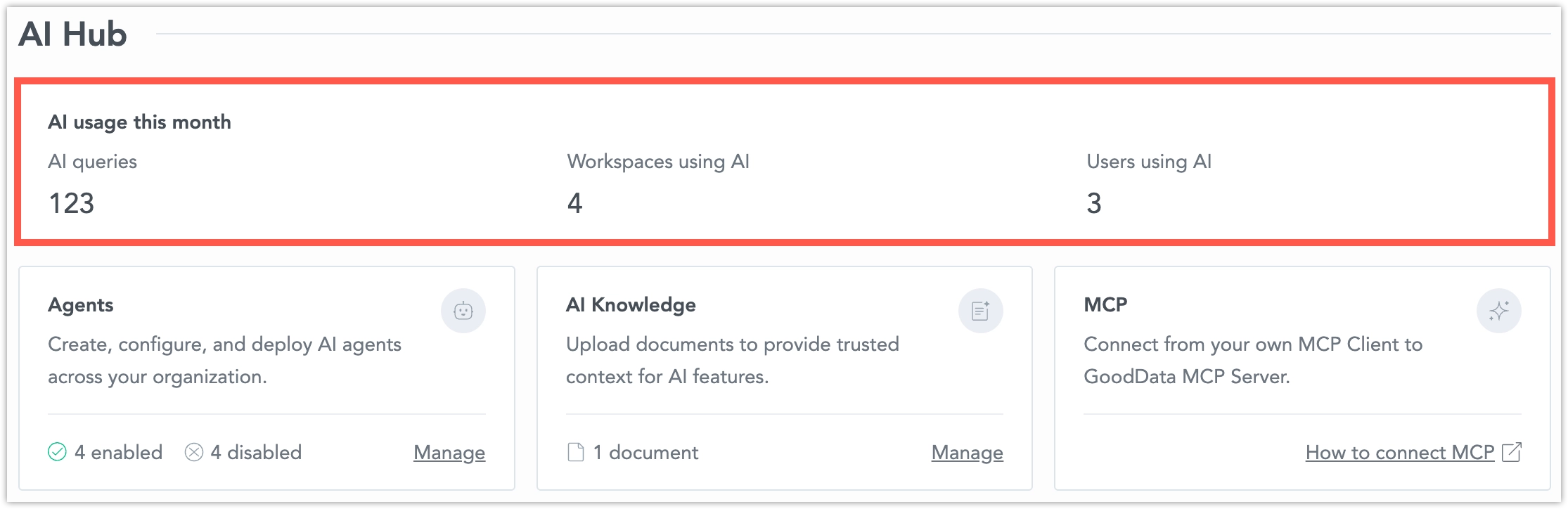
The observability tiles include:
- AI Queries: the number of successful AI actions performed in the organization during the current calendar month. One successful click or request counts as one AI query.
- AI Workspaces: the number of workspaces that had at least one AI action during the current calendar month, shown out of all workspaces.
- AI Users: the number of users who performed at least one AI action during the current calendar month, shown out of all users.
The AI observability tiles show cumulative running totals for the current calendar month. Each value starts at 0 on the first day of the month and increases during the month as users perform AI actions. The value is not a daily rate and not a rolling time window.
When available, the tile can also show a comparison with the previous calendar month. Interpret this comparison carefully early in the month. For example, a value on the third day of the current month is being compared with the full previous month, so a lower value at that point does not necessarily indicate a usage drop. During the first month when previous-month data is not available, the comparison is hidden.
These metrics are intended as a quick health overview. They help administrators identify whether AI rollout is gaining traction and whether users are engaging with AI features across workspaces.
AI observability in AI Hub shows aggregate usage metrics. It does not expose individual conversation content from the AI Assistant.
What Counts as an AI Query
The AI Queries tile counts successful AI actions, including:
- a message sent to an AI agent, regardless of whether it comes from the UI, an HTTP request, or another agent call
- using AI to generate content, such as a title or description
- using AI to perform analysis, such as change analysis or a quality check
The following actions do not count as AI queries:
- uploading knowledge documents
- failed AI requests
- browsing, opening, or reading past AI results without running a new AI action
Organization-Level AI Settings
The LLM providers and Share data with AI settings were moved from the workspace configuration to the AI Hub and show organization-level values. These values are used as defaults for AI features unless a workspace has its own override.
Workspace-level settings continue to take priority over organization-level settings for AI features used in that workspace.
Agents
Use Agents in AI Hub to create and manage AI Assistant agent configurations for different groups of users.
Each agent controls its Personality, available Skills, AI Knowledge access, and Who can use this agent. Users must also have the AI Assistant workspace permission in every workspace where they use the agent.
For complete setup, configuration, permission, and agent-resolution details, see Agents.