AI Reports
AI Reports lets you create presentation-style documents that combine live workspace data, saved visualizations, text, filters, and workspace-specific branding. AI Reports is used for workflows where you prepare a reusable document for a customer, partner, or another recipient and update it for a new reporting period instead of rebuilding the document from scratch. Exporting a document creates a static PDF or editable PPTX file.

Free Trial
AI Reports is generally available and free to use during the introductory trial period. After the trial, it becomes a paid add-on.
AI takeaways and editing documents with the AI Assistant are experimental features that require separate activation for your organization.
Documents From the Previous Version
Documents created before the general availability update use a format that the new AI Reports does not open. They are not migrated, do not appear in the Documents list, and links to them show a notice instead of opening the document.
If you need to preserve a document from the previous version, export it to PDF before upgrading when possible. For approximately two weeks after the GA release, the old /reports API remains available to read the earlier content, which you can use to build a new document. The earlier documents are then removed.
How AI Reports Content Is Structured
A document combines its own content with the active workspace theme.
- Document content defines a reporting period, pages, text, visualization bindings and filters. The data remains live while you edit the document.
- Page templates provide reusable starting layouts. Adding a page copies the selected template into the document. Later changes to the template do not update existing pages.
- Workspace theming provides colors, typography, visualization colors, logos and images. The active theme is resolved when the document is rendered.
- An export is a static PDF or PPTX file rendered from the document at a specific point in time.
Changing the active theme can restyle existing documents without changing their stored document content.
Create and Open a Document
To create documents, you need the CREATE_DOCUMENT permission in the workspace. It can be granted alongside View or Analyze and is included in Manage. You can edit and delete documents you created; editing other users’ documents requires Manage. In the Reports interface, users without CREATE_DOCUMENT see only the documents they created. Exporting requires the appropriate export permission. See Set Permissions for Workspace.
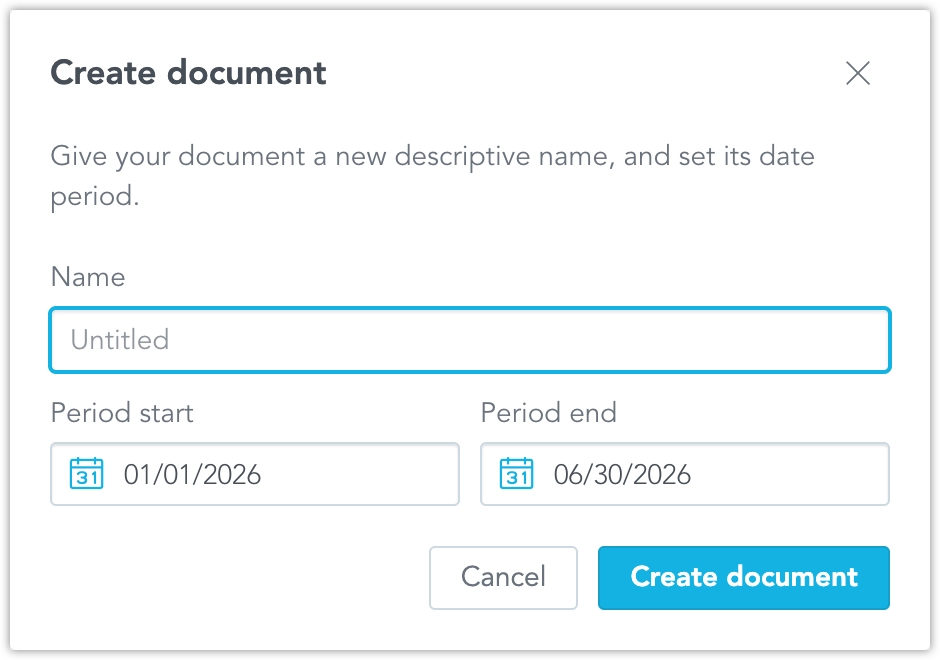
Open Reports in the workspace, select Create, and choose Document. To begin with a JSON or YAML definition instead, choose Document as code. Enter a document name and select a reporting period. The default is last month; you can select another relative period, such as last quarter, or fixed dates.
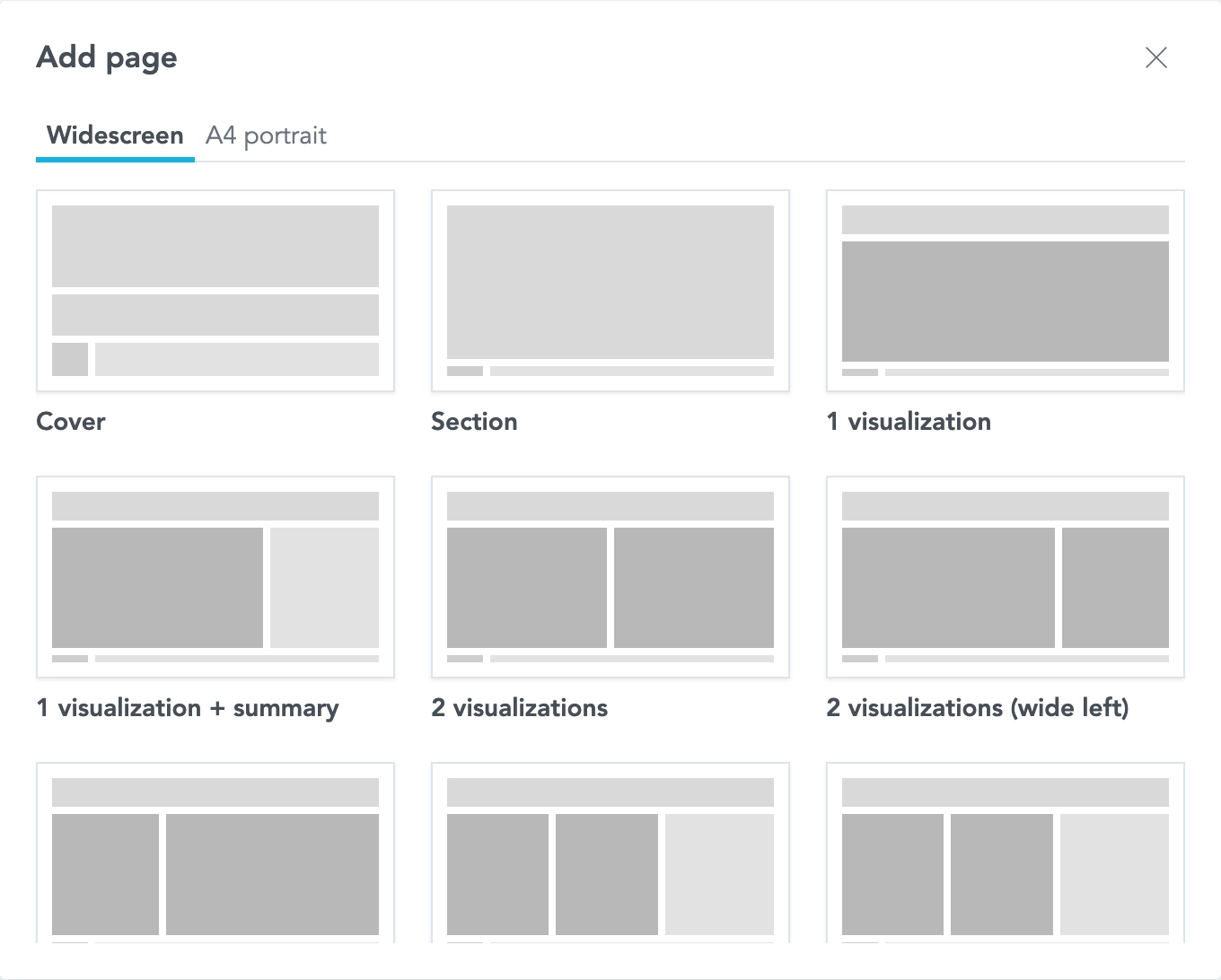
A new document starts without pages. Select a page template to add its first page. To add more pages, use the + (Add page) buttons between pages.
To open a saved document, select it from the Documents list or use its … (ellipsis) button and choose Open.
Edit Document Content
The document editor shows a live preview. You can edit the content and save your changes from the same view.
You can:
- Edit text, including bold and italic formatting, text style, color, background and alignment.
- Change the background color of a page or layout element and the color of text, using theme colors or a custom color.
- Set a page background image from the theme’s images, and configure image sources, fitting and alignment.
- Select or replace a saved visualization, create a new visualization if you have permission, or open it in Analytical Designer.
- Configure which date dimension a visualization uses for the document period, or opt a visualization out of that period.
- Change the reporting period and document filters in Document settings. The period or an applicable date filter changes the data shown by visualizations. A document date filter on a visualization’s date dataset replaces the period for that visualization, even when the visualization opts out of the document period. Attribute filters apply to every visualization.
- Add pages from page templates, delete pages, and move them up or down.
- Insert dynamic variables into text.
- Edit the entire document as JSON or YAML through Edit as code. The editor flags syntax errors and warns about unknown variables and theme references.
Pages use the widescreen (16:9) format. A document can have at most 50 visible pages.
Edit a Document with AI Assistant
Editing documents with the AI Assistant is an Early Access feature. When enabled for your organization and Share data with AI is on, you can ask the AI Assistant to create a document, build one from an existing dashboard, or update an open document using natural language. A document created from a dashboard uses the dashboard’s period and visualizations. You need USE_AI_ASSISTANT and CREATE_DOCUMENT; changing another user’s document also requires Manage.
When updating a document, you can refer to a page by number or title, such as “page 3” or “the returns page”. You can ask the AI Assistant to add or remove pages, change their order, combine content from several pages, or change the document period and attribute filters.
The AI Assistant selects page templates to suit the content, preferring a workspace template over a default template when both fit equally. It may generate takeaways for pages it adds or significantly changes. Documents can be saved with no more than 50 visible pages; remove excess pages from longer AI-generated drafts before saving.
Move a page
The user asks: Move page 5 before page 3.
The AI Assistant then changes the page order and presents the updated document for review.
Combine content
The user asks: Combine the revenue and returns pages into one page with a visualization from each.
The AI Assistant chooses a suitable page template and presents the result for review.
Review and Save AI Assistant Changes
When the AI Assistant updates the open document and you have not edited it since sending your request, the proposed changes appear in the editor immediately but remain unsaved. Select Save to keep them. If you leave without saving, you can discard the changes.
If you edited the document while the AI Assistant was working, open the proposed change from the conversation to review it. Applying that change replaces your unsaved edits. Only the creator of an unsaved draft can open it, and unsaved drafts cannot be exported.
Important Notice
Changing the period or filters updates the affected visualizations but does not automatically update existing AI-written takeaways. When the AI Assistant changes the period or filters, it asks whether to regenerate the affected takeaways or keep them. Regenerating replaces their text, including manual edits. After changing the period or filters yourself, review and regenerate takeaways as needed.
Dynamic Variables
To insert a dynamic variable, select a text element and use + Insert. The variable is inserted at the cursor and replaced with its current value when you finish editing the element.
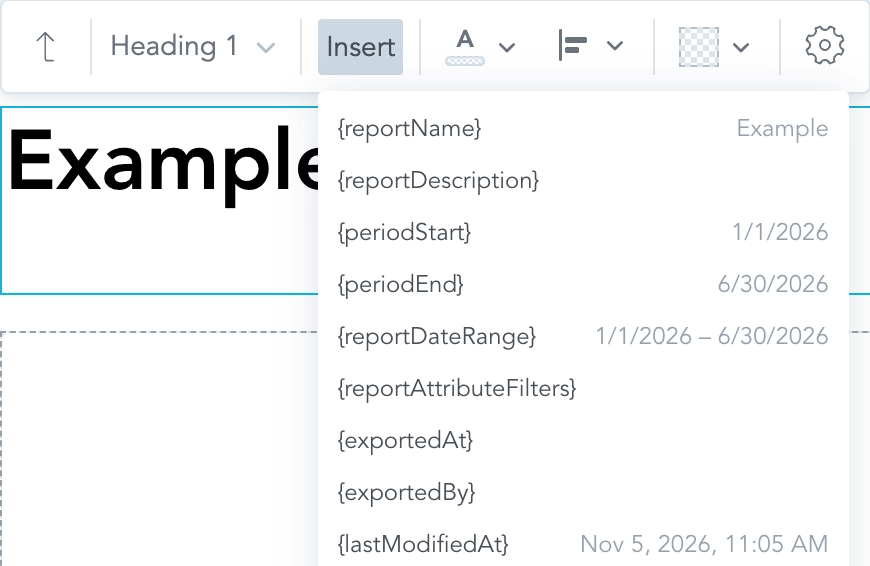
Variables use single braces, for example {documentName}.
| Variable | Value |
|---|---|
{documentName} | Document name |
{documentDescription} | Document description |
{documentDateRange} | Document period |
{documentAttributeFilters} | Document attribute filters |
{periodStart} | Start of the document period |
{periodEnd} | End of the document period |
{exportedAt} | Export time, available during export |
{exportedBy} | Exporting user, available during export |
{lastModifiedAt} | Time when the document was last modified |
{lastModifiedBy} | User who last modified the document |
{workspaceName} | Workspace name |
{workspaceId} | Workspace ID |
{totalPages} | Total number of document pages |
{currentPageNumber} | Current page number |
Dates in variables follow the reader’s date format settings, as visualizations do.
AI Takeaways
Experimental Feature
AI Takeaways is an experimental feature. Its behavior and supported actions may change. Your organization must have the feature enabled before you can use it.
AI takeaways are enabled separately from Reports. A takeaway is short, editable text generated from visualizations on its page. Add a page with a takeaway, such as 2 visualizations + takeaway, select the takeaway, and choose Generate. Generation uses the data and visualizations you can access. The text is stored with the document, and exports show the stored text.
If a page contains no visualizations, Generate is disabled. You can also edit takeaway text manually. Generating a takeaway again replaces the existing text, including any manual edits.
By default, a generated takeaway contains a short headline and one or two sentences interpreting the main findings. It generally avoids exact figures and specific dates. You can adjust its focus and wording using instructions.
To set instructions for the whole document, open Document settings and select Instructions. For an individual takeaway, use Configure takeaway. Both sets of instructions are used when provided. If they conflict, the individual takeaway instructions take precedence. Instructions can contain up to 255 characters and cannot change the facts shown by the data.
Generation requires permission to use the AI Assistant, Share data with AI enabled, and access to an AI agent. The takeaway uses that agent’s configuration, which can include its personality, AI Memory and AI Knowledge. Generation counts toward the AI query limit, except when there is no data to summarize. In that case, no takeaway is generated and a warning is shown. You cannot save while takeaways are being generated.
A takeaway is not regenerated automatically when a document’s reporting period or filters change. Review existing takeaways before sharing or exporting the document.
Document Branding
Document branding comes from the active workspace theme. The active theme can be an organization theme or a workspaceTheme selected for the workspace with the ACTIVE_THEME setting.
Document-specific branding uses theme version 2:
documentsdefines editor colors, visualization palette, typography, fonts, text styles, default page padding and spacing, and the takeaway appearance.assetsdefines externally hosted logos and images used in documents, including page backgrounds.
For example:
{
  "version": "2",
  "documents": {
    "colors": {
      "backgrounds": [
        { "id": "default", "color": "#ffffff" },
        { "id": "surface", "color": "#f4f6f8" },
        { "id": "brandSand", "color": "#e9dcc3" }
      ],
      "texts": [
        { "id": "default", "color": "#14202e" },
        { "id": "muted", "color": "#5a6b7c" }
      ],
      "visualizationPalette": ["#1b2a3d", "#6f8fa5", "#f2a900"]
    },
    "textStyle": {
      "typography": {
        "fontFamily": "\"Example Sans\", Arial, sans-serif",
        "fonts": [
          {
            "family": "Example Sans",
            "url": "https://assets.example.com/example-sans.woff2",
            "weight": 400
          }
        ]
      },
      "title": { "fontSize": 72 },
      "heading": { "h1": { "fontSize": 56 } },
      "text": { "normalText": { "fontSize": 24, "lineHeight": 1.4 } }
    },
    "page": { "padding": 64 }
  },
  "assets": {
    "logos": [
      { "id": "logo", "url": "https://assets.example.com/logo.svg", "altText": "Example" }
    ],
    "images": [
      { "id": "cover_bg", "url": "https://assets.example.com/cover.jpg", "title": "Cover background" }
    ]
  }
}
Theme colors are identified by id in the backgrounds, texts and lines lists. Documents can refer to these colors, for example {theme.colors.texts.muted}, and also to palette colors such as {theme.palette.primary}. When theme colors change, existing documents using those references are restyled.
Document theme lengths are plain numbers measured in pixels on a 1920 x 1080 design canvas and scaled when rendered. Length units such as em are not supported in the document theme. Text styles can define sizes and line heights. Text colors are specified through color references; inline text marks can additionally set their own colors.
Themes that use the old reports field or assets.backgrounds are not used for Reports documents. Move those settings to documents and assets.images.
Theme assets and fonts are hosted outside GoodData. The organization’s Content Security Policy must allow the asset host. For PDF and PPTX exports, the asset host must also provide appropriate CORS headers.
See Theme Settings Reference for the complete theme configuration.
Save a Document as New
To create a copy, open the document and select Save as new from the More actions menu in the editor. You can change the document name and period before saving. The copy includes any unsaved changes.
A document inherited from a parent workspace opens read-only in a child workspace. A document created by another user also opens read-only unless you have Manage permission. In either case, Save as new appears as the primary action in the editor, allowing you to create an editable copy in your workspace.
An inherited document cannot be overwritten or deleted in the child workspace.
Delete a Document
To delete a document, click the … (ellipsis) button in the AI Reports list or document builder and select Delete. Confirm the action in the dialog.
Export a Document
You can export a saved document from the Documents list or the editor. Select the … (ellipsis) button and choose Export (.pdf) or Export (.pptx). Exporting requires EXPORT_PDF or EXPORT; without export permission, the export action is not shown.
Exported PDFs are accessible and follow the PDF/UA-1 standard. For more information, see Export Accessible PDFs.
For PDF exports, PNG, JPEG, GIF and BMP images up to 16 MB and 25 megapixels are embedded as images. Other image formats, such as SVG and WebP, are captured as pictures of their elements. Background images in unsupported formats do not appear in PDFs.
Export a PDF Through the API
You can generate a PDF without opening the document in a browser. The export API uses a submit, poll and download workflow, which supports unattended and batch processing across workspaces.
Submit an export job using the document ID:
POST /api/v1/actions/workspaces/<WORKSPACE_ID>/export/document
Content-Type: application/json

{ "format": "PDF", "fileName": "Quarterly review", "documentId": "quarterly-performance" }
Poll the job for the generated PDF:
GET /api/v1/actions/workspaces/<WORKSPACE_ID>/export/document/<EXPORT_ID>The endpoint returns HTTP 202 while the export is running and HTTP 200 with the PDF when it is complete. API export supports PDF only. The older /export/report endpoint, using reportId, remains a deprecated alias while the previous report API is available.
Manage AI Reports Documents Through the API
AI Reports uses the document and pageTemplate API entities.
| Object | Collection path | Collection operations | Object operations |
|---|---|---|---|
| Document | /api/v1/entities/workspaces/<WORKSPACE_ID>/documents | GET, POST | GET, PUT, PATCH, DELETE |
| Page template | /api/v1/entities/workspaces/<WORKSPACE_ID>/pageTemplates | GET, POST | GET, PUT, PATCH, DELETE |
Append an object ID to the collection path to retrieve or modify an individual object. The document and pageTemplate entities use version 2. When a PATCH supplies content, it must supply version too. Identifiers starting with default. are reserved.
Documents can contain at most 50 visible pages.
For the legacy report, reportTemplate, and reportPageLayout entities, see the Documents From the Previous Version at the top of this page.
Document Content Model
A document requires version, title, period and content. Optional attributes include description and tags.
The period field can be absolute or relative:
{ "type": "absolute", "granularity": "GDC.time.date", "from": "2026-07-01", "to": "2026-09-30" }{ "type": "relative", "granularity": "GDC.time.month", "from": -1, "to": -1 }Both endpoints of an absolute period are inclusive. A relative period is evaluated when a document is viewed or exported, so it can always refer to a period such as the previous complete month.
Document content contains pages and optional filters. Pages have a layout tree consisting of row and column containers, with elements placed directly in that tree. The proportion property controls how much space a child takes relative to its siblings. Supported element types are title, heading, text, image, visualization and takeaway.
Page IDs must be unique within the document, and element IDs within their page. The entity API generates missing page and section IDs; when using the declarative analytics model, provide them explicitly.
A visualization needs dateDataSet for the document period to affect its data. Set ignoreDocumentPeriod: true to opt it out. Document-level content.filters uses the dashboard filter grammar. Each additional date filter names its dataSet.
Page Templates
A page template stores a reusable page in content. You can create page templates through the API or as code if you have Manage permission. These appear under Custom when a user adds a page. A child workspace inherits its parent’s page templates.
Every workspace also offers default page templates such as default.pageTemplate.cover and default.pageTemplate.viz2TakeawayRight. They are read-only and appear under Default. Page template listings include both default and custom templates unless an origin filter excludes them.
Adding a template’s page to a document copies its content. Changes to the original page template do not update existing documents.
Create a Document
The example creates a document with a relative period, a cover, and a page containing a saved visualization. Page IDs are omitted so that the API generates them.
curl -X POST "https://<ORGANIZATION_HOST>/api/v1/entities/workspaces/<WORKSPACE_ID>/documents" \
  -H "Authorization: Bearer <API_TOKEN>" \
  -H "Content-Type: application/vnd.gooddata.api+json" \
  -d '{
  "data": {
    "type": "document",
    "id": "quarterly-performance",
    "attributes": {
      "version": "2",
      "title": "Quarterly Performance",
      "description": "Quarterly business review",
      "period": {"type": "relative", "granularity": "GDC.time.quarter", "from": -1, "to": -1},
      "content": {
        "pages": [
          {
            "kind": "cover",
            "style": {"backgroundColor": "{theme.colors.backgrounds.inverse}"},
            "layout": {
              "type": "column",
              "children": [
                {"type": "title", "id": "coverTitle", "proportion": 2,
                 "markdown": "{documentName}",
                 "style": {"textColor": "{theme.colors.texts.inverse}"}},
                {"type": "text", "id": "coverSubtitle",
                 "markdown": "{documentDateRange}",
                 "style": {"textStyle": "h3", "textColor": "{theme.colors.texts.inverse}"}}
              ]
            }
          },
          {
            "kind": "content",
            "layout": {
              "type": "column",
              "children": [
                {"type": "title", "id": "pageTitle", "proportion": 2,
                 "markdown": "Revenue in {documentDateRange}"},
                {"type": "visualization", "id": "revenue", "proportion": 9,
                 "visualization": {"identifier": "revenue_by_month", "type": "insight"},
                 "dateDataSet": {"identifier": "date", "type": "dataSet"}}
              ]
            }
          }
        ]
      }
    }
  }
}'
Troubleshooting AI Reports Document Definitions
If a document created through the API or as code does not save or render as expected, check the following:
- An HTTP
400response identifies the content key that failed validation in itspath. Correct the key and try again. - Element IDs must be unique within each page. Page IDs must be unique throughout a document.
- The document period affects a visualization only if the visualization defines
dateDataSet. - Page and visualization
filters,ignoreDocumentFiltersanddisplayare stored but not currently applied by the renderer. - An unknown variable or theme reference is displayed literally or falls back to a default. The code editor warns about unknown references.
- Theme references such as
{theme.colors.texts.muted}work in style properties, not in ordinary text. - Externally hosted images can appear in the editor but be missing from PDF or PPTX if their hosts do not supply the required CORS headers.
Current Limitations
- The AI Assistant edits whole documents or pages. It does not target a single text or visualization element.
- AI-generated takeaways do not automatically regenerate after period or filter changes. If the AI Assistant changes those settings, it asks whether to regenerate the affected takeaways. Changes made manually in the editor require manual review and regeneration.
- When the AI Assistant restructures pages, it can remove a takeaway or leave an empty visualization placeholder. It reports these changes in its reply. If a page template cannot accommodate the visualizations, it asks to split the content across pages instead.
- When Share data with AI is disabled, AI takeaways cannot be generated.
- There is no built-in scheduling interface for document exports. PDF exports can be automated through the export API.
- Page templates are managed through the API or as code. Documents support widescreen pages only.
- If a user cannot access a visualization, it appears as an access error in the editor and exports, without revealing its title or description.
- Documents are not included in AI search or in the Analytics Catalog.