Key Driver Analysis
Key Driver Analysis (KDA) helps you understand what contributed to a change in a metric. It identifies and ranks the factors, or drivers, that have the strongest influence on the difference between two metric values, such as revenue, NPS, conversion rate, or churn.
You can run KDA directly from a dashboard, launch it from a visualization created by the AI Assistant, or start it through the AI Assistant using a natural-language question such as Why did my total sales drop last month?
KDA is useful when you want to narrow down the factors associated with a metric change without manually testing many possible breakdowns.
Prerequisites
KDA is available only when AI features are enabled for your organization. Users must also have the AI Assistant permission in the workspace where they run the analysis.
KDA depends on the AI Assistant’s synchronized workspace metadata. If metadata synchronization is still in progress, wait until it completes before running KDA.
KDA also respects the AI Assistant’s data sharing settings. When data sharing is disabled, the Assistant can create a KDA specification but cannot execute the analysis or calculate contributing dimensions.
The selected visualization and metric must also meet the requirements described in Supported and Unsupported Date Granularities and Limitations.
How It Works
Choose a target metric and a set of candidate drivers, such as device, region, plan, version, feature usage, or support status.
The system analyzes the data and measures how each driver affects the selected metric:
- Snapshot view: Compares the current value against the average.
- Change over time: Compares the difference between the selected period and a baseline.
The results appear as a ranked list of drivers showing:
- Direction of impact (↑ or ↓)
- Size of impact (in points or percentage points)
- Share of data (N)
- A short explanation describing the relationship
After reviewing the results, you can adjust filters, comparison periods, or analyzed attributes directly in the KDA window and rerun the analysis to refine the output.
Tip
Use KDA to quickly identify key drivers of change, then follow up with Root Cause Analysis (RCA) to confirm the cause and decide on next steps.
KDA and Root Cause Analysis (RCA)
| Key Driver Analysis (KDA) | Root Cause Analysis (RCA) |
|---|---|
| Fast, data-driven association that shows what moved with the metric. | In-depth causal investigation to explain why the change happened. |
| Helps you see which drivers matter most in the data. | Used to verify findings through logs, experiments, or user research. |
When to Use KDA
Use KDA when you need to understand what explains a change in a metric or performance trend.
Examples:
- Product: Why did NPS increase this week? Which features contributed to conversion?
- Marketing / Growth: Which campaigns or segments contributed to a drop in activation rate?
- Customer Success: Are open tickets or long resolution times linked to churn this month?
- Operations / Quality: Did a new app version or crash rate affect yesterday’s CSAT?
Control Where KDA Is Available
For supported date-based visualizations, KDA is available by default unless it is disabled for the metric or visualization.
Metric Level
Analytics builders can control whether a metric is suitable for KDA from the Analytics Catalog using the Use for Key driver analysis setting. Turn this setting off when KDA should not be offered for a metric. When the metric is disabled for KDA:
- dashboard visualizations do not offer KDA for that metric by default
- visualizations created by the AI Assistant do not offer KDA for that metric by default
- the AI Assistant does not run KDA for that metric from a conversational request
The setting does not affect whether the metric can be used in regular analytics.
Visualization Level
In Analytical Designer, you can further control KDA for an individual visualization:
- disable KDA for the entire visualization
- keep KDA enabled for the visualization but exclude selected metrics
Visualization-level configuration can explicitly override the metric-level default. This lets you enable or disable KDA for a specific analytical context without changing the metric globally.
Supported and Unsupported Date Granularities
KDA can be triggered only from visualizations sliced by supported date attributes and base granularities. The analysis runs when the visualization is sliced by Dataset Date, for example Date or OrderDate, and grouped by one of the following:
- Year
- Quarter
- Month
- Week
- Day
- Hour
- Minute
Other special date attributes are not supported, such as:
- Hour of Day
- Day of Year / Month / Week / Quarter / Year
- Week of Year
- Week of Month
- Dataset-date combinations not based on the supported granularities
If a visualization uses an unsupported granularity, such as Hour of Day, the Run Key Driver Analysis option does not appear in the menu.
How to Use KDA
Run KDA from a Dashboard
Open a dashboard and select a data point in a visualization.
- The data point must contain a metric value.
- The visualization must be segmented by date.
- KDA compares the selected data point with a previous data point or with the same period in the previous year.
From the context menu, select Run Key Driver Analysis.
Choose whether to run KDA vs Previous Data Point or vs Previous Year.
The system labels the analysis as an Increase or Drop, depending on the change.
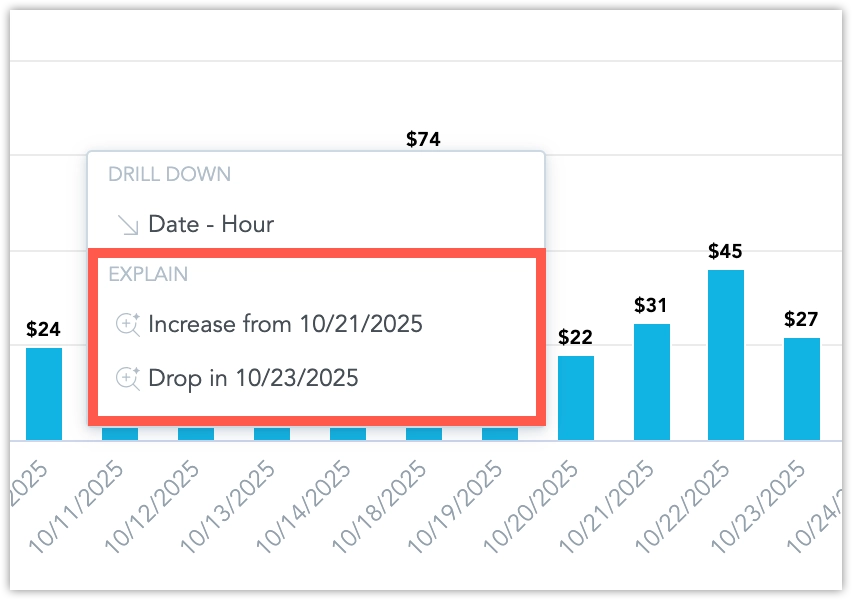
A modal window appears with the KDA results.
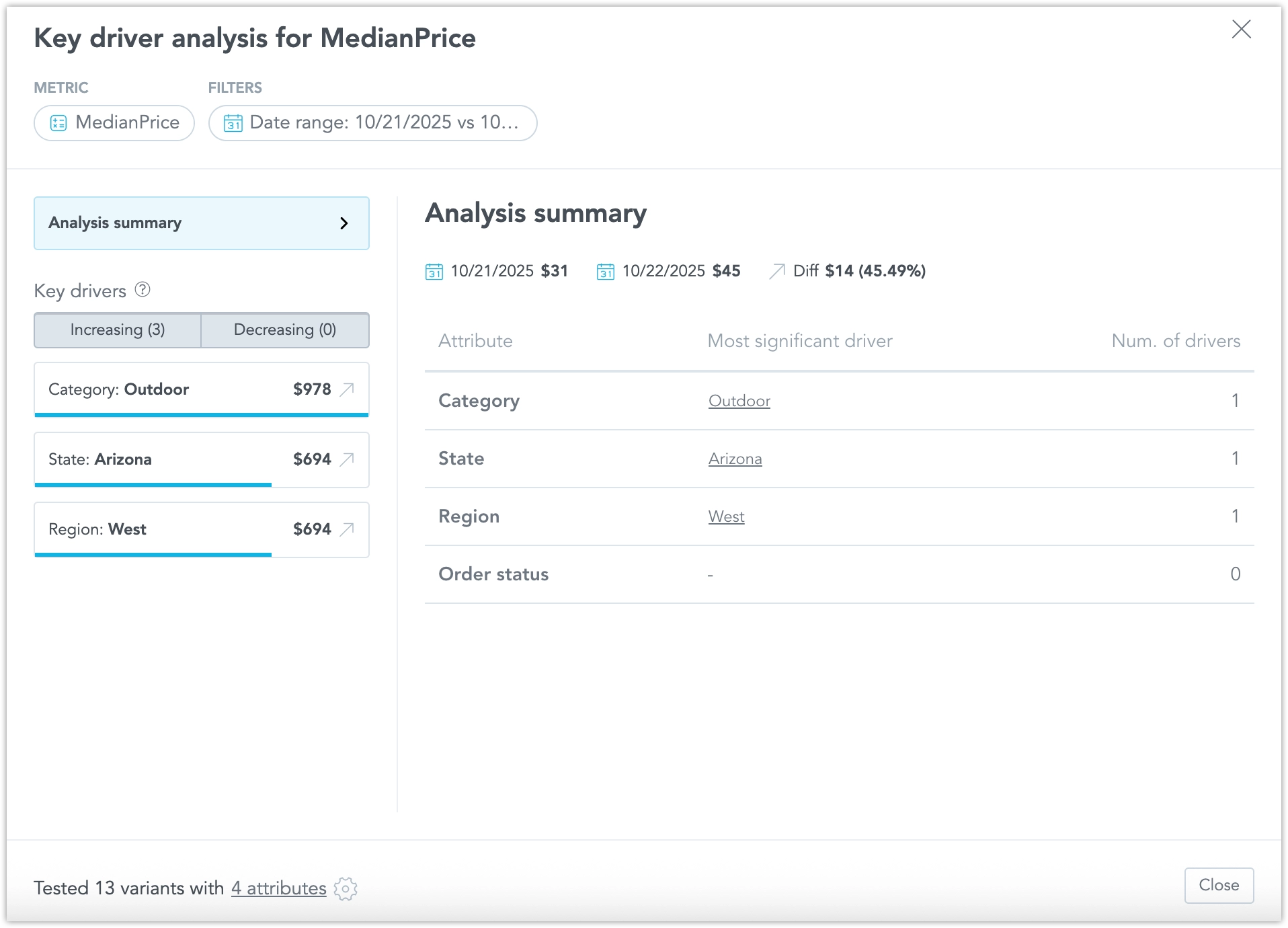
The modal shows:
- the analyzed data points and the difference between them
- the attributes selected as potential drivers
- the number of analyzed combinations
- a list of analyzed attributes and their corresponding drivers
For the initial run, potential-driver attributes are preselected by AI. You can change the selection and rerun the analysis.
Tip
The system automatically identifies compatible attributes, so you do not need to manually select drivers before running the analysis.
Run KDA from the AI Assistant
You can run KDA from visualizations created by the AI Assistant or by asking a natural-language question.
From an ad-hoc visualization:
- Ask the AI Assistant to create a visualization, for example: Show me total sales by month.
- Select a data point in the generated visualization.
- Open the context menu and choose Run KDA vs Previous Data Point or Run KDA vs Previous Year.
Using conversation:
You can also ask questions such as:
- Why did my total sales drop last month?
- Explain the change in July.
- Run key driver analysis for revenue in June.
The AI Assistant identifies the relevant metric, time period, comparison period, and compatible attributes. If important information is missing, the Assistant asks a follow-up question.
When the inputs are clear, the Assistant returns a short response with the selected metric, date period, filter context, and a link to open the full KDA results.
Tip
Use conversational analysis to get a quick explanation from the AI Assistant, then open the full KDA results for deeper exploration.
Refine and Customize the Analysis
Within the KDA window, you can customize what the analysis includes:
- Adjust comparison periods, such as previous period or previous year.
- Add or remove attribute filters.
- Include or exclude analyzed attributes.
- Rerun the analysis with the updated configuration.
These options let you control the scope of the analysis and focus on the drivers that are most relevant to your question.
Explore Drivers in Detail
After running KDA:
- Select a driver in the results to open its detailed view.
- Review the driver chart and surrounding attribute values.
The detail view shows a column chart with the selected driver and related attribute values. The number of displayed columns is limited to keep the chart readable.
The detail view also includes the Change Significance Threshold line. Values that cross this threshold are considered significant drivers of the analyzed change.
Drill Deeper into a Driver
- Run KDA and open the driver details.
- Select a column in the chart to drill into that driver.
This adds a new attribute filter to the KDA setup and reruns the analysis with the updated context.
Note
Drilling down helps you refine the analysis and discover second-level drivers that explain the result more precisely.
Limitations
- KDA currently supports change analysis between two metric values. Level or snapshot KDA for a single point in time is not supported.
- KDA supports only base date granularities. Extended time dimensions, such as Week of Month or Hour of Day, are not supported.
- KDA works only with metrics that have a clearly defined MAQL expression. It does not support ad-hoc metrics.
- KDA requires enough data and compatible attributes for the selected metric and comparison period.
- Headline visualizations are not currently supported as a KDA starting point.
- KDA identifies associations and contributions in the analyzed data. Use the result as a starting point for further investigation rather than proof of causality.