Create Parameters
Parameters let analytics engineers define governed runtime values in the semantic layer and use them in metric definitions. Dashboard users can then change these values at runtime to explore different business assumptions without creating duplicate metrics.
GoodData supports the following parameter types:
- Numeric parameters, for numeric values such as Top N limits, thresholds, targets, discount rates, or growth assumptions.
- String parameters, for text values such as scenarios, branches, categories, or named business assumptions used in metric logic.
For example, you can define a Top N numeric parameter once, use it in a ranking metric, and let dashboard users switch between Top 5, Top 10, or Top 20 results directly from the dashboard.
You can also define a Scenario string parameter once, use it in a CASE-based metric, and let dashboard users switch between Actual, Budget, or Forecast calculations without creating separate metrics for each scenario.
The basic workflow is:
- Create a parameter.
- Use the parameter in a metric with the
{parameter/parameter_id}syntax. - Use the parameterized metric in a visualization.
- Add the visualization to a dashboard, where users can change the parameter value at runtime.
Create a Parameter
You can create parameters in the Analytics Catalog using a YAML definition. Creating, editing, and deleting parameters requires the Workspace.MANAGE permission, while any user with Workspace.VIEW can read parameter definitions. Access to an individual parameter cannot be restricted further.
Steps:
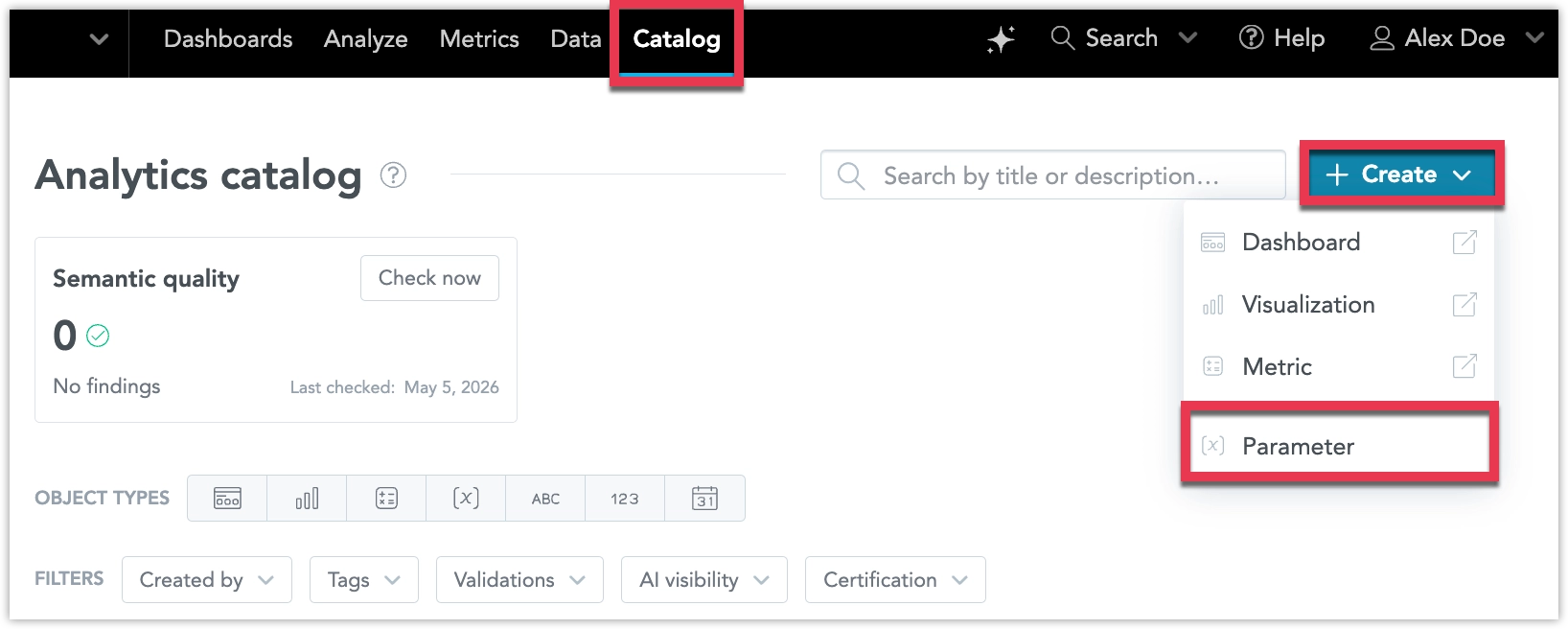
In your Catalog click Create and select Parameter.
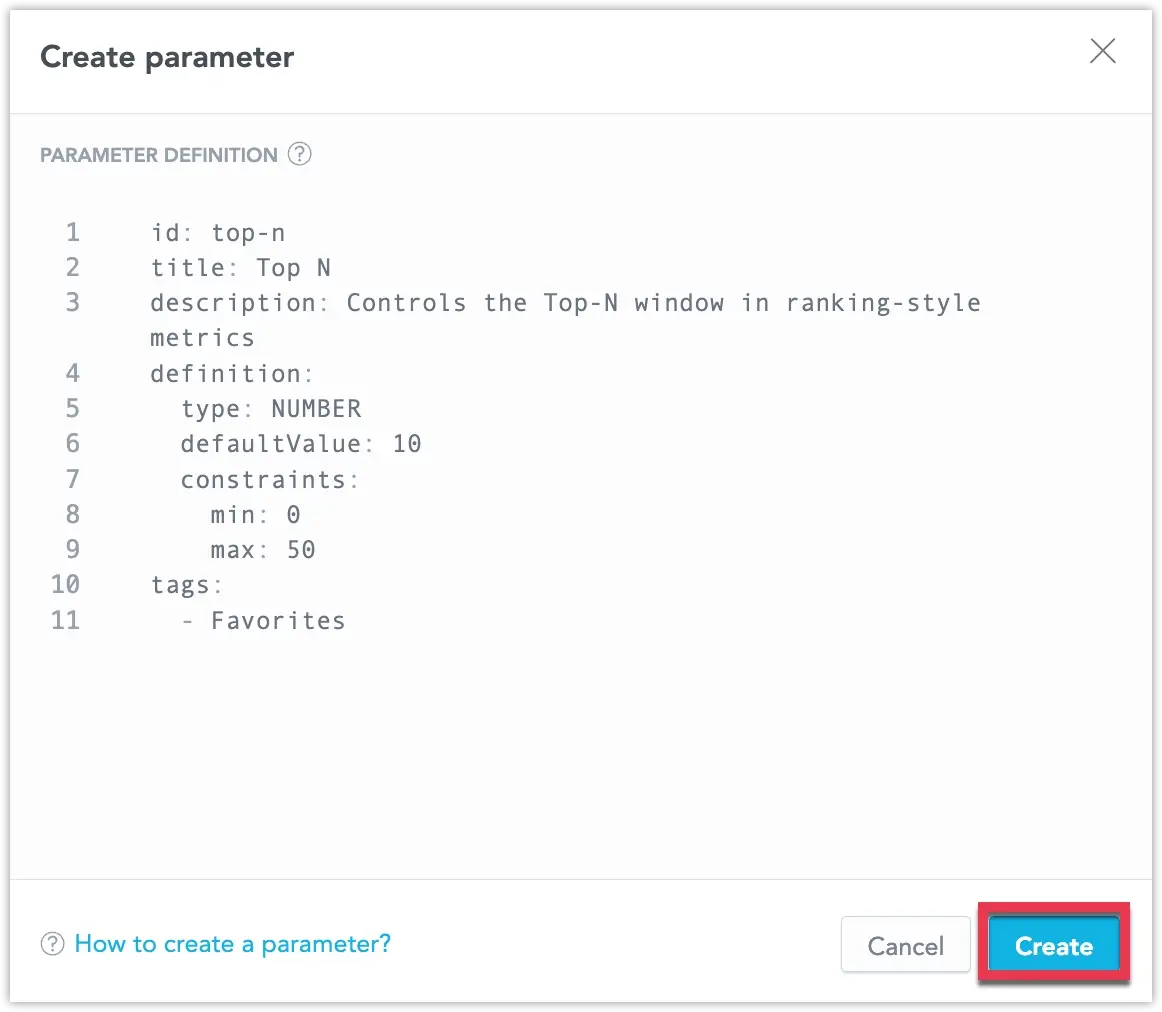
In the Create parameter dialog, enter the parameter YAML definition and click Create.
Parameter Definition Examples
Numeric Parameter
id: top-n
title: Top N
description: Controls the Top-N window in ranking-style metrics.
definition:
  type: NUMBER
  defaultValue: 10
  constraints:
    min: 0
    max: 50
tags:
  - Favorites
String Parameter
id: scenario
title: Scenario
description: Controls which planning scenario is used in scenario-based metrics.
definition:
  type: STRING
  defaultValue: Actual
  constraints:
    allowedValues:
      - value: Actual
        title: Actual
      - value: Budget
        title: Budget
      - value: Forecast
        title: Forecast
tags:
  - Favorites
The defaultValue is used whenever no runtime override is available. This ensures that metrics referencing the parameter can always be evaluated.
For string parameters, the default value is rendered as a quoted string literal in MAQL. For example, the parameter value Actual is rendered as "Actual".
Constrain Parameter Values
The optional constraints block limits which values a parameter accepts. Values outside the allowed range or list are rejected, including values set through the API or an embedded application.
For numeric parameters, min and max define the range of accepted values:
constraints:
  min: 0
  max: 50
For string parameters, allowedValues defines the list of accepted values. Each entry has a value, which is the string substituted into MAQL, and an optional title, which is the label shown to users. If you omit title, the value is used as the label.
constraints:
  allowedValues:
    - value: Actual
      title: Actual figures
    - value: Budget
      title: Approved budget
If your workspace uses metadata localization, titles are shown in the language of the user viewing the dashboard. The value substituted into MAQL is never localized, so metric logic stays the same for every user.
A string parameter without allowedValues accepts any text. Because string matching is case-sensitive, a user who enters actual instead of Actual, or misspells a value, matches no CASE branch and the metric falls back to ELSE. Use allowedValues when users should only choose from governed values.
Use Parameters in a Metric
Use the {parameter/parameter_id} syntax to reference a parameter in a MAQL metric definition.
Use a Numeric Parameter
Numeric parameters can be used wherever the metric logic expects a numeric value.
Example:
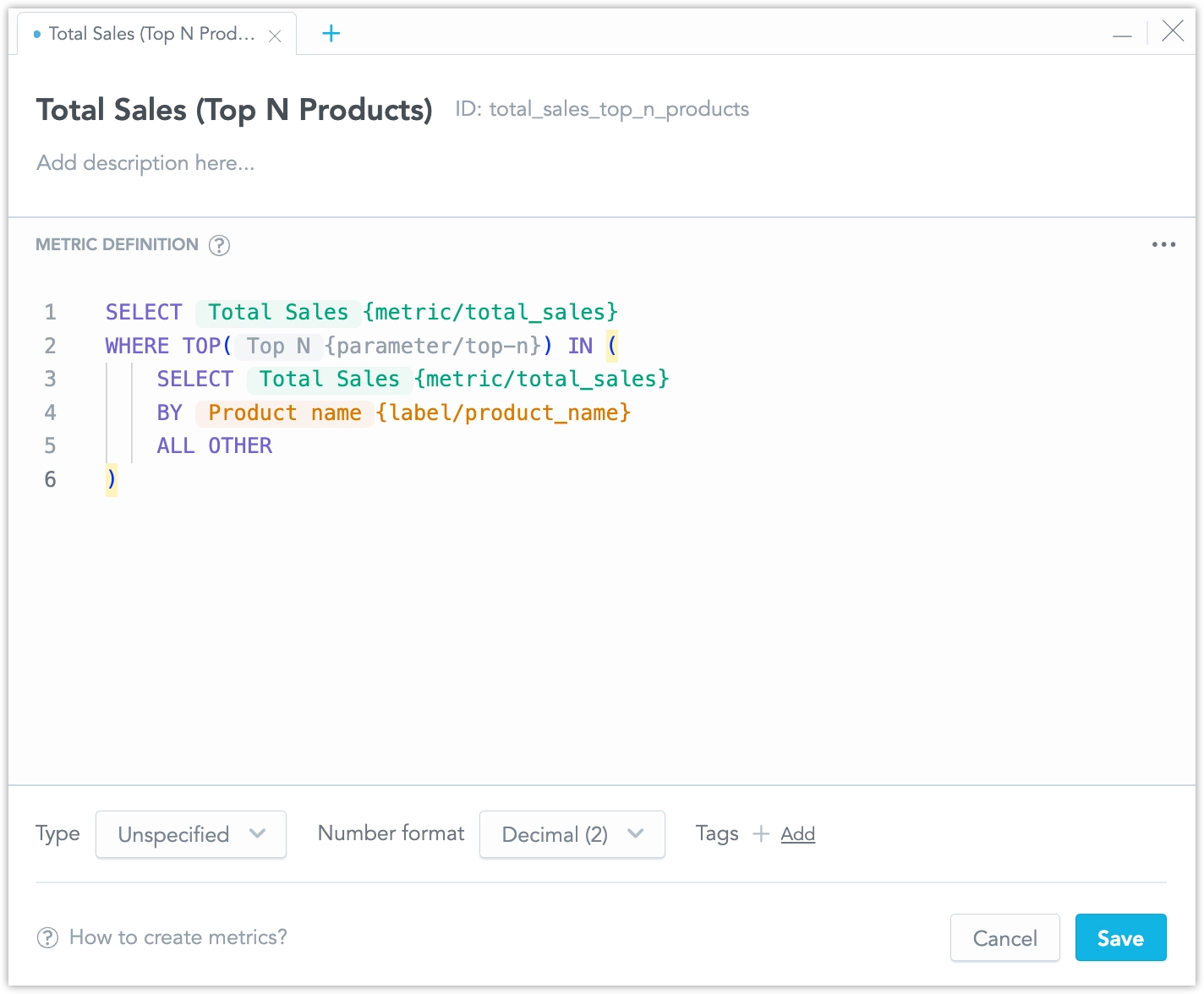
id: total_sales_top_n_products
title: "Total Sales (Top N Products)"
maql: |
  SELECT {metric/total_sales}
  WHERE TOP({parameter/top-n}) IN (
      SELECT {metric/total_sales}
      BY {label/product_name}
      ALL OTHER
) 
At execution time, GoodData replaces the parameter reference with the resolved numeric value. If no dashboard override is active, the metric uses the parameter default.
For example, if top-n has a default value of 10, the metric is evaluated as:
SELECT {metric/total_sales}
WHERE TOP(10) IN (
    SELECT {metric/total_sales}
    BY {label/product_name}
    ALL OTHER
)
Use a String Parameter
String parameters can be used in MAQL expressions that compare against string values, such as CASE or IF expressions.
Example:
id: revenue_by_scenario
title: "Revenue (by Scenario)"
description: "Returns revenue for the selected planning scenario."
maql: |
  SELECT CASE
    WHEN {parameter/scenario} = "Actual" THEN SUM({fact/actual_revenue})
    WHEN {parameter/scenario} = "Budget" THEN SUM({fact/budget_revenue})
    WHEN {parameter/scenario} = "Forecast" THEN SUM({fact/forecast_revenue})
    ELSE NULL
  END
At execution time, GoodData replaces the parameter reference with the resolved string value as a quoted and escaped MAQL string literal.
For example, if scenario has a default value of Actual, the metric is evaluated as:
SELECT CASE
  WHEN "Actual" = "Actual" THEN SUM({fact/actual_revenue})
  WHEN "Actual" = "Budget" THEN SUM({fact/budget_revenue})
  WHEN "Actual" = "Forecast" THEN SUM({fact/forecast_revenue})
  ELSE NULL
END
For simpler two-way logic, you can also use IF:
id: revenue_actual_or_budget
title: "Revenue (Actual or Budget)"
maql: |
  SELECT IF(
    {parameter/scenario} = "Actual",
    SUM({fact/actual_revenue}),
    SUM({fact/budget_revenue})
  )
Rendered with the default value Actual:
SELECT IF(
  "Actual" = "Actual",
  SUM({fact/actual_revenue}),
  SUM({fact/budget_revenue})
)
String Parameter Rendering
String parameter values are rendered as complete MAQL string literals. GoodData quotes and escapes string values so that a parameter value cannot produce a partial or broken string literal.
Examples:
| Parameter value | Rendered MAQL literal |
|---|---|
Actual | "Actual" |
Budget & Forecast | "Budget & Forecast" |
O'Brien | "O\'Brien" |
Control characters are rejected at compile time.
String matching is case-sensitive. For example:
{parameter/scenario} = "actual"does not match the active value "Actual".
If a CASE or IF expression does not match the active string value, the expression follows MAQL and SQL-style semantics. For example, an unmatched CASE branch returns the ELSE value, or NULL when the ELSE branch returns NULL.
View Parameter in Visualizations
After you create a metric that references a parameter, you can use it in visualizations like any other metric.
In Analytical Designer, add the parameterized metric to your visualization. The visualization is computed using the parameter value. If no runtime override is set, GoodData uses the parameter defaultValue.
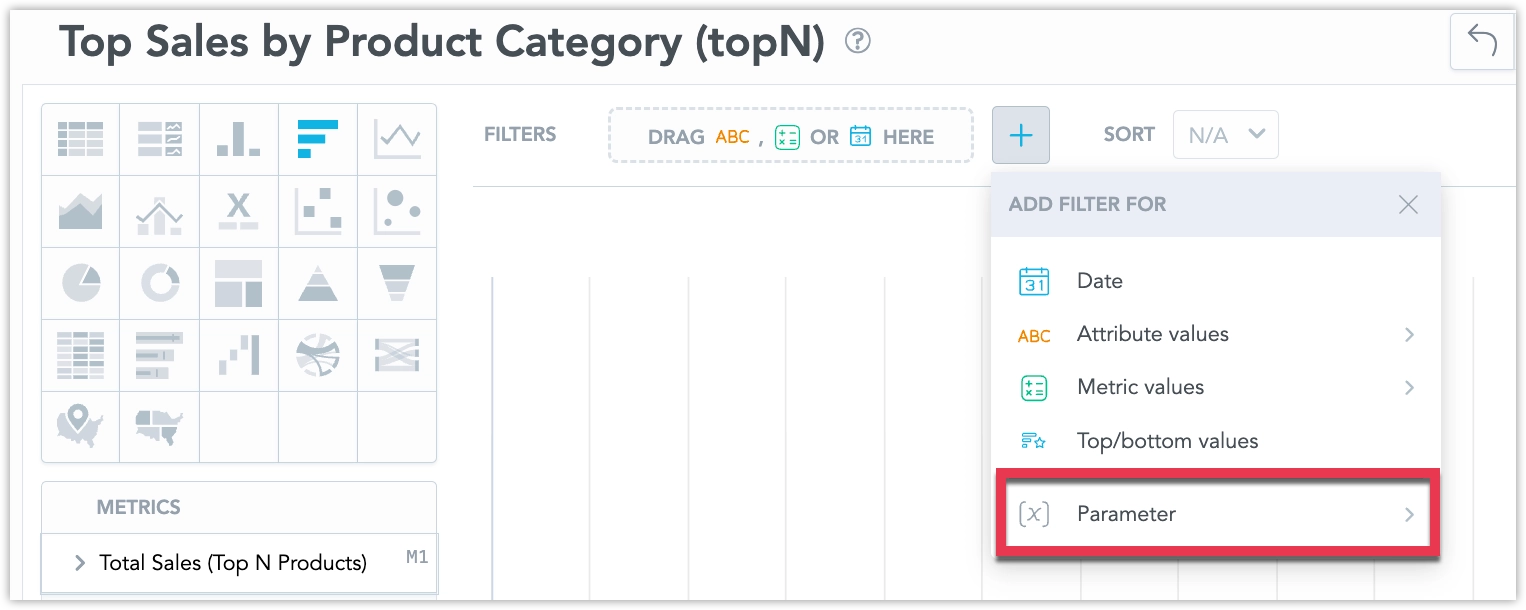
For example, if the top-n parameter has defaultValue: 10, a visualization using the Total Sales (Top N Products) metric shows the top 10 products.
If the scenario parameter has defaultValue: Actual, a visualization using the Revenue (by Scenario) metric shows actual revenue by default.
You can use parameterized metrics for scenarios such as:
- Top N rankings
- discount or margin assumptions
- growth-rate assumptions
- target or threshold comparisons
- numeric limits used in metric logic
- scenario switching, such as Actual, Budget, or Forecast
- CASE-based or IF-based metric branching
- text-driven business assumptions
View Parameter in Dashboards
When you add a visualization with a parameterized metric to a dashboard, the visualization works even if no parameter filter is added. In that case, the parameter resolves to its default value.
To let dashboard users change the parameter value at runtime, add the parameter to the dashboard as a filter.
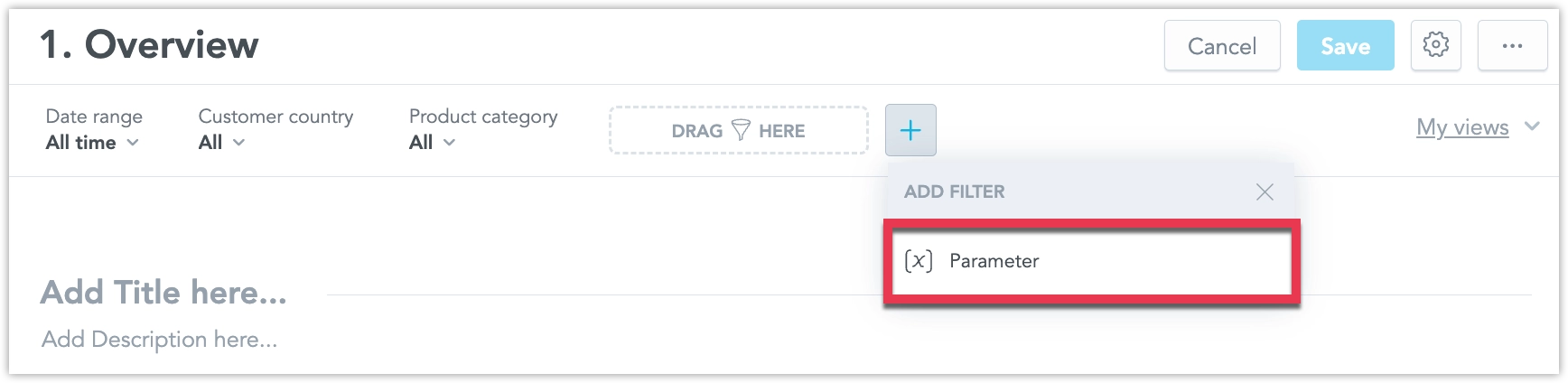
The control in the filter depends on how the parameter is defined. A string parameter with allowedValues offers a single-select dropdown listing the titles, while a string parameter without them offers a text input. Numeric parameters accept any value within their min and max range.
When a user changes the parameter filter value, all dashboard visualizations that use metrics referencing that parameter are recalculated automatically. The dashboard updates without a page reload.
For example, if the dashboard includes the Top N parameter filter, users can change the value from 10 to 5. Any visualization using the Total Sales (Top N Products) metric then updates to show the top 5 products instead of the top 10.
If the dashboard includes the Scenario parameter filter, users can change the value from Actual to Budget. Any visualization using the Revenue (by Scenario) metric then updates to use the budget revenue branch instead of the actual revenue branch.
Parameter filter values are preserved in the dashboard state, including saved views, share links, exports, alerts, and scheduled exports.