Manage Time Zones
By default, GoodData displays your data in your organization in the time zone of the server.
This means, that if you filter your data to This day, GoodData displays the same data for all workspaces and users, even if they are located in a different time zone.
To enable users to display the data in another time zone, you can configure a specific time zone for your organization, workspace, or individual users. GoodData then converts supported data to the effective time zone.
Dashboard authors can configure the default time zone for a dashboard. By default, the dashboard uses the effective time zone from the standard settings hierarchy: user, workspace, and organization. The author can instead choose the viewer’s Device time zone or a specific time zone for the dashboard.
Authors can also allow dashboard users to change the time zone on an ad-hoc basis. A time zone selected by a viewer takes precedence over the dashboard default for the current dashboard session.
Note
Time zones are inherited from their parents. See Time zone hierarchy for details.
For GoodData Cloud the operating system time zone is UTC.
To configure time zones, you must have appropriate permissions to manage specific entities. See Manage Permissions for more information.
Time Zone Hierarchy
You can configure a specific time zone for individual users, workspaces, and organizations.
If you do not specify a time zone:
- Users inherit the time zone settings from their workspaces,
- Workspaces inherit the settings from their parent entity, i.e. parent workspace or organization.
The following image shows the settings in an example hierarchy:
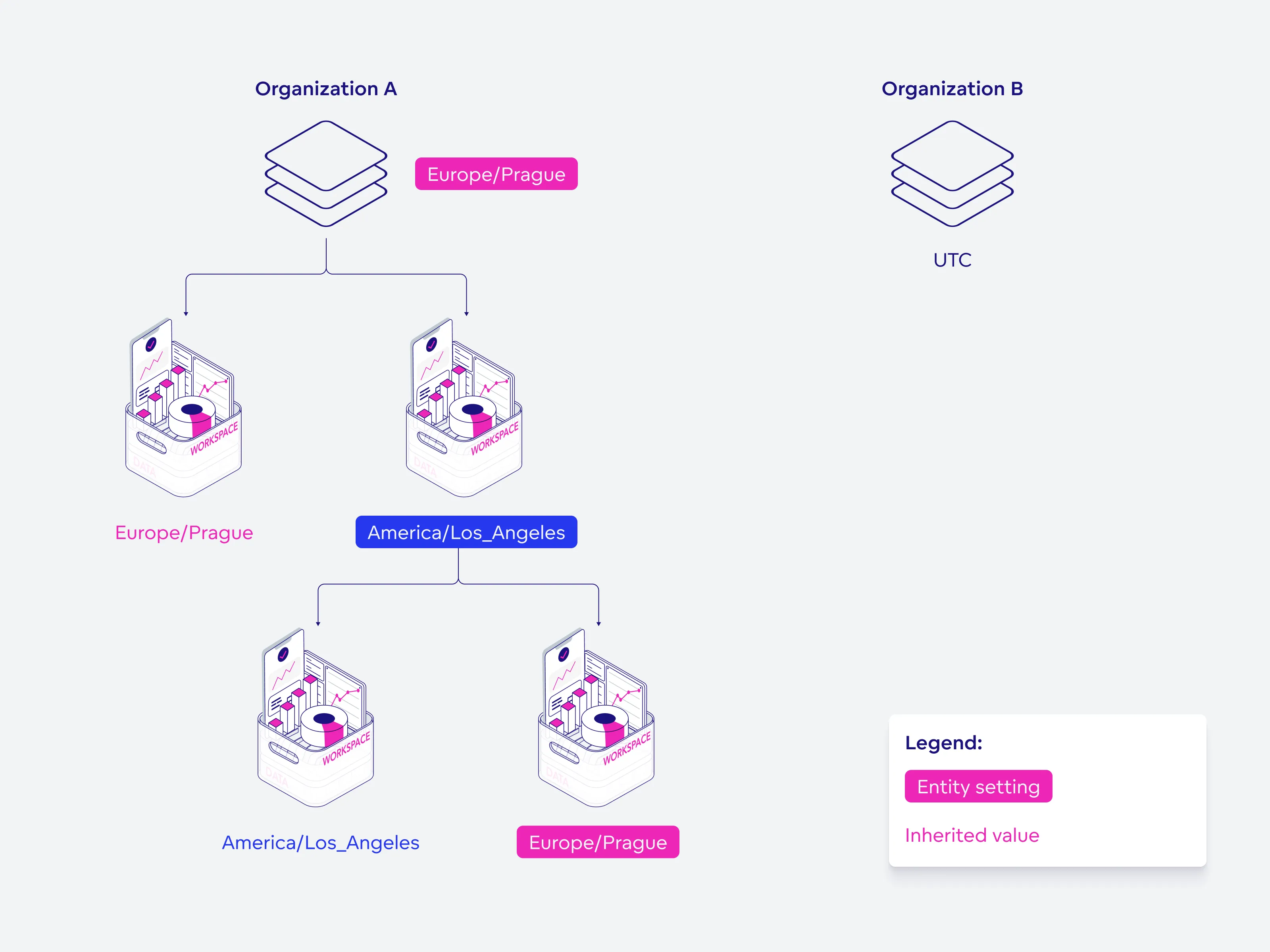
The hierarchy above determines the dashboard time zone when the dashboard’s Dashboard time zone setting is Default. In that case, GoodData resolves the effective time zone from the user’s setting, then the workspace and organization settings through inheritance.
A dashboard author can override this default behavior by configuring the dashboard to use:
- Default: use the effective time zone from the user, workspace, and organization settings hierarchy.
- Device time zone: use the local time zone detected from each viewer’s browser.
- A specific time zone: always open the dashboard in the selected time zone.
If the dashboard also allows users to change its time zone, a viewer’s ad-hoc selection takes precedence over the configured dashboard default for the current session. The ad-hoc selection is not saved to the dashboard.
Configure the Dashboard Time Zone
Dashboard authors can define which time zone a dashboard uses when it opens.
The Time zone section appears in dashboard settings only when Allow end users to change the time zone is enabled for the organization or the workspace. On a workspace, open the Settings tab and click Change in the Time zone row, then enable that option. The organization time zone dialog has the same option.
- Open the dashboard in edit mode.
- Open Dashboard settings.
- In the Time zone section, choose Dashboard time zone:
- Default: use the effective time zone from the user, workspace, and organization settings hierarchy. This preserves the standard GoodData time zone behavior.
- Device time zone: use the local time zone detected from the viewer’s browser.
- A specific time zone: use the selected time zone for all viewers unless they apply an ad-hoc override.
- To let viewers temporarily select another time zone, enable Allow users to change the dashboard time zone.
- To display the effective time zone in the dashboard top bar, enable Show time zone.
- Click Apply and save the dashboard.

The dashboard’s configured time zone is saved with the dashboard. If Device time zone is selected, GoodData detects the viewer’s browser time zone when the dashboard opens. If Default is selected, GoodData resolves the effective time zone from the standard settings hierarchy.
Note
Enabling Allow users to change the dashboard time zone does not change the configured dashboard default. A viewer’s selection is session-only and takes precedence only until the dashboard is reloaded or reopened.
Change the Time Zone on a Dashboard
When the dashboard author enables Allow users to change the dashboard time zone, you can temporarily view the dashboard in a different time zone. This is useful, for example, when you need to inspect activity for users or operations in another region.
To change the time zone:
- Open the dashboard.
- Click the … (ellipsis) button.
- Select Change time zone.
- Search for and select the time zone you want to use.

The dashboard immediately reruns its visualizations using the selected time zone. The selected time zone is also used to interpret dashboard filters. Where the underlying data type supports time zone conversion, GoodData converts the data to the selected time zone.
The selection applies only to the current session. It does not modify the saved dashboard and does not create a save prompt.
If a time zone indicator is displayed in the dashboard top bar, it shows the current effective time zone. The indicator is read-only. To change the time zone, use … (ellipsis) > Change time zone.
Explore Further in Analytical Designer
The ad-hoc time zone is also supported in Analytical Designer. When you use Explore from here from a dashboard visualization, the current effective dashboard time zone is passed to Analytical Designer so that the visualization initially shows the same values.
You can change the time zone from the Analytical Designer options menu. Changing it reruns the open visualization using the selected time zone. The selection is session-only and is not stored in the saved visualization.
Database Data Types
If your data is stored in the DATE or TIMESTAMP data types, no time conversion is available.
We recommend configuring the time zone for the organization or workspace, so that you always see relevant data.
If the data in your database has a time zone specified in the TIMESTAMPTZ data type, GoodData converts the data to the effective time zone. On a dashboard with an active ad-hoc selection, this is the selected dashboard time zone. Otherwise, the standard user, workspace, and organization time zone settings apply.
Note
Time zone conversion is not available for Dremio.
For BigQuery, time zone conversion is available, even though it does not support TIMESTAMPTZ. BigQuery saves all data in the UTC time zone by default and GoodData can easily convert them to any time zone.
For AI Lake, DATETIME columns do not include a time zone in storage. You choose whether the AI Lake data source treats them as local time (TIMESTAMP in the LDM, no conversion) or as UTC (TIMESTAMP_TZ in the LDM, converted to the effective time zone). See DATETIME and Time Zone Conversion.
Configure Time Zones
You can configure time zones via API for organizations, workspaces, and users.
These organization, workspace, and user settings are persistent and form the standard time zone hierarchy. A dashboard whose Dashboard time zone is set to Default uses the effective value from this hierarchy.
Dashboard authors can separately save a dashboard-specific default, such as Device time zone or a specific time zone. An ad-hoc time zone selected by a viewer is session-specific and takes precedence over the configured dashboard default for that session.
The following sections contain examples of various API calls for domain example.gooddata.com.
Note
To configure time zones, use the IANA time zone database naming convention.
Organizations
To create or change time zones for organizations, use the following API call:
curl $HOST_URL/api/v1/entities/organizationSettings \
-H "Content-Type: application/vnd.gooddata.api+json" \
-H "Accept: application/vnd.gooddata.api+json" \
-H "Authorization: Bearer $API_TOKEN" \
-X POST \
-d '{
  "data": {
    "attributes": {
      "content": {
        "value": "America/Los_Angeles"
      },
      "type": "TIMEZONE"
    },
    "id": "timezone-us-la",
    "type": "organizationSetting"
  }
}' | jq .
Invoke-RestMethod -Method Post -Uri "$HOST_URL/api/v1/entities/organizationSettings"`
-ContentType "application/vnd.gooddata.api+json" `
-H @{
'Accept' = "application/vnd.gooddata.api+json"
'Authorization' = "Bearer $API_TOKEN"
} `
-Body '{
"data": {
"attributes": {
"content": {
"value": "America/Los_Angeles"
},
"type": "TIMEZONE"
},
"id": "timezone-us-la",
"type": "organizationSetting"
}
}' | ConvertTo-JsonWorkspaces
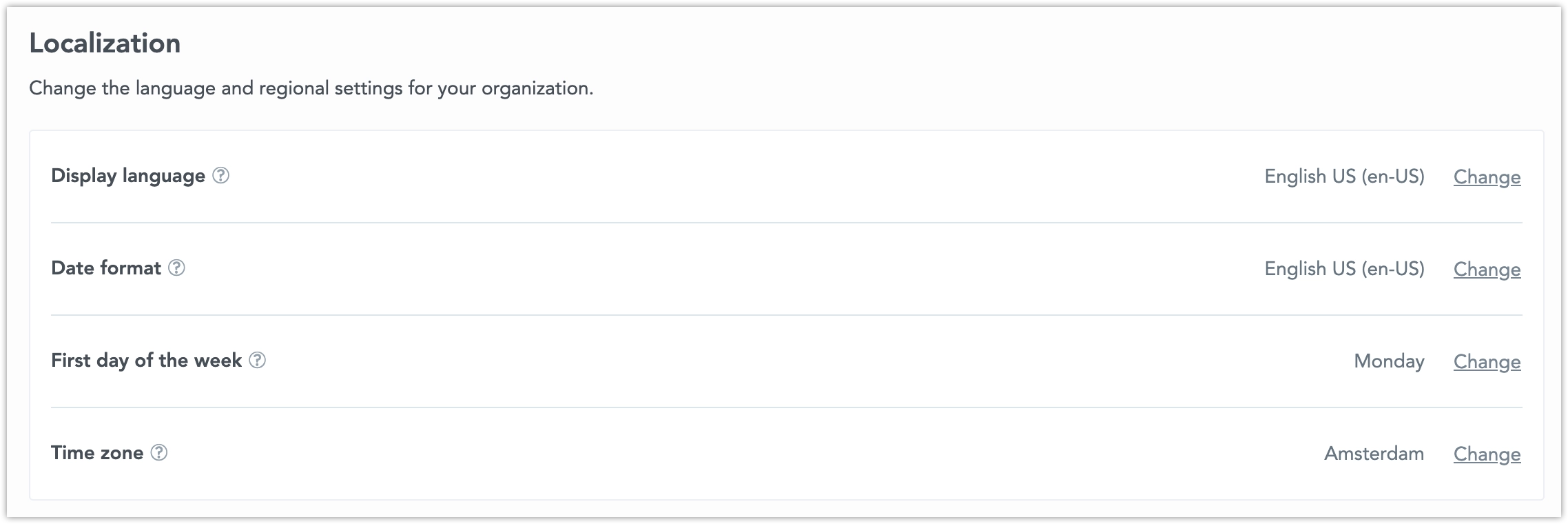
To create or change time zones for individual workspaces:
Go to the Workspaces tab and open the workspace you want to edit. Open the Settings tab and click Change in the Time zone section.
Create a Time Zone:
To create a time zone setting, use a POST request.
curl $HOST_URL/api/v1/entities/workspaces/$WORKSPACE_ID/workspaceSettings \
-H "Content-Type: application/vnd.gooddata.api+json" \
-H "Accept: application/vnd.gooddata.api+json" \
-H "Authorization: Bearer $API_TOKEN" \
-X POST \
-d '{
  "data": {
    "attributes": {
      "content": {
        "value": "America/Los_Angeles"
      },
      "type": "TIMEZONE"
    },
    "id": "timezone-us-la",
    "type": "workspaceSetting"
  }
}'| jq .
Change a Time Zone:
To change or update an existing time zone setting, use a PUT request to the following endpoint. This allows you to modify the setting for a specific workspace.
curl $HOST_URL/api/v1/entities/workspaces/$WORKSPACE_ID/workspaceSettings/$TIMEZONE_ID \
-H "Content-Type: application/vnd.gooddata.api+json" \
-H "Accept: application/vnd.gooddata.api+json" \
-H "Authorization: Bearer $API_TOKEN" \
-X PUT \
-d '{
  "data": {
    "attributes": {
      "content": {
        "value": "America/Los_Angeles"
      },
      "type": "TIMEZONE"
    },
    "id": "timezone-us-la",
    "type": "workspaceSetting"
  }
}' | jq .
$TIMEZONE_ID is the ID of the timezone object (timezone-us-la in this case).
Invoke-RestMethod -Method Post -Uri "$HOST_URL/api/v1/entities/workspaces/$WORKSPACE_ID/workspaceSettings"`
-ContentType "application/vnd.gooddata.api+json" `
-H @{
    'Accept' = "application/vnd.gooddata.api+json"
    'Authorization' = "Bearer $API_TOKEN"
} `
-Body '{
    "data": {
      "attributes": {
        "content": {
          "value": "America/Los_Angeles"
        },
        "type": "TIMEZONE"
      },
      "id": "timezone-us-la",
      "type": "workspaceSetting"
    }
}' | ConvertTo-Json
Users
To create or change time zones for individual users, use the following API call:
curl $HOST_URL/api/v1/entities/users/$USER_ID/userSettings \
-H "Content-Type: application/vnd.gooddata.api+json" \
-H "Accept: application/vnd.gooddata.api+json" \
-H "Authorization: Bearer $API_TOKEN" \
-X POST \
-d '{
  "data": {
    "attributes": {
      "content": {
        "value": "America/Los_Angeles"
      },
      "type": "TIMEZONE"
    },
    "id": "timezone-us-la",
    "type": "userSetting"
  }
}'|jq .
Invoke-RestMethod -Method Post -Uri "$HOST_URL/api/v1/entities/users/$USER_ID/userSettings"`
-ContentType "application/vnd.gooddata.api+json" `
-H @{
'Accept' = "application/vnd.gooddata.api+json"
'Authorization' = "Bearer $API_TOKEN"
} `
-Body '{
"data": {
"attributes": {
"content": {
"value": "America/Los_Angeles"
},
"type": "TIMEZONE"
},
"id": "timezone-us-la",
"type": "userSetting"
}
}' | ConvertTo-JsonVerify Time Zone Settings
You can verify your time zone settings anytime by using the API calls provided in below.
Organizations
curl $HOST_URL/api/v1/entities/organizationSettings/$TIMEZONE_ID \
-H "Accept: application/vnd.gooddata.api+json" \
-H "Authorization: Bearer $API_TOKEN" \
-X GET|jq .
Invoke-RestMethod -Method Get -Uri "$HOST_URL/api/v1/entities/organizationSettings/$TIMEZONE_ID"`
-H @{
'Accept' = "application/vnd.gooddata.api+json"
'Authorization' = "Bearer $API_TOKEN"
} | ConvertTo-JsonWorkspaces
curl $HOST_URL/api/v1/entities/workspaces/$WORKSPACE_ID/workspaceSettings/$TIMEZONE_ID \
-H "Accept: application/vnd.gooddata.api+json" \
-H "Authorization: Bearer $API_TOKEN" \
-X GET \
|jq .
Invoke-RestMethod -Method Get -Uri "$HOST_URL/api/v1/entities/workspaces/$WORKSPACE_ID/workspaceSettings/$TIMEZONE_ID"`
-H @{
'Accept' = "application/vnd.gooddata.api+json"
'Authorization' = "Bearer $API_TOKEN"
} | ConvertTo-JsonUsers
curl $HOST_URL/api/v1/entities/users/$USER_ID/userSettings/$TIMEZONE_ID \
-H "Accept: application/vnd.gooddata.api+json" \
-H "Authorization: Bearer $API_TOKEN" \
-X GET \
|jq .
Invoke-RestMethod -Method Get -Uri "$HOST_URL/api/v1/entities/users/$USER_ID/userSettings/$TIMEZONE_ID"`
-H @{
'Accept' = "application/vnd.gooddata.api+json"
'Authorization' = "Bearer $API_TOKEN"
} | ConvertTo-JsonDelete Time Zone Settings
You can delete the time zone from your organization, workspace, or user settings by using the API calls provided below.
Organizations
curl $HOST_URL/api/v1/entities/organizationSettings/$TIMEZONE_ID \
-H "Authorization: Bearer $API_TOKEN" \
-X DELETE
Invoke-RestMethod -Method Delete -Uri "$HOST_URL/api/v1/entities/organizationSettings/$TIMEZONE_ID"`
-H @{
'Authorization' = "Bearer $API_TOKEN"
} Workspaces
curl $HOST_URL/api/v1/entities/workspaces/$WORKSPACE_ID/workspaceSettings/$TIMEZONE_ID \
-H "Authorization: Bearer $API_TOKEN" \
-X DELETE
Invoke-RestMethod -Method Delete -Uri "$HOST_URL/api/v1/entities/workspaces/$WORKSPACE_ID/workspaceSettings/$TIMEZONE_ID"`
-H @{
'Authorization' = "Bearer $API_TOKEN"
}Users
curl $HOST_URL/api/v1/entities/users/$USER_ID/userSettings/$TIMEZONE_ID \
-H "Authorization: Bearer $API_TOKEN" \
-X DELETE
Invoke-RestMethod -Method Delete -Uri "$HOST_URL/api/v1/entities/users/$USER_ID/userSettings/$TIMEZONE_ID"`
-H @{
'Accept' = "application/vnd.gooddata.api+json"
'Authorization' = "Bearer $API_TOKEN"
}