Column-Level Permissions
Beta Feature
This is a beta feature. It is still in active development and not yet recommended for use in production.
Column-level permissions let data owners and workspace administrators restrict access to specific facts, attributes, and attribute labels in the logical data model.
Restricted objects are hidden from unauthorized users in catalogs, pickers, search results, and Smart Search. If a metric, visualization, dashboard, or dashboard filter depends on a restricted object, GoodData blocks access to the dependent object as well. This prevents sensitive data from being exposed indirectly through downstream analytics.
How It Works
Column-level permissions are controlled by access settings on logical data model objects.
You can manage permissions for:
- facts
- attributes
- attribute labels
Each protected object has a general access setting and optional grants for selected users or user groups.
Protected Objects and Access Options
Column-level permissions support the following general access options:
- Restricted - only selected users and groups can access the object.
- All workspace members - everyone in the workspace can view the object.
Newly created facts, attributes, and attribute labels are restricted by default. The creator automatically receives ownership access, so they can continue working with the object immediately after creating it.
Backward Compatibility on Rollout
For backward compatibility, all existing facts, attributes, and attribute labels are assigned All workspace members access when column-level permissions are introduced. This means existing logical data model objects remain visible to all workspace users unless their access is changed later.
All workspace members grants view access only. To manage sharing or ownership, a user needs explicit access that allows them to do so.
If you switch an object from All workspace members to Restricted, access is removed for workspace members who do not have another access path. Existing individual and group grants are preserved. If you later switch the object back to All workspace members, all workspace members can view it again.
Attribute labels have their own access settings. Restricting an attribute does not automatically restrict all of its labels. Manage sensitive labels separately when needed.
Grants and User Groups
For restricted objects, data owners can grant access to selected users or organization-level user groups.
Supported access levels are:
- Can view - can use the object.
- Can view & share - can use the object and share it with others.
Data owners can also remove shared access. If the user or group still has access through another path, such as a user group or workspace-wide access, GoodData indicates that access remains.
Workspace-level user groups are not supported in the current beta version.
Enforcement and Hidden Objects
Restricted objects are hidden from unauthorized users. Users without access do not see restricted facts, attributes, or attribute labels in catalogs, pickers, search results, or Smart Search.
Direct access to restricted objects returns 404 Not Found so the existence of the object is not exposed. GoodData does not return 403 Forbidden for restricted objects, because that would reveal that the object exists.
Column-level permissions are also enforced across dependent objects. If a user does not have access to a restricted object:
- metrics that depend on the object are blocked
- visualizations that depend on blocked metrics are blocked
- dashboards that contain blocked visualizations are blocked
- dashboards that use a restricted attribute or attribute label as a filter are blocked
Dependent metrics, visualizations, and dashboards that are blocked because of a restricted object also return 404 Not Found.
In the current beta version, dashboards are blocked as a whole. GoodData does not partially render dashboards that contain inaccessible visualizations or filters.
The same access rules are enforced in Smart Search. AI Assistant support for column-level permissions will be available soon.
API, SDK, Automation, and Administrator Access
Column-level permission operations are available through the GoodData REST API and SDKs.
API list endpoints omit restricted objects for unauthorized users. Direct access to restricted objects returns 404 Not Found. Analytical execution is blocked when the computation graph contains a restricted fact, attribute, attribute label, or another blocked dependency.
SDK calls follow the same rules as the REST API. For example, catalog calls do not return restricted objects to unauthorized users, and execution calls are blocked when they depend on restricted objects.
Automation and agent integrations, including MCP server calls, are evaluated under the configured identity. They do not bypass column-level permissions unless that identity has administrator-level access.
Workspace administrators with the MANAGE permission can see all objects in the workspace regardless of their access settings. Administrator access also applies in catalogs, API calls, Smart Search, and other surfaces that enforce column-level permissions.
Manage Permissions
You can manage access to individual analytical objects from the Analytics catalog in your workspace.
Steps:
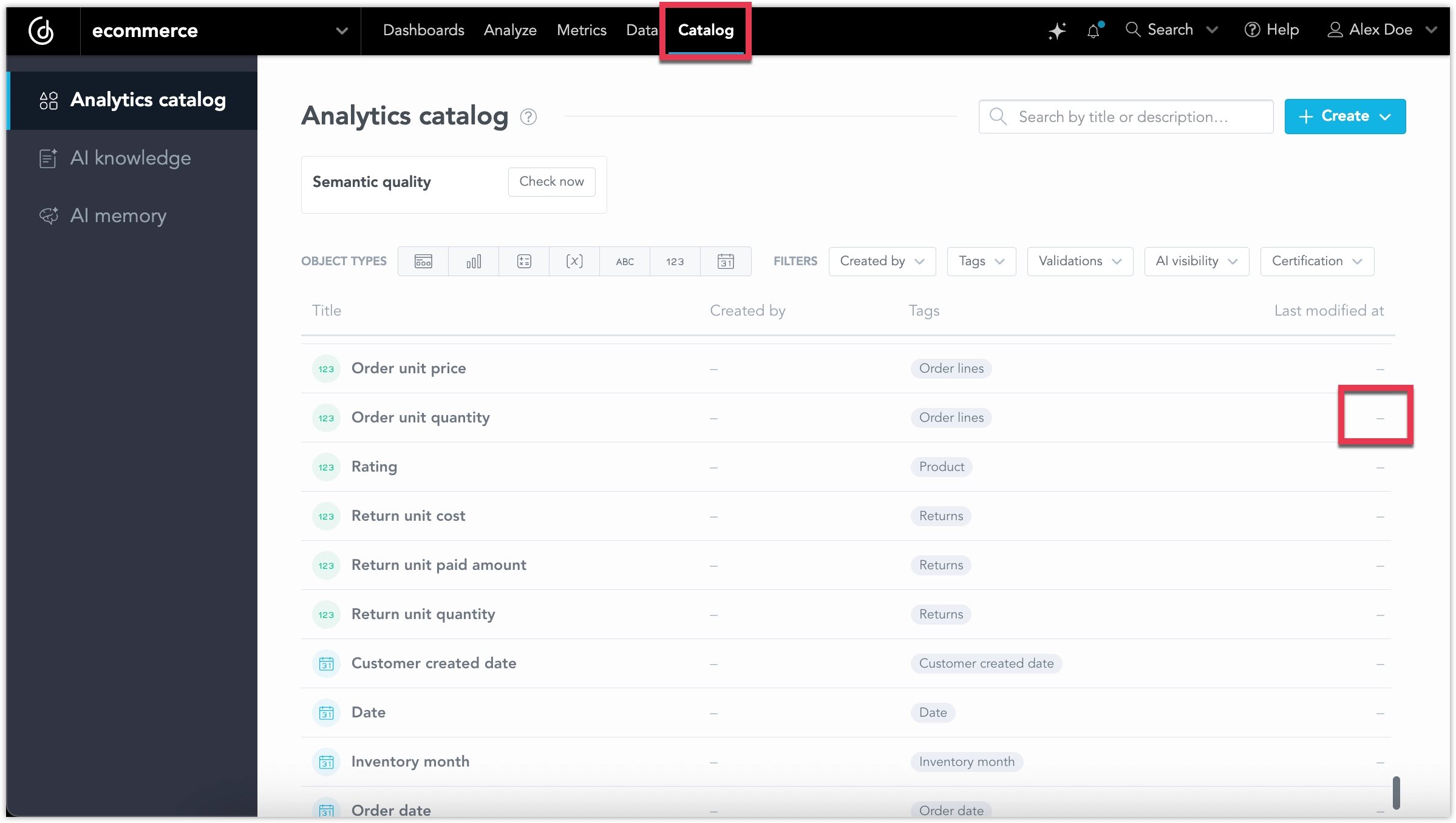
In your workspace, go to Catalog and select a fact, attribute, or attribute label.
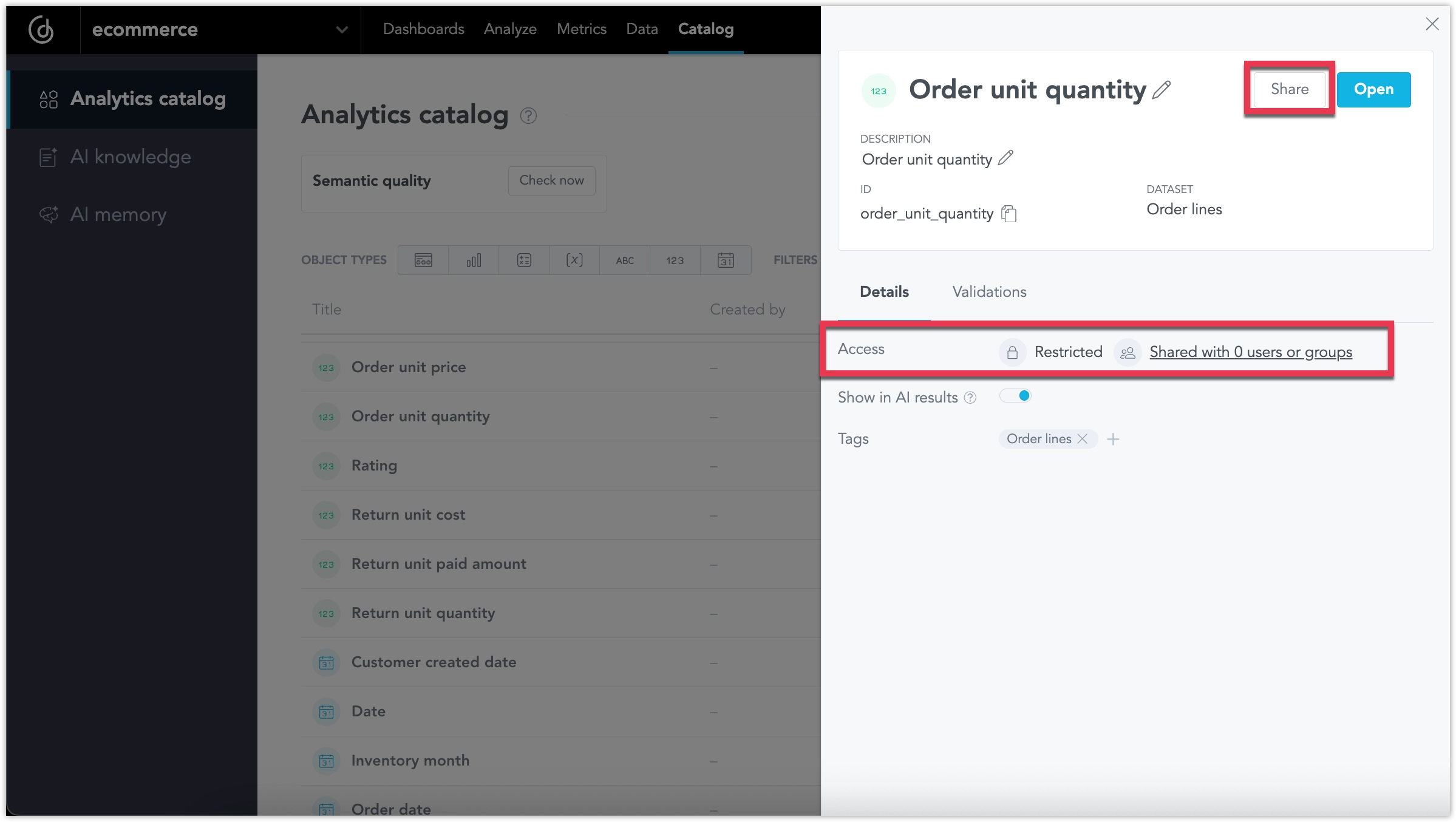
In the object details panel, check the Access row to see whether the object is restricted or shared. To change access, click Share.
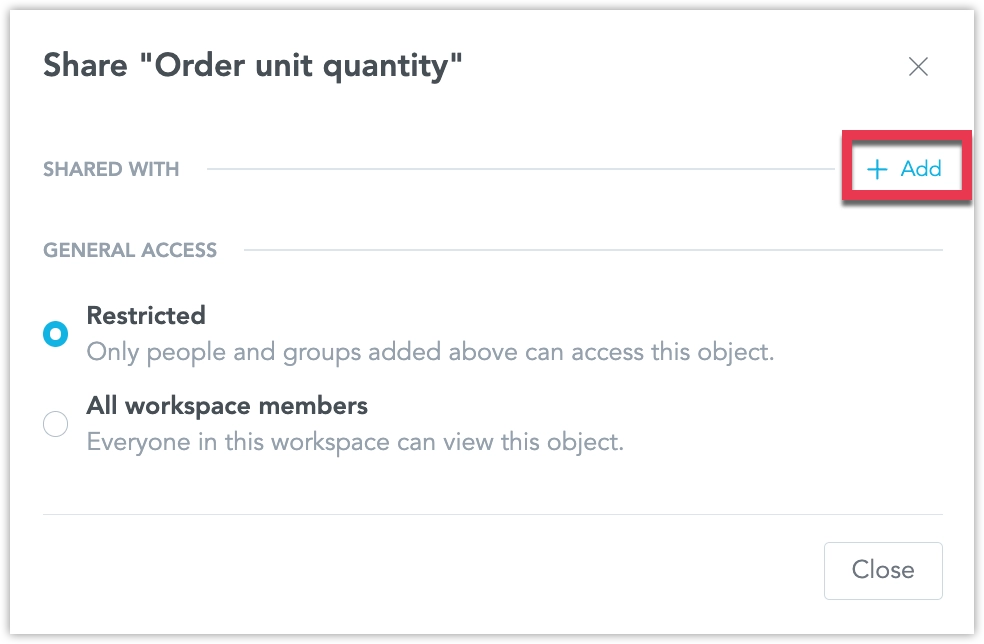
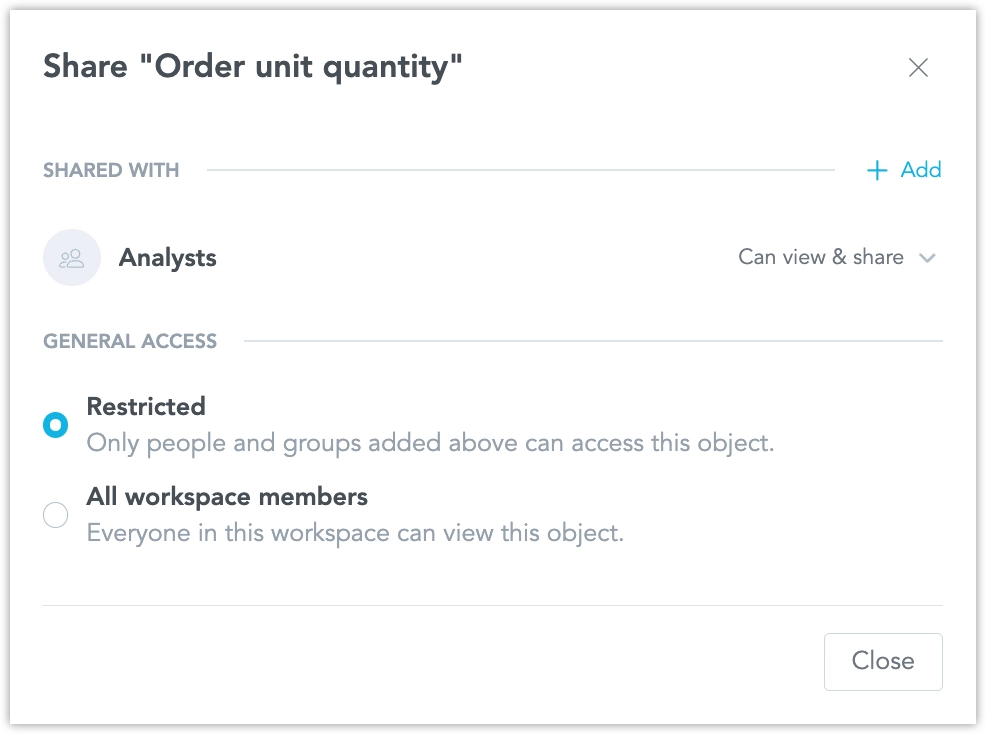
In the sharing dialog, choose the object’s general access:
- Restricted - only selected users and groups can access the object.
- All workspace members - everyone in the workspace can view the object.
To share the object with selected users or groups, click + Add.
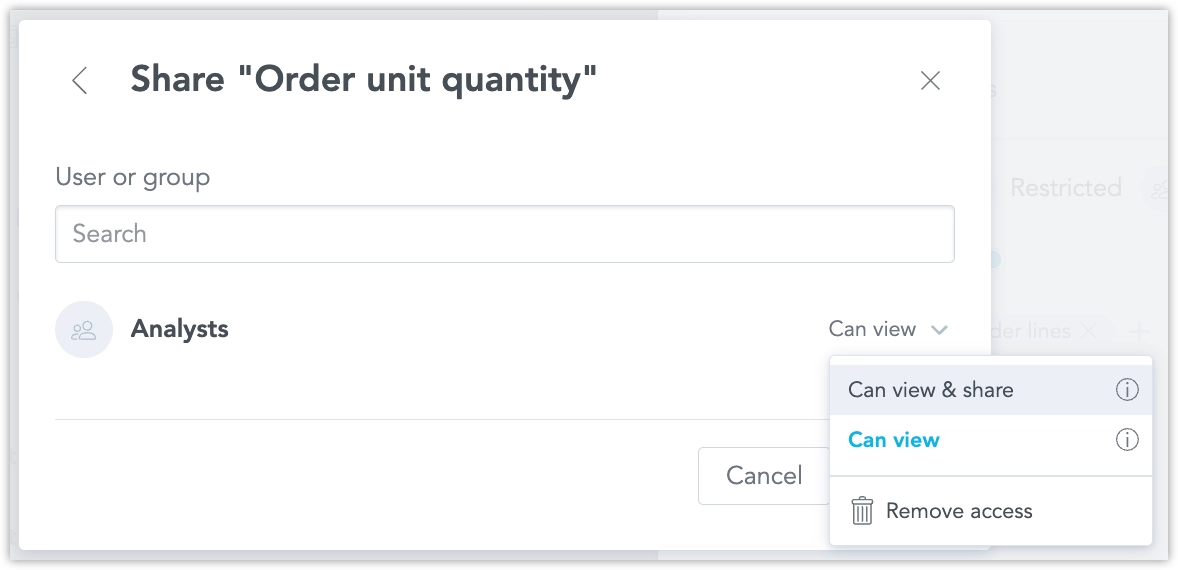
Select a user or user group, choose their access level, and click Add.
The selected users or groups now appear in the Shared with section and have access to the object.
You can manage column-level permissions using the GoodData API.
The examples below use a fact, but the same pattern applies to other supported object types by changing the object type in the URL.
Get Object Permissions
To get the permissions of a fact, send a GET request to the permissions endpoint:
curl $HOST_URL/api/v1/actions/workspaces/<WORKSPACE_ID>/facts/<FACT_ID>/permissions \
  -H "Accept: application/json" \
  -H "Authorization: Bearer <API_TOKEN>" \
  -X GET | jq .
Example response:
{
  "rules": [],
  "userGroups": [
    {
      "id": "562854aa-64ae-4505-b99e-7d88e13de52c",
      "name": null,
      "permissions": [
        {
          "level": "SHARE",
          "source": "direct"
        },
        {
          "level": "VIEW",
          "source": "direct"
        }
      ]
    }
  ],
  "users": []
}
Update Object Permissions
To update permissions for a fact, send a POST request to the same permissions endpoint.
The following example grants a user group VIEW and SHARE access to the fact:
curl $HOST_URL/api/v1/actions/workspaces/<WORKSPACE_ID>/facts/<FACT_ID>/permissions \
  -H "Content-Type: application/json" \
  -H "Accept: application/json" \
  -H "Authorization: Bearer <API_TOKEN>" \
  -X POST \
  -d '{
      "rules": [],
      "userGroups": [
          {
              "id": "<USER_GROUP_ID>",
              "permissions": [
                  {
                      "level": "VIEW"
                  },
                  {
                      "level": "SHARE"
                  }
              ]
          }
      ],
      "users": []
  }' | jq .
To grant access to an individual user instead of a user group, provide the user in the users array:
curl $HOST_URL/api/v1/actions/workspaces/<WORKSPACE_ID>/facts/<FACT_ID>/permissions \
  -H "Content-Type: application/json" \
  -H "Accept: application/json" \
  -H "Authorization: Bearer <API_TOKEN>" \
  -X POST \
  -d '{
      "rules": [],
      "userGroups": [],
      "users": [
          {
              "id": "<USER_ID>",
              "permissions": [
                  {
                      "level": "VIEW"
                  }
              ]
          }
      ]
  }' | jq .
Check Hidden Objects
If a user does not have access to a restricted object, direct API access returns 404 Not Found. This masks the existence of the object from unauthorized users.
To inspect the HTTP status code, add -i:
curl -i $HOST_URL/api/v1/actions/workspaces/<WORKSPACE_ID>/facts/<FACT_ID>/permissions \
  -H "Accept: application/json" \
  -H "Authorization: Bearer <API_TOKEN>" \
  -X GET