Getting Started
This series of articles walks you through the basics of starting with GoodData from scratch for your own project. In about 30 minutes, you will gain a vertical slice of how to connect data, create beautiful analytics, and embed them into your web application.
Get GoodData
If you do not have access to a running instance of GoodData, visit gooddata.com/request-a-demo to request access.
After you receive access and log in, you will land on the homepage:
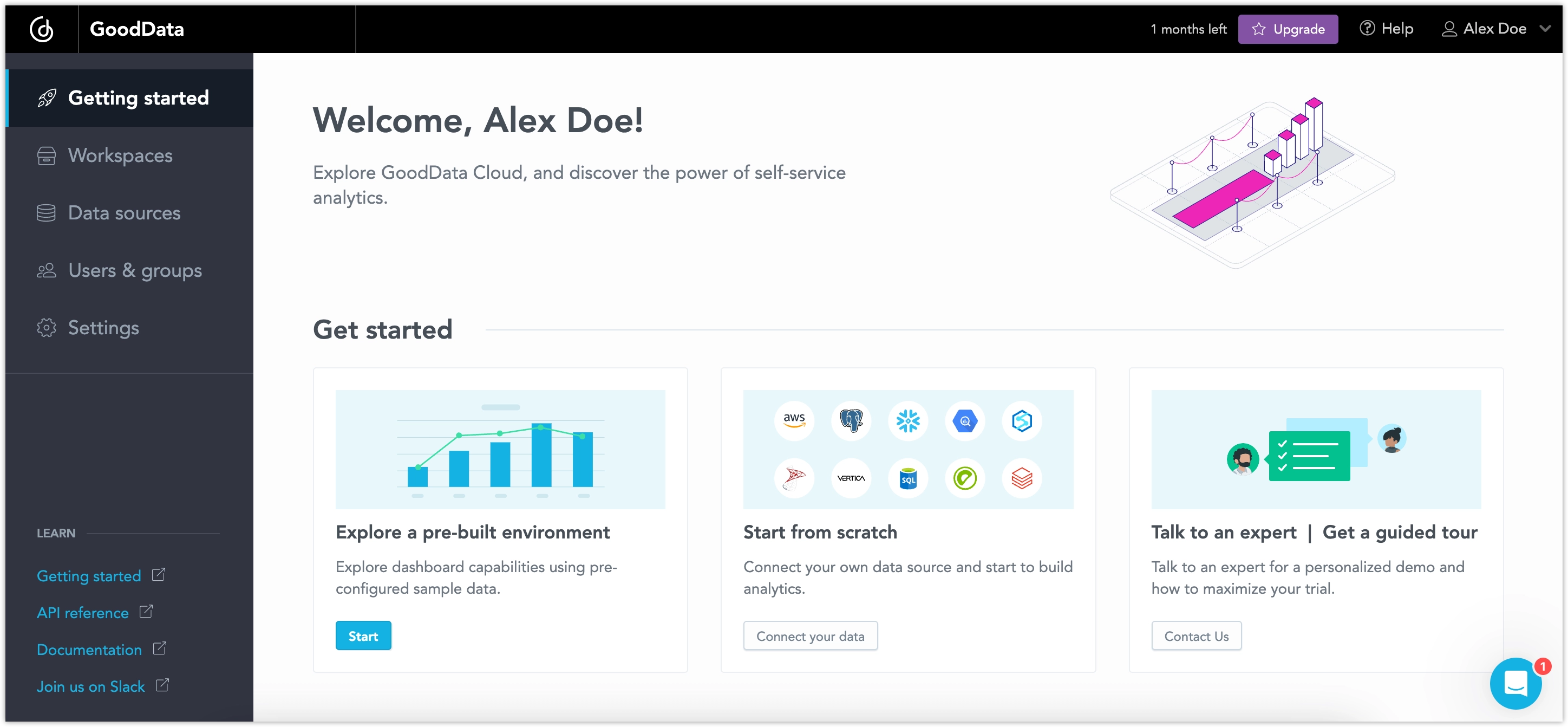
You can select the Explore a pre-built environment option to create a workspace connected to our demo database, complete with pre-built visualizations, metrics, and dashboards. This is a quick and easy way to explore GoodData’s capabilities. However, for learning purposes, this guide assumes you are starting from scratch.
Using Code?
GoodData offers a sleek and easy-to-use web interface. However, as a developer, you may also want to interact with GoodData programmatically. We maintain a suite of developer tools to make this straightforward. Everything you can do in the web UI is possible via our API.
If your current focus is to try out or onboard yourself to GoodData as fast as possible, using the web UI rather than programming tools, skip this step and proceed directly to 1. Connect Data.
Create API Token
To interact with GoodData programmatically, you need a valid API token. This token ensures secure access and authentication.
Steps:
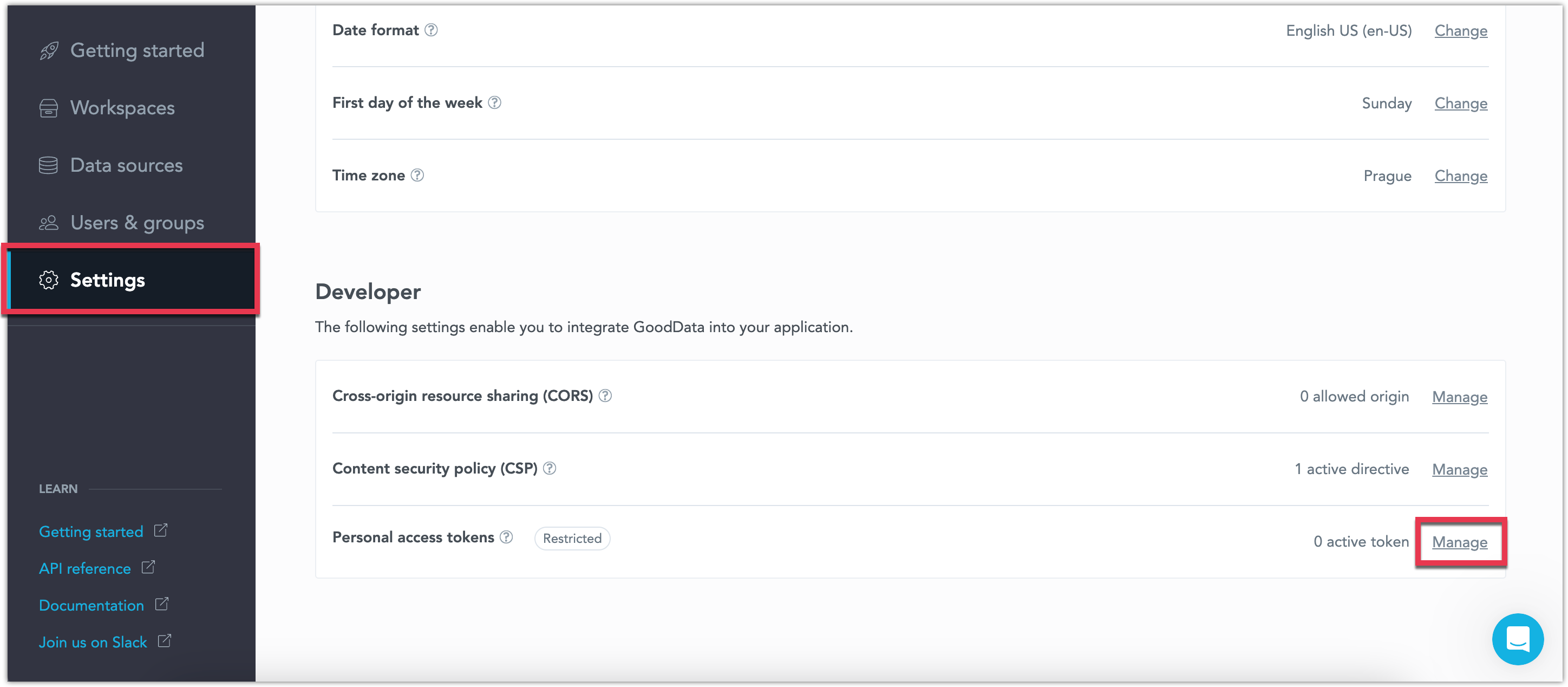
Go to Settings, find the Developers section, and next to Personal access tokens click Manage.
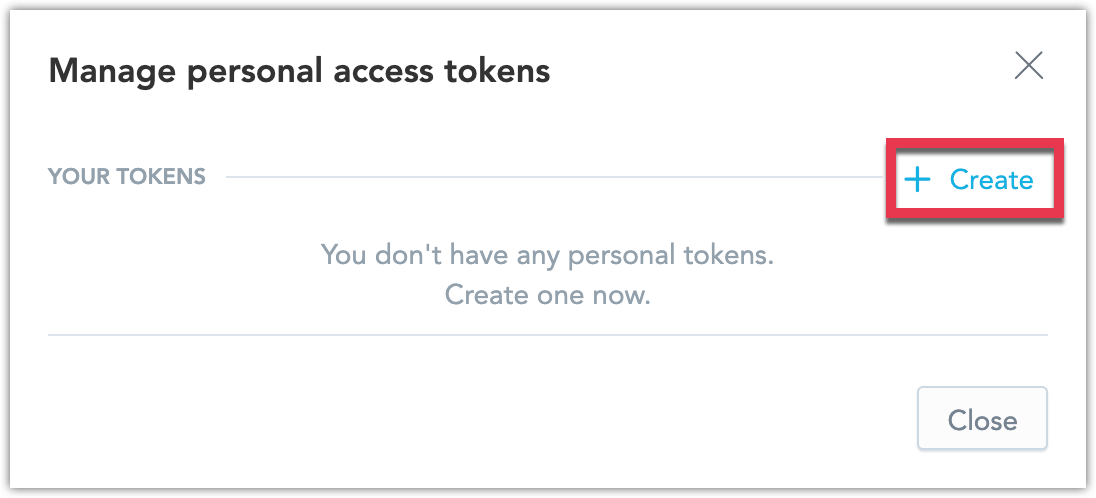
Click Create.
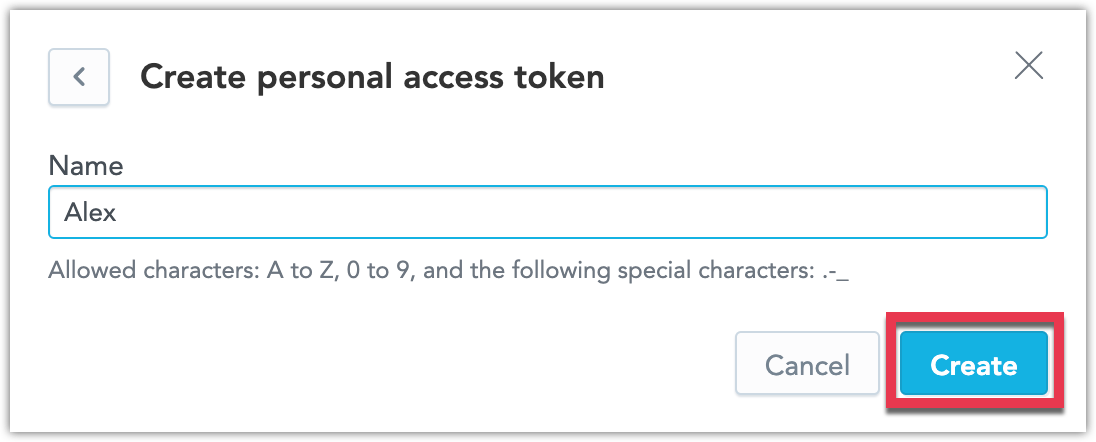
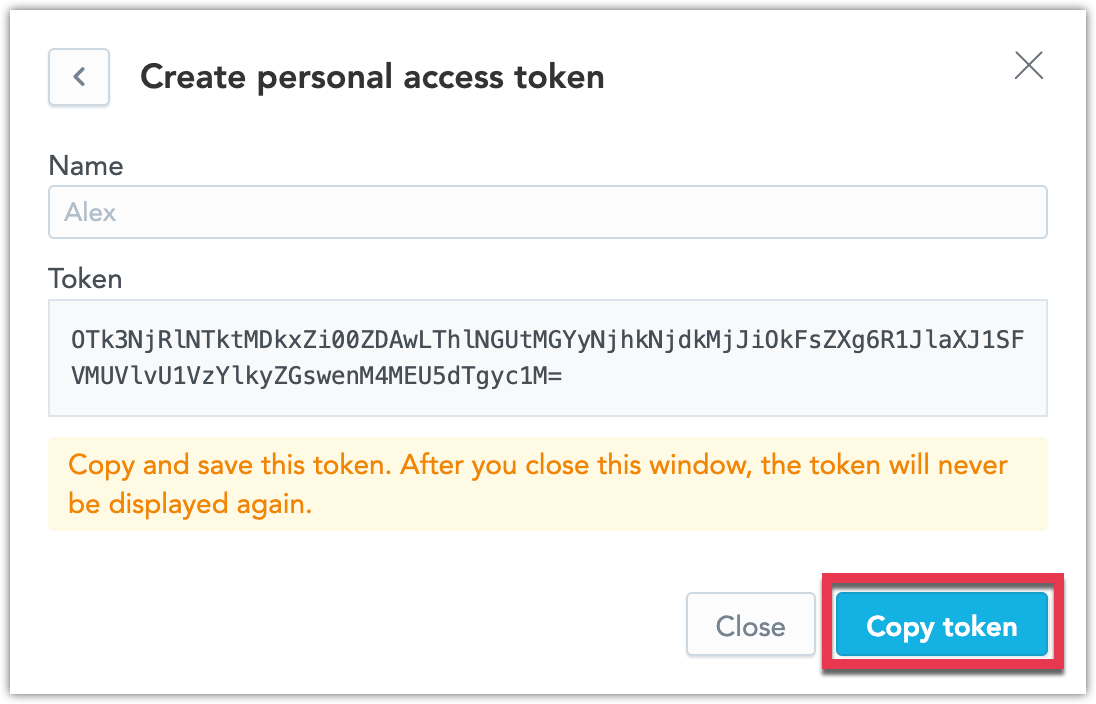
Name your token and click Create.
Click Copy token and save it for later use.
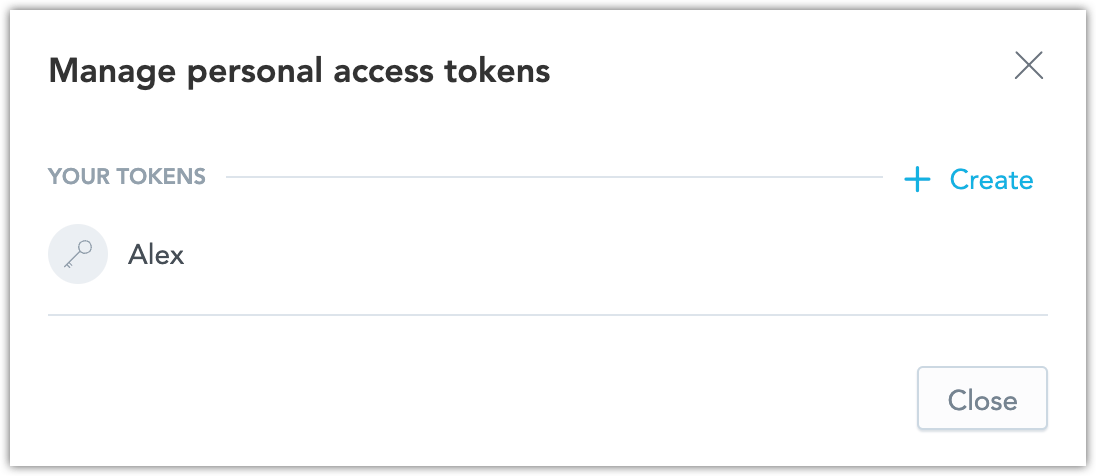
Your tokens are listed here:
You can never display the token values again. If you lose your token value, you have to create a new one.
Migrating from GoodData Legacy?
If you are moving from GoodData Legacy to GoodData Cloud, you can use the GoodData Legacy to Cloud migration tool to help migrate your metadata using our gooddata-legacy2cloud CLI package.
Ask AI About GoodData
The AI Assistant Ask AI lets you ask questions about GoodData in natural language and get help without leaving the documentation. It is context-driven: it works from the documentation set you are currently browsing, so you get results relevant to GoodData Cloud or GoodData.CN.
The same assistant is also available on the GoodData Support portal and in the GoodData Community, where it is called GoodData Support AI.
How It Works
Ask your question in natural language, the way you would ask a colleague. The more context you give, the more relevant the answer. You can ask follow-up questions in the same conversation to refine or explore the topic further.
Answers are put together from GoodData public sources, including product documentation, SDKs, the community, and other relevant public content. They include links back to the original pages so you can read more.
In the Community
In the GoodData Community, the assistant is called GoodData Support AI. Answers are AI-generated and posted directly in the thread.
Accuracy and Limitations
Answers are generated by AI and may be inaccurate, incomplete, or out of date. Always double-check important information directly in the GoodData documentation.
For clarification, bug reports, or production issues, contact GoodData Support.
Documentation MCP Endpoint
Important Notice
The Documentation MCP Endpoint is an experimental feature, provided as-is and without warranties. It may be rate-limited, and we do not guarantee its availability. It is subject to change or discontinuation at any time without notice, and is not covered by any SLA.
Alongside the assistant, GoodData exposes a public documentation MCP endpoint that you can connect from compatible AI tools, such as Claude or other MCP clients. Instead of returning a written answer, the endpoint returns relevant passages and links from GoodData public documentation, SDKs, community content, and other relevant public sources, so your AI tool can use them as grounded sources for its own responses.
The endpoint uses the documentation scope you are currently browsing, so GoodData Cloud and GoodData.CN documentation remain separate.
This documentation MCP endpoint is separate from the GoodData MCP Server, which exposes GoodData platform capabilities, including your data and analytics, to MCP clients. The documentation endpoint only exposes public documentation and related public sources. It never provides access to your workspaces or data.
To connect an AI tool:
- Open the Ask AI assistant.
- Click Connect with MCP.
- Select the connection option for your AI tool.
- Follow the instructions provided by the widget or your AI tool.
Depending on the client, the menu can provide a CLI command, a one-click installation, or an option to copy the MCP URL.
Other Resources
- You can find video tutorials on building analytics with GoodData on our YouTube channel.
- To dive deep into GoodData’s concepts, proceed to GoodData University.
- To read more about developer use cases, check Medium Blog.
- If you have any questions, join our Slack Channel.