Manage Administrative Permissions
Use administrative permissions to designate organization administrators, control API token creation and native UI access, manage data source access, and make users or groups available in sharing dialogs.
Each grant belongs to the relevant resource: an organization, data source, user, or user group. The grant identifies the user or organization-level group receiving the permission. To give people access to analytics, configure workspace permissions and object permissions as well.
For the API examples in this article, set $HOST_URL to your GoodData organization URL and replace the placeholders in angle brackets with your own resource IDs and API token.
Organization Permissions
| Permission | What it allows |
|---|---|
MANAGE | Administer the organization, including users, groups, workspaces, data sources, and permissions. Access all objects in the organization, regardless of object restrictions. |
SELF_CREATE_TOKEN | Create personal API tokens for the user’s own account. Creating tokens for another user requires MANAGE. |
BASE_UI_ACCESS | Open the native GoodData UI when the organization setting RESTRICT_BASE_UI is enabled. Organization administrators retain UI access. |
Removing SELF_CREATE_TOKEN prevents the user from creating new tokens. It does not invalidate existing tokens or prevent the user from deleting their own tokens. Existing tokens use the account’s current permissions; they do not retain an earlier level of access. See API Access Tokens.
BASE_UI_ACCESS is evaluated only when RESTRICT_BASE_UI is enabled. It provides access to the native UI, while workspace and object grants determine which analytics the user can access.
Set Organization Permissions
Use an account with organization MANAGE. Keep at least one user with effective MANAGE; a request that leaves the organization without an administrator is rejected.
Retrieve the current permission list:
curl "$HOST_URL/api/v1/layout/organization/permissions" \
  -H "Content-Type: application/json" \
  -H "Accept: application/json" \
  -H "Authorization: Bearer <API_TOKEN>" \
  -X GET | jq .
Edit the list, retaining every grant you want to keep. Each entry assigns one permission to one user or group.
Apply the complete list with
PUT. The following example grantsMANAGEto an administrator group andSELF_CREATE_TOKENto a developer group:curl "$HOST_URL/api/v1/layout/organization/permissions" \ -H "Content-Type: application/json" \ -H "Accept: application/json" \ -H "Authorization: Bearer <API_TOKEN>" \ -X PUT \ -d '[ { "assignee": { "id": "<ADMIN_GROUP_ID>", "type": "userGroup" }, "name": "MANAGE" }, { "assignee": { "id": "<DEVELOPER_GROUP_ID>", "type": "userGroup" }, "name": "SELF_CREATE_TOKEN" } ]'
PUT replaces the full list
The request replaces all organization permission grants. Use the example only if it represents the complete configuration you intend to keep. Include any other existing grants that should remain.
Data Source Permissions
Data source permissions control use and administration of a particular database connection. Dashboard viewers do not need them.
| Permission | What it allows |
|---|---|
USE | Use the data source when working with a workspace’s logical data model. View its identifier without access to connection details or credentials. |
MANAGE | Use and administer the data source, including its connection configuration. |
A modeler needs both <workspace>.MANAGE and at least <data_source>.USE. Workspace administration alone does not provide data source access. Organization administrators can access all data sources.
Data source grants do not share analytics or override restrictions on columns and metrics. Workspace access, object permissions, and data filters control access to analytical content.
Set Data Source Permissions
Use an account authorized to manage the data source. Choose USE for modelers who need the connection, or MANAGE for users who also administer it.
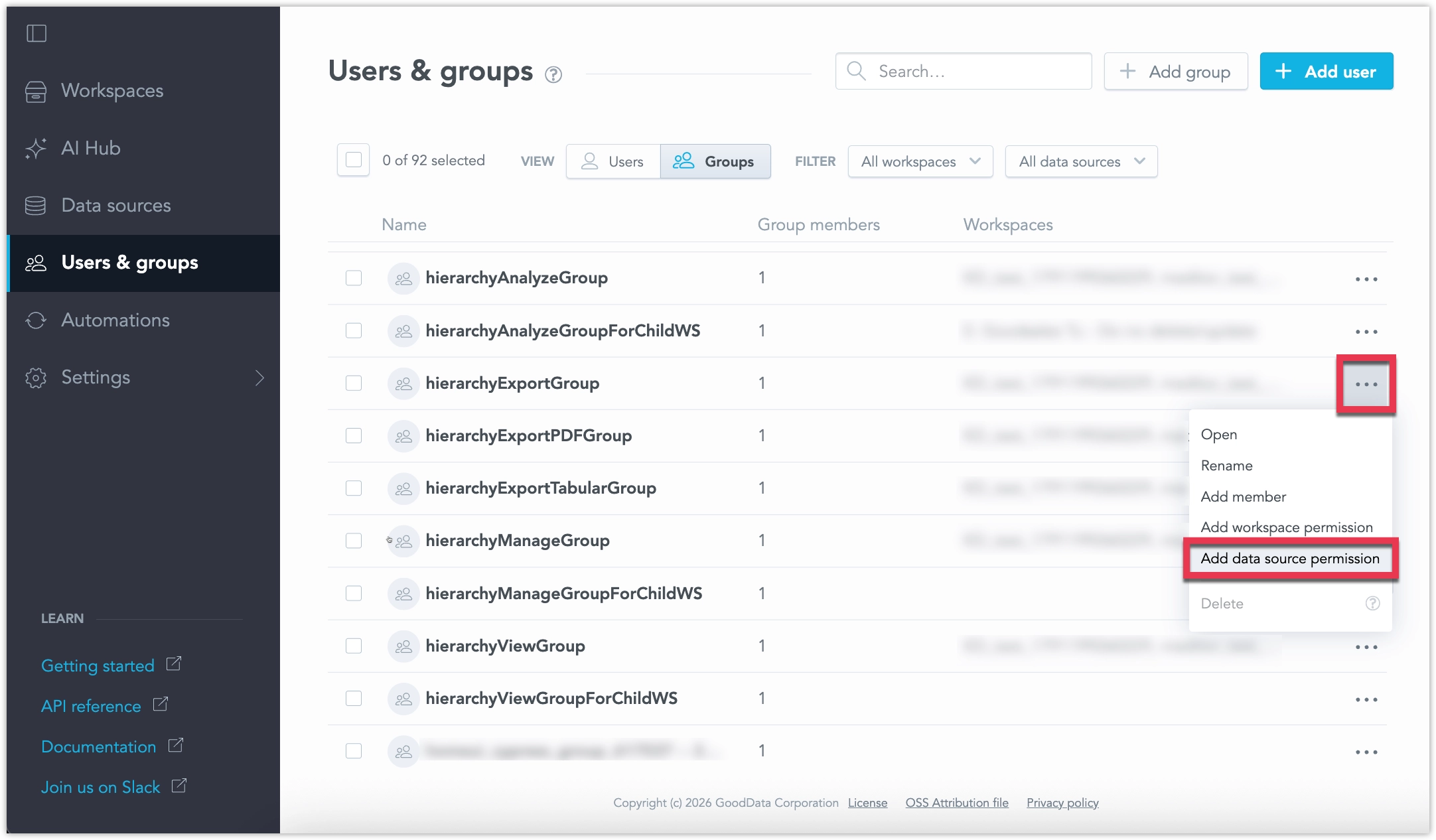
Open Users & groups and select the Users or Groups view.
Open the three-dot menu for the user or group and select Add data source permission.
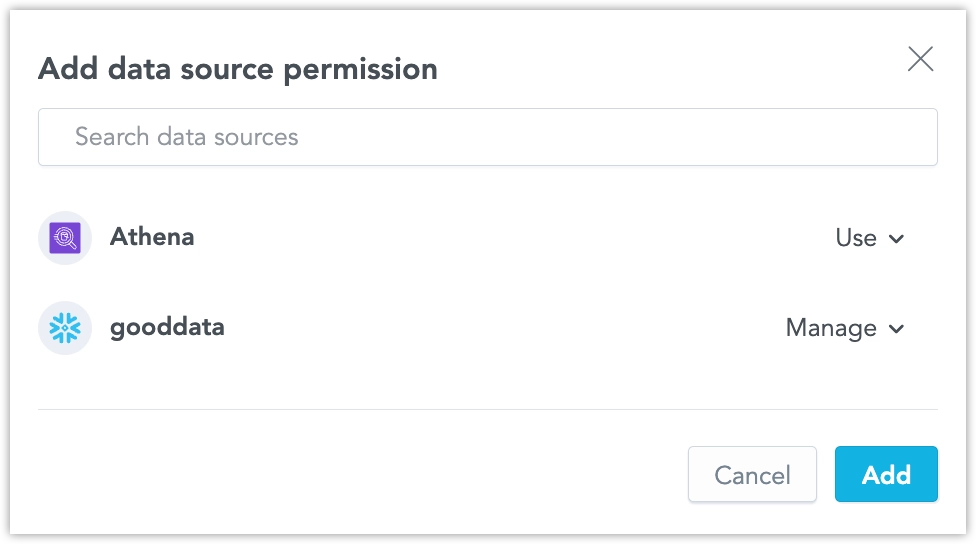
Find the data source. Use Search data sources if needed.
Select Use or Manage from the permission drop-down. Repeat for any additional data sources.
Click Add.
First, retrieve the current grants:
curl "$HOST_URL/api/v1/layout/dataSources/<DATA_SOURCE_ID>/permissions" \
  -H "Content-Type: application/json" \
  -H "Accept: application/json" \
  -H "Authorization: Bearer <API_TOKEN>" \
  -X GET | jq .
Then update the assignees whose permissions should change. Include every permission each listed assignee should retain. Other assignees are unchanged.
This example grants a modelers group USE:
curl "$HOST_URL/api/v1/actions/dataSources/<DATA_SOURCE_ID>/managePermissions" \
  -H "Content-Type: application/json" \
  -H "Accept: application/json" \
  -H "Authorization: Bearer <API_TOKEN>" \
  -X POST \
  -d '[
      {
          "assigneeIdentifier": {
              "id": "<MODELER_GROUP_ID>",
              "type": "userGroup"
          },
          "permissions": ["USE"]
      }
  ]'
You can also replace the complete definition with PUT on the layout endpoint. Retrieve and edit it first to preserve unrelated grants. See the Data Source Permissions API reference.
Make Users and Groups Available for Sharing
Sharing dialogs list users and groups the author is allowed to discover. Configure discoverability when authors need to find particular recipients.
The grant belongs to the recipient being made visible. Assign <user>.SEE or <user_group>.SEE to the user or group that should be able to find that recipient.
For example, suppose you create two groups named Sales Authors and Sales Readers. To let members of Sales Authors find Sales Readers in a sharing dialog, configure this grant:
| Part of the grant | Value |
|---|---|
| Resource | The Sales Readers group. |
| Assignee | The Sales Authors group. |
| Permission | SEE. |
This grant makes Sales Readers discoverable to members of Sales Authors. It does not give either group workspace access or share content between them. Recipients still need workspace access and the appropriate object grants.
For multiple tenants, use separate groups for tenant audiences and make each recipient discoverable to the authors who need to share with it. Review nested group membership when sharing with a group that spans tenants. Discoverability controls who appears in a sharing dialog; workspace permissions, object grants, and data filters determine access to analytics and data. See Share Analytics Across Tenant Workspaces.
Use an organization administrator account to configure discoverability. System users remain hidden from end-user sharing pickers.
Make a Group Discoverable
This example lets members of one group find another group. Replace <SHARING_GROUP_ID> with the ID of the group that should be able to find recipients, and <VISIBLE_GROUP_ID> with the ID of the group you want to make visible. For the example above, these are the IDs of Sales Authors and Sales Readers, respectively.
First, retrieve the grants on the group being made visible:
curl "$HOST_URL/api/v1/layout/userGroups/<VISIBLE_GROUP_ID>/permissions" \
  -H "Content-Type: application/json" \
  -H "Accept: application/json" \
  -H "Authorization: Bearer <API_TOKEN>" \
  -X GET | jq .
Add the desired grant and replace the definition, preserving existing grants that should remain. The example below contains only the new grant; add any others you need to retain before applying it:
curl "$HOST_URL/api/v1/layout/userGroups/<VISIBLE_GROUP_ID>/permissions" \
  -H "Content-Type: application/json" \
  -H "Accept: application/json" \
  -H "Authorization: Bearer <API_TOKEN>" \
  -X PUT \
  -d '{
      "permissions": [
          {
              "assignee": {
                  "id": "<SHARING_GROUP_ID>",
                  "type": "userGroup"
              },
              "name": "SEE"
          }
      ]
  }'
Make a User Discoverable
Use the same pattern on the user’s resource. Replace <VISIBLE_USER_ID> with the ID of the user you want to make visible. First, retrieve that user’s current grants:
curl "$HOST_URL/api/v1/layout/users/<VISIBLE_USER_ID>/permissions" \
  -H "Content-Type: application/json" \
  -H "Accept: application/json" \
  -H "Authorization: Bearer <API_TOKEN>" \
  -X GET | jq .
Grant <SHARING_GROUP_ID> permission to find <VISIBLE_USER_ID>. Preserve any other grants in the replacement definition:
curl "$HOST_URL/api/v1/layout/users/<VISIBLE_USER_ID>/permissions" \
  -H "Content-Type: application/json" \
  -H "Accept: application/json" \
  -H "Authorization: Bearer <API_TOKEN>" \
  -X PUT \
  -d '{
      "permissions": [
          {
              "assignee": {
                  "id": "<SHARING_GROUP_ID>",
                  "type": "userGroup"
              },
              "name": "SEE"
          }
      ]
  }'
See Permission Hierarchies for an example with nested groups and the Permissions API reference for request and response schemas.