Manage Object Permissions
Use an object’s access settings to choose who can view, share, or edit it. You can share a column, metric, saved visualization, or dashboard with selected users and organization-level groups, or make it available to all workspace members.
Recipients also need access to the workspace. To use a metric or visualization, they need access to every input required to compute it. Sharing a dashboard does not share its visualizations, metrics, or columns.
Start with Choose What to Protect to decide which objects to restrict and whether you also need data filters. Object grants control access to content; user and workspace data filters limit the rows available through that content. For examples of complete setups, see Permission Configuration Examples.
Share or Restrict an Object
Before changing access:
- Make sure you have
<object>.SHARE,<object>.EDIT, or applicable administrator access.MANAGE_VISUALIZATIONSalso allows managing access to saved visualizations. - Choose Restricted for selected users and groups, or All workspace members for a workspace-wide audience.
- Choose the access level each recipient needs. Use Can view when users only need to consume the content.
Share with individual users or organization-level groups.
Open the object’s sharing controls from one of these locations:
| Object | Where to open sharing |
|---|---|
| Fact, attribute, or secondary label | Select it in Catalog and open Share. |
| Metric | Open it in Catalog or the Metric editor, including the embedded Metric editor. |
| Saved visualization | Open it in Catalog or Analytical Designer. |
| Dashboard | Open the dashboard and click Share. |
Catalog, Analytical Designer, and the Metric editor require <workspace>.ANALYZE or <workspace>.MANAGE. An object grant does not provide access to those tools.
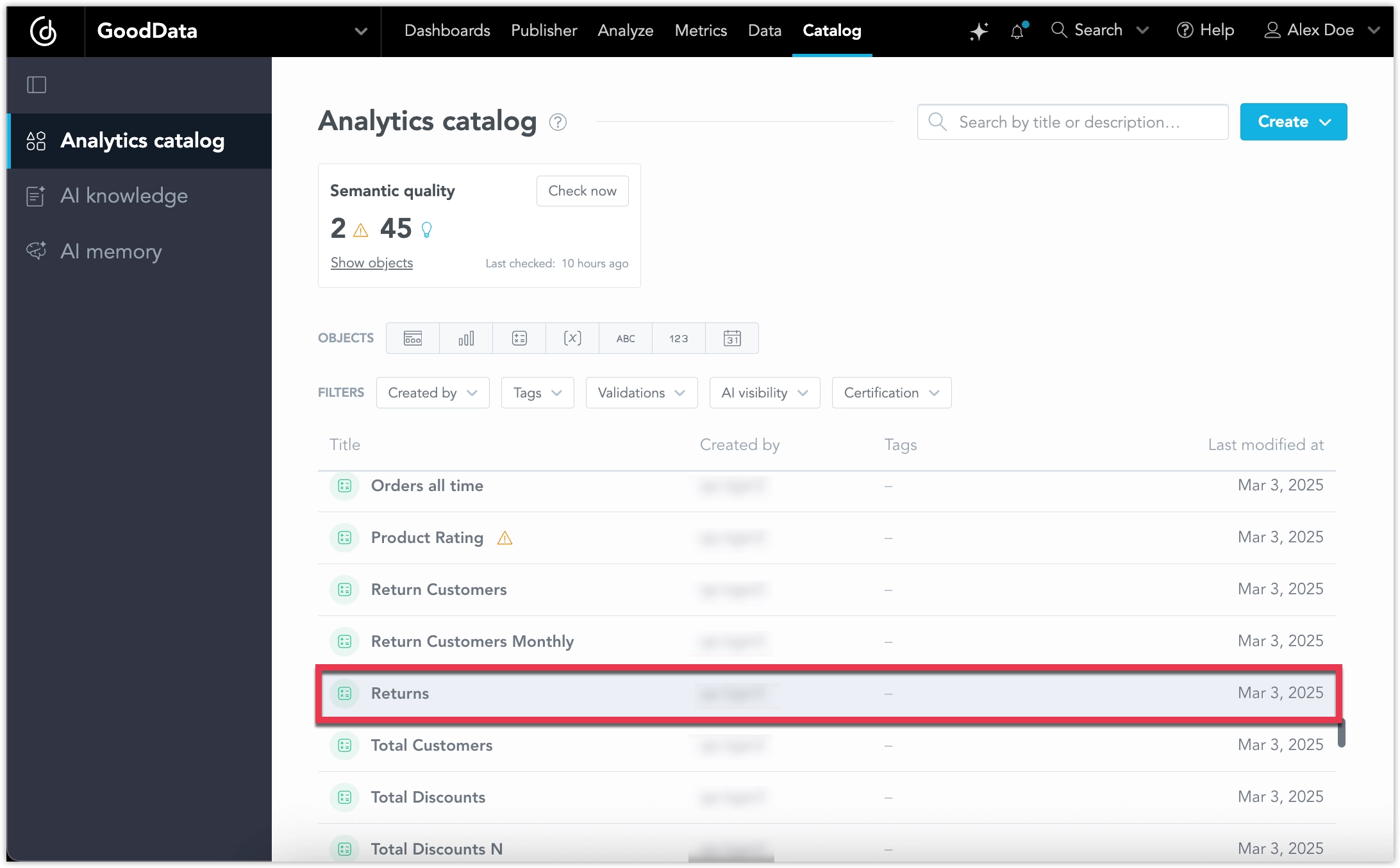
The following steps use an existing metric as an example. Choose a metric in your own workspace:
Open Catalog in your workspace and select the metric.
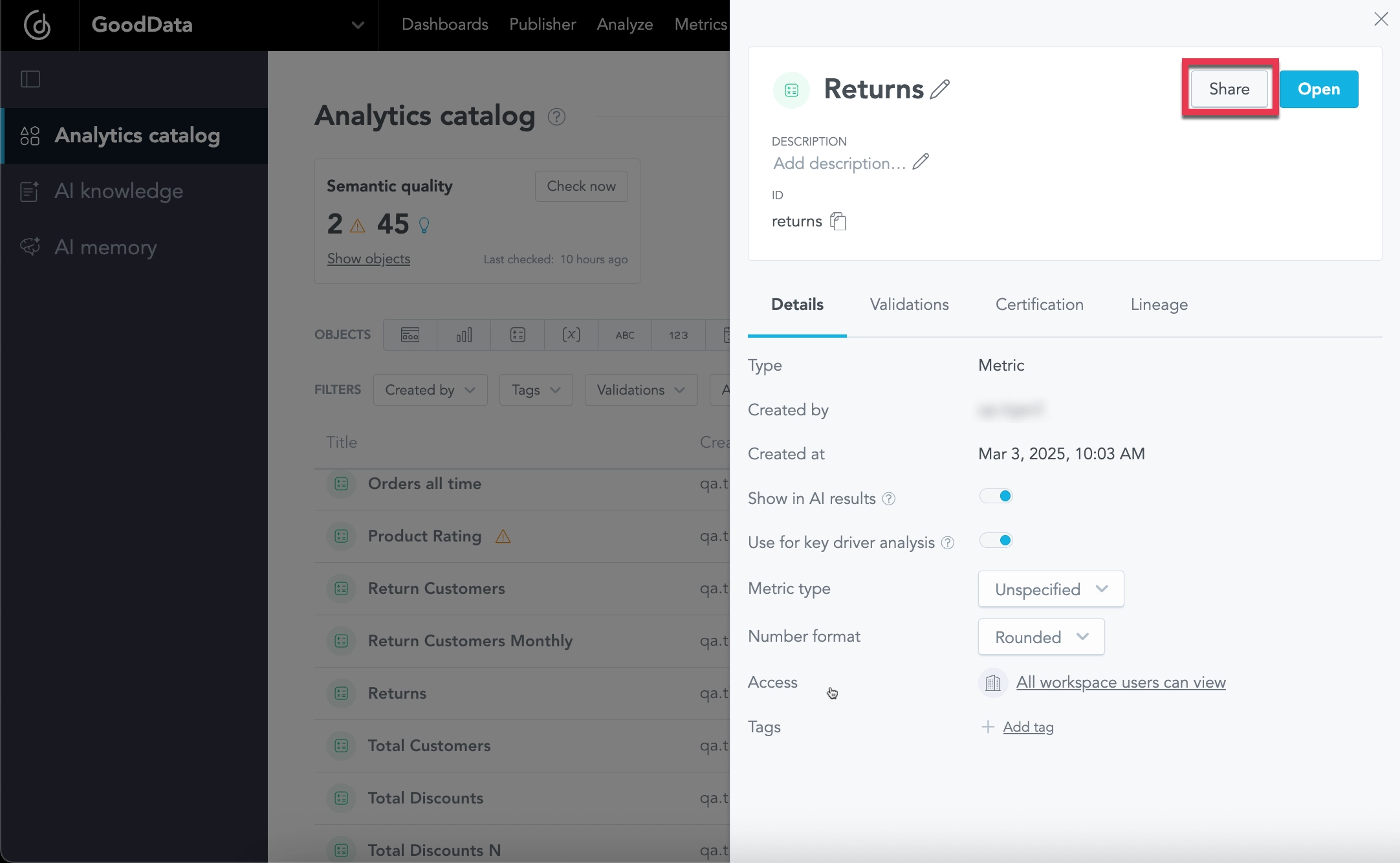
In the details panel, check Access to see the current audience, then click Share.
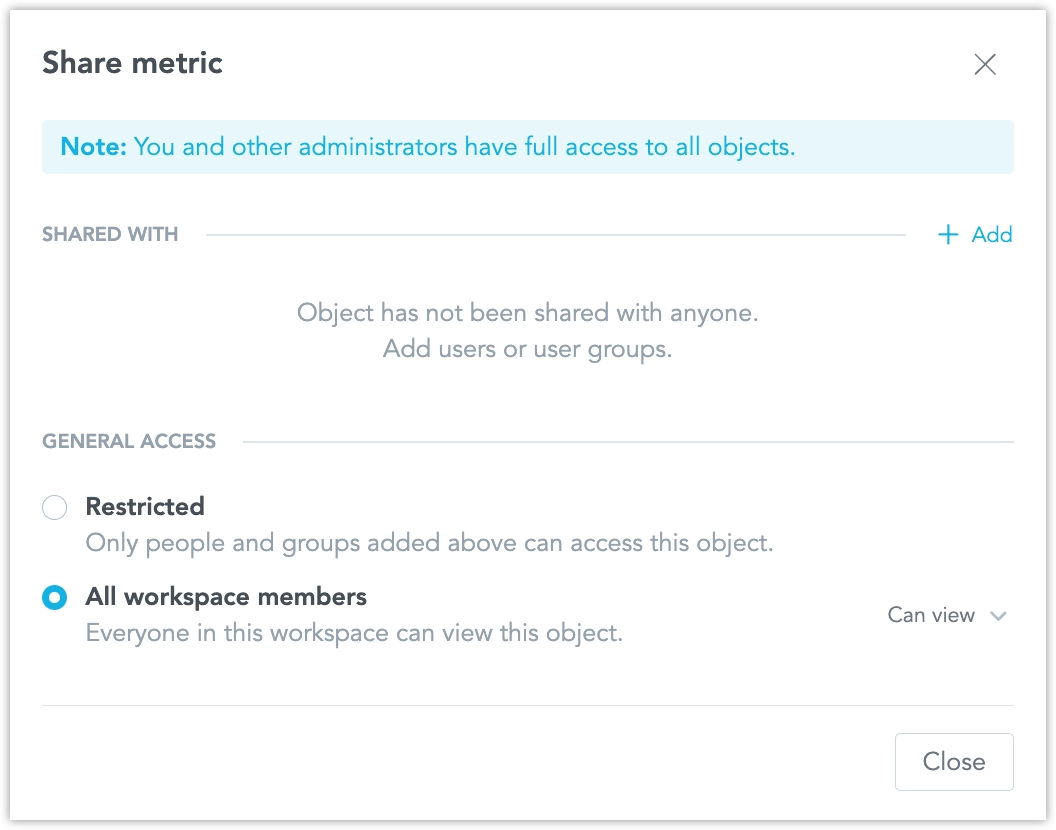
Under General access, choose Restricted or All workspace members. Keep the workspace-wide level at Can view if the audience only needs to use the metric.
To share with selected recipients, click + Add under Shared with. Select users or organization-level groups, choose their access level, and click Add.
Review the grants under Shared with, then click Close.
If a recipient is missing from the picker, check their workspace access and user or group discoverability.
Use the permissions API to inspect grants and automate sharing. The following examples manage a metric you choose. Set $HOST_URL to your GoodData organization URL and replace the placeholders in angle brackets with your own resource IDs and API token.
To work with another supported object, replace metrics in the URL with its API entity and use that object’s ID:
| Object | API entity |
|---|---|
| Dashboard | analyticalDashboards |
| Saved visualization | visualizationObjects |
| Metric | metrics |
| Fact | facts |
| Attribute | attributes |
| Secondary label | labels |
First, retrieve the metric’s grants:
curl "$HOST_URL/api/v1/actions/workspaces/<WORKSPACE_ID>/metrics/<METRIC_ID>/permissions" \
  -H "Content-Type: application/json" \
  -H "Accept: application/json" \
  -H "Authorization: Bearer <API_TOKEN>" \
  -X GET | jq .
The response separates users, userGroups, and rules, and identifies direct and inherited grants. Change an inherited grant in the workspace where it was assigned.
Each update entry sets the direct permissions for its assignee. Omitted assignees are unchanged.
For example, suppose you have created a group named Finance and want to share the metric with it. The request below removes the direct workspace-wide grant and gives that group VIEW. Replace <FINANCE_GROUP_ID> with the ID of the group you want to grant access to:
curl "$HOST_URL/api/v1/actions/workspaces/<WORKSPACE_ID>/metrics/<METRIC_ID>/managePermissions" \
  -H "Content-Type: application/json" \
  -H "Accept: application/json" \
  -H "Authorization: Bearer <API_TOKEN>" \
  -X POST \
  -d '[
      {
          "assigneeRule": {
              "type": "allWorkspaceUsers"
          },
          "permissions": []
      },
      {
          "assigneeIdentifier": {
              "id": "<FINANCE_GROUP_ID>",
              "type": "userGroup"
          },
          "permissions": ["VIEW"]
      }
  ]'
Other direct or inherited grants can still provide access. Review them when narrowing the audience; the example does not remove grants for other named users or groups.
Use "type": "user" for an individual. Use SHARE or EDIT for a higher level. An empty permissions array removes the named assignee’s direct grant. To restore workspace-wide viewing, grant VIEW to the allWorkspaceUsers rule.
Successful updates return 204 No Content. See the Permissions API reference for schemas and the dashboard availableAssignees endpoint.
If an integration reads a dashboard with include, object restrictions still apply. Restricted metrics and visualizations are omitted from included and identified by type and ID in meta.restricted; their definitions and titles are not returned.
After updating access, verify that the intended recipients can use the object and its dependencies.
Remove Access
Remove a user or group from the access settings, or lower their access level. To remove the workspace-wide grant, change General access to Restricted. Named and inherited grants remain in place.
Check every route that can still provide access:
- A direct grant to the user.
- Membership in a group with a grant.
- A workspace-wide grant.
- A grant inherited from a parent workspace.
- Administrator access, or
MANAGE_VISUALIZATIONSfor saved visualizations.
A lower grant does not override a higher one. A child workspace cannot remove access granted in its parent.
The last holder of EDIT on a metric or visualization cannot remove or lower their own final grant. Give another user or group EDIT first. This protection does not prevent an account from being deleted, so transfer responsibility for shared content before deleting its maintainer’s account. An organization administrator, or a workspace administrator within the scope of MANAGE, can still open the object, so it does not become unreachable.
Rules by Object Type
Choose the object to restrict according to what you need to protect. A restriction on a saved chart or dashboard does not restrict the underlying data for users who can still access its inputs.
Columns
Restrict columns to protect sensitive data wherever it is used in analytics.
Facts, attributes, and secondary labels have their own grants. A primary label follows its attribute’s access policy and has no independent grants. To use a secondary label, a user needs access to both that label and its attribute.
New columns start with All workspace members access. Restrict sensitive columns explicitly; there is no setting to change their creation default.
Column restrictions apply to every calculation that needs the column, including uses in formulas, dimensions, filters, and sorting.
For example, suppose your model contains a fact you named Salary, and you create a metric named Average Salary that uses it. A user without access to Salary cannot compute Average Salary, even if you share the metric with them. Access to the underlying fact is still required.
Column permissions control access and sharing. Creating, changing, or deleting the logical data model requires <workspace>.MANAGE, even if the user has <column>.EDIT.
Columns used in user data filters
Access checks also apply to columns referenced by user data filters. Restricting such a column can make affected calculations unavailable. Keep the filter’s required columns accessible to the users it applies to, and use the filter to limit their rows.
Metrics
Metric permissions protect a saved calculation and its MAQL definition. VIEW includes reading that definition and using the metric, subject to access to its inputs. A user can read an accessible metric’s definition while being unable to compute it because an input is restricted.
To compute a metric, users need access to all referenced columns and metrics, through the full dependency chain. GoodData does not skip inaccessible inputs or return a partial value.
| Task | Permission |
|---|---|
| Save a new metric or a copy | <workspace>.CREATE_METRIC or <workspace>.MANAGE. |
| Change or delete an existing metric | <metric>.EDIT or applicable administrator access. |
| Manage sharing | <metric>.SHARE, <metric>.EDIT, or applicable administrator access. |
| Open the Metric editor | <workspace>.ANALYZE or <workspace>.MANAGE, in addition to the object or creation permissions needed for the task. |
Review dependent analytics before changing or deleting a shared metric. To protect the underlying data across other calculations, restrict the relevant columns as well.
Visualizations
Visualization permissions control access to a saved chart or table wherever it is used. Someone who can access its inputs may still build another analysis from them.
Saving a new visualization or a copy requires <workspace>.CREATE_VISUALIZATION or a permission that includes it. A copy is a new object and follows the creation defaults. Updating an existing visualization preserves its sharing policy.
Changing or deleting an existing visualization requires <visualization>.EDIT, <workspace>.MANAGE_VISUALIZATIONS, or applicable administrator access. Standalone Analytical Designer also requires <workspace>.ANALYZE or <workspace>.MANAGE. A user with workspace VIEW and visualization EDIT can use the API or a supported dashboard widget editor without gaining access to standalone Analytical Designer.
Visualizations require every input needed to compute their results. If one of three metrics in a chart is inaccessible, the chart is unavailable. GoodData does not remove that metric and render the other two. This also applies to inaccessible inputs used for filters or sorting.
Dashboards
Dashboard grants control access to the dashboard and its layout. They do not grant access to the saved visualizations, metrics, or columns it uses.
Creating a dashboard requires <workspace>.ANALYZE or <workspace>.MANAGE; there is no separate CREATE_DASHBOARD permission. Editing an existing dashboard requires workspace access and <dashboard>.EDIT, or applicable administrator access. Editing a saved visualization inside it requires permission on that visualization separately.
Edit an inherited dashboard in the workspace where it was created. An EDIT grant on an inherited dashboard provides sharing access in the child, but does not allow the child to change the parent’s definition. The same originating-workspace rule applies to inherited metrics and visualizations.
In a multitenant setup, review grants on the full dependency chain in each tenant workspace. Inherited columns, metrics, and visualizations have their own access settings, just as the inherited dashboard does. See Inherited Objects and Share Analytics Across Tenant Workspaces.
Dashboards with Restricted Content
A user can open a dashboard they have access to even when some of its content is unavailable. Accessible widgets render, and unavailable widgets keep their positions and sizes as placeholders. If none of the content is accessible, the dashboard still opens with that content unavailable.
For example, suppose you create a dashboard with two visualizations, each based on a different metric and fact. The user can access the dashboard, both visualizations, and both metrics, but cannot access one of the facts. The arrows point to dependencies:
flowchart TB
    D["Dashboard opens"] --> W1["First widget renders"]
    D --> W2["Second widget unavailable"]
    W1 --> M1["Metric computes"]
    W2 --> M2["Metric cannot compute"]
    M1 --> F1["Accessible fact"]
    M2 --> F2["Restricted fact"]
The dashboard handles different kinds of unavailable content as follows:
| Inaccessible content | What the user sees |
|---|---|
| A visualization or one of its required inputs | A placeholder in the widget’s position, without the restricted content’s name. |
| A visualization inside a switcher or container | The unavailable content is masked; accessible content remains usable. |
| A metric reference in rich text | The reference is masked. The surrounding text remains visible. |
| An attribute or label used by a dashboard filter | An unavailable filter entry or count without its name. That filter is not applied. Widgets that used it indicate that they are shown without that filter. |
Unavailable dashboard filters affect the results
An inaccessible dashboard filter is not applied, which has the same effect as selecting All for that filter. A user’s results can therefore differ from those of someone who can use it. Dashboard filters are not a way to enforce row-level restrictions. Use user data filters or workspace data filters for that purpose; those controls remain in effect.
This behavior applies to dashboard filters. It does not allow a metric or visualization to compute without one of its required inputs or filters.
Saving a dashboard preserves references to unavailable widgets unless an editor explicitly removes them.
Exports and Scheduled Delivery
Exports require the relevant workspace export capability. Dashboard PDF and slide exports retain placeholders for unavailable content. Interactive dashboard tabular exports omit unavailable widgets and report how many were omitted.
Scheduled delivery also depends on whose permissions are used to generate the attachment:
| Delivery configuration | Permissions used |
|---|---|
| Separate attachments for workspace users | Each recipient’s access. |
| Delivery to external recipients | The automation creator’s access. |
| One shared attachment for all recipients | The automation creator’s access, without separate recipient checks. |
Use separate recipient evaluation when recipients need different access. An attachment generated with the creator’s access can contain data that some recipients cannot view in GoodData. See Automation in Dashboards for delivery configuration.
Scheduled dashboard tabular exports
Scheduled dashboard tabular exports use partial rendering. They check access to the dashboard rather than every underlying object restriction. Widgets the recipient cannot use are omitted, and the export does not include their data.
Troubleshoot Access
Test with a non-administrator who has the intended workspace access and group memberships. Allow a few seconds for permission changes to propagate, then make a fresh request. For integrations, verify which identity actually authenticates the request.
| Symptom | What to check |
|---|---|
An object is missing or a direct request returns 404 Not Found | The object ID, workspace access, and object grants. An inaccessible object is hidden like a nonexistent one. |
A readable object cannot be changed, or a write returns 403 Forbidden | The edit grant, any required workspace capability, and whether the object is inherited. |
| A shared metric or visualization cannot compute | All referenced metrics and columns, including filter and sorting inputs. |
| A dashboard opens with unavailable widgets | The visualization grants and each widget’s required inputs. |
| A dashboard shows different results for different users | Unavailable dashboard filters, user data filters, and workspace data filters. |
| Access remains after removing a grant | Other group, workspace-wide, and inherited grants; administrator access; and MANAGE_VISUALIZATIONS. |
| A user can edit an object through the API but cannot open its editor | Workspace access to the authoring tool. An object grant does not open Catalog, Analytical Designer, or the Metric editor. |
| A new object or copy cannot be saved | The corresponding creation capability and access to every referenced input. |
| A sharing recipient is missing | Workspace access and user or group discoverability. |
| An integration sees more content than the person using it | The credentials used by the integration, especially administrator or service-account credentials. |
Limitations
Users with MANAGE on a child workspace currently need an explicit SHARE grant to open the share dialog or share inherited metrics, visualizations, attributes, facts, and computed attributes. Dashboards and parent workspace managers are unaffected.