Column-Level Permissions
Column-level permissions let data owners and workspace administrators restrict access to specific facts, attributes, and attribute labels in the logical data model. In the data model, access is enforced at the column level.
Restricted objects are hidden from unauthorized users in catalogs, pickers, search results, and Smart Search. If a metric, visualization, dashboard, or dashboard filter depends on a restricted object, GoodData blocks access to the dependent object as well. This prevents sensitive data from being exposed indirectly through downstream analytics.
Rollout Postponed
The broader rollout of Column-Level Permissions is postponed while we improve performance and make design adjustments based on customer feedback. The feature remains available in organizations where it is already enabled, and we can enable it for additional organizations on request. See Column-Level Permissions Rollout Update for the current status.
Visibility and Grants
Column-level permissions are controlled by access settings on logical data model objects.
What You Can Restrict
- facts
- attributes
- attribute labels
Each protected object has a general access setting and optional grants for selected users or user groups.
Visibility States
Column-level permissions support two visibility states:
- RESTRICTED - only selected users and groups can access the object.
- WORKSPACE - all workspace members have implicit read access.
Newly created facts, attributes, and attribute labels are restricted by default. The creator automatically receives ownership access, so they can continue working with the object immediately after creating it.
Backwards Compatibility
When column‑level permissions were introduced, many workspaces already had existing objects. During the rollout, all existing facts, attributes, and attribute labels were assigned All workspace members access to preserve current behavior. Only objects created after the rollout defaulted to RESTRICTED; admins can change visibility at any time.
WORKSPACE visibility grants read access only (implicit VIEWER). To manage sharing or ownership, a user needs an explicit grant that allows them to do so.
If you switch an object from All workspace members to Restricted, access is removed for workspace members who do not have another access path. Existing individual and group grants are preserved. If you later switch the object back to All workspace members, all workspace members can view it again.
Attribute labels have their own access settings. Restricting an attribute does not automatically restrict all of its labels. Manage sensitive labels separately when needed. When sharing an attribute, you can grant labels selectively to a user or user group so different people can see different labels of the same attribute.
Grants and Access Levels
For restricted objects, data owners can grant access to selected users or organization-level user groups.
Supported access levels are:
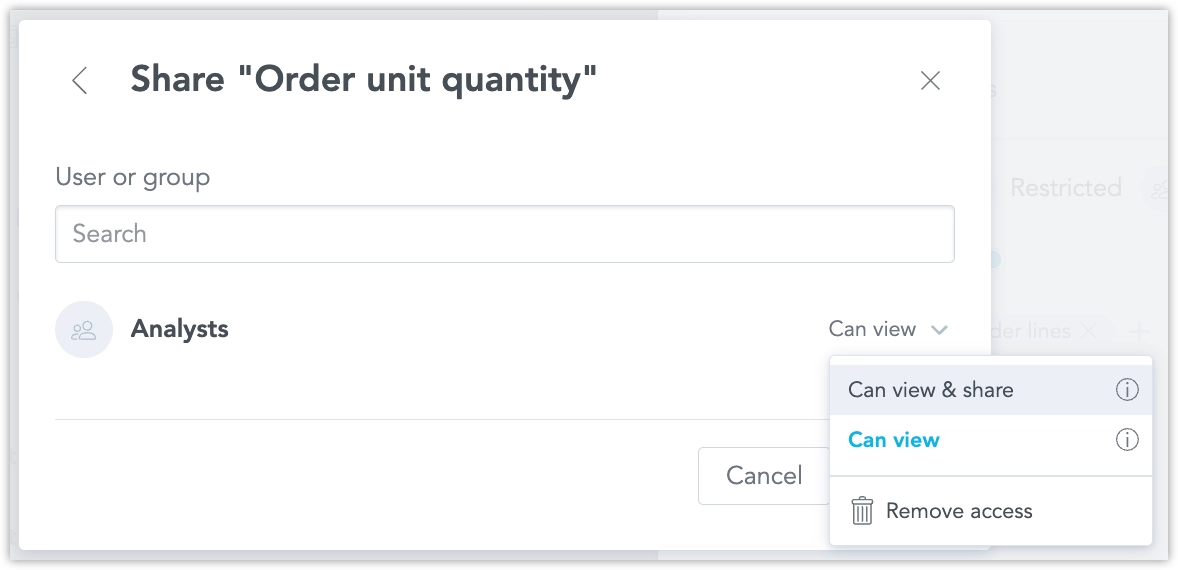
VIEWER— can use the object.SHARE— can use the object and share it with others.OWNER— full control over the object, including transferring ownership.
When a new object is created, the creator automatically receives the OWNER grant. Objects cannot be left ownerless; transfer ownership before removing the last owner.
Data owners can also remove shared access. If the user or group still has access through another path, such as a user group or workspace-wide access, GoodData indicates that access remains.
Workspace-level user groups are not supported.
Behavior and Enforcement
Restricted objects are hidden from unauthorized users. Users without access do not see restricted facts, attributes, or attribute labels in catalogs, pickers, search results, or Smart Search.
Direct access to restricted objects returns 404 Not Found so the existence of the object is not exposed. GoodData does not return 403 Forbidden for restricted objects, because that would reveal that the object exists.
Column-level permissions are also enforced across dependent objects. If a user does not have access to a restricted object:
- metrics that depend on the object are blocked
- visualizations that depend on blocked metrics are blocked
- dashboards that contain blocked visualizations are blocked
- dashboards that use a restricted attribute or attribute label as a filter are blocked
Dependent metrics, visualizations, and dashboards that are blocked because of a restricted object also return 404 Not Found.
Dashboards are blocked as a whole. GoodData does not partially render dashboards that contain inaccessible visualizations or filters.
The same access rules are enforced in Smart Search and AI Assistant.
Blocking Paths
Enforcement applies to both:
- SELECT path — a restricted fact or attribute referenced in the computation graph blocks the resulting metric, visualization, and any dashboard containing it.
- WHERE path — a restricted attribute or label used as a dashboard filter blocks the entire dashboard to prevent data leakage from silent filter removal.
Column-level permission operations are available through the GoodData REST API and SDKs.
API list endpoints omit restricted objects for unauthorized users. Direct access to restricted objects returns 404 Not Found. Analytical execution is blocked when the computation graph contains a restricted fact, attribute, attribute label, or another blocked dependency.
SDK calls follow the same rules as the REST API. For example, catalog calls do not return restricted objects to unauthorized users, and execution calls are blocked when they depend on restricted objects.
Automation and agent integrations, including MCP server calls, are evaluated under the configured identity. They do not bypass column-level permissions unless that identity has administrator-level access.
Users with Workspace.MANAGE or Organization.MANAGE can see all objects regardless of visibility or grants. This admin bypass applies consistently across the UI, catalogs, API, SDKs, Smart Search, AI Assistant, and MCP.
Set Permissions for Columns
You can manage access to individual analytical objects from the Analytics catalog in your workspace.
Steps:
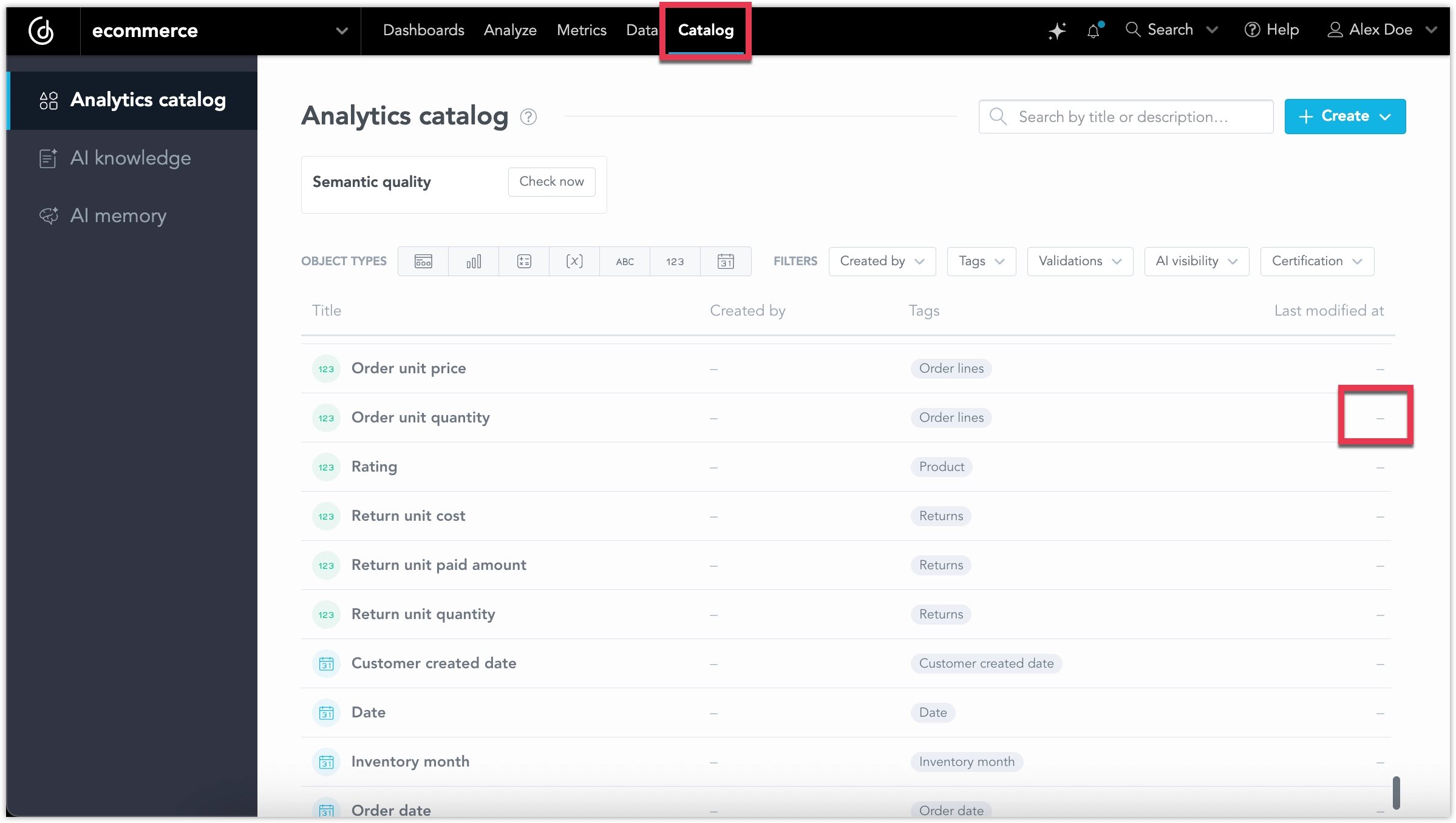
In your workspace, go to Catalog and select a fact, attribute, or attribute label.
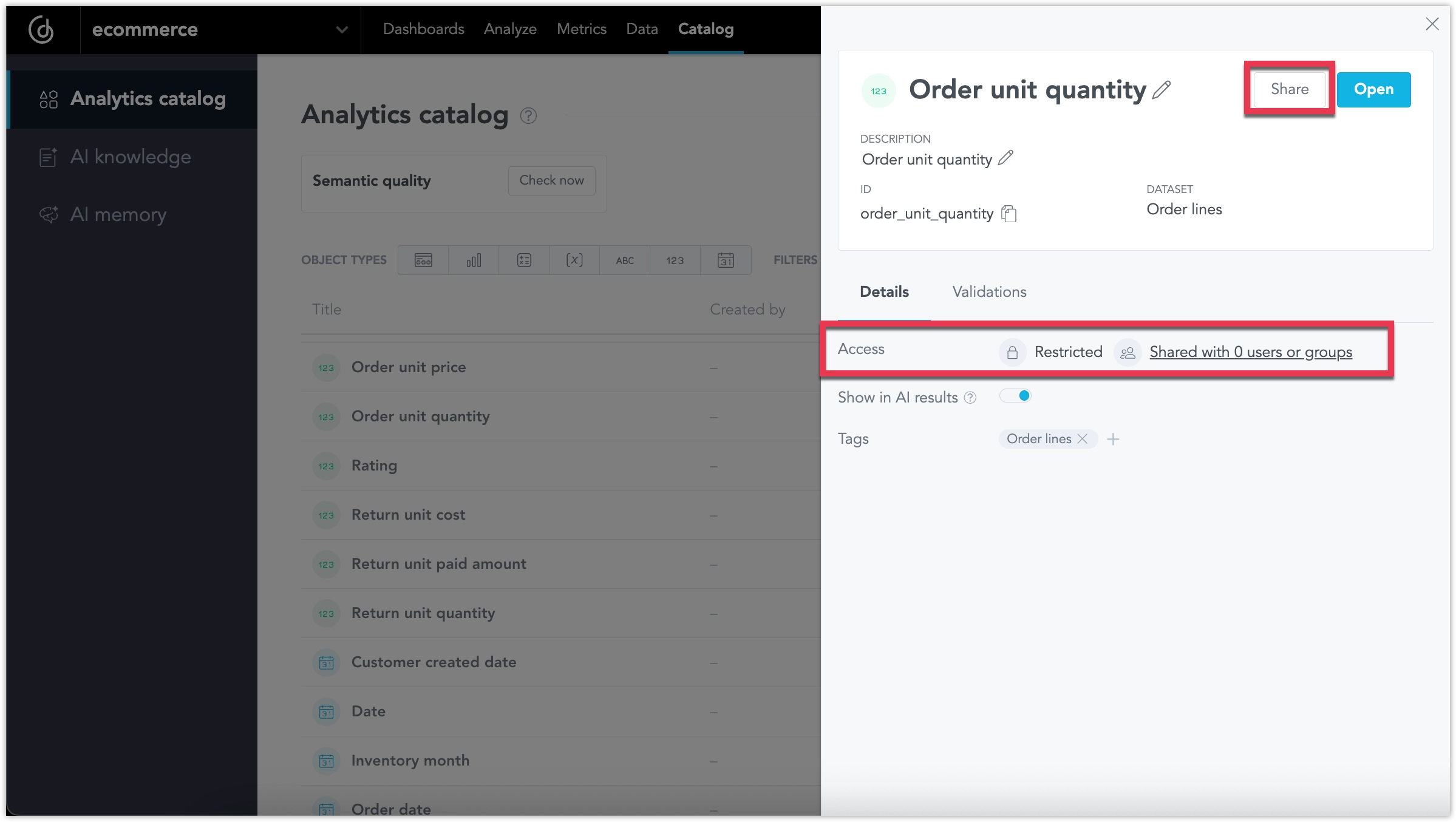
In the object details panel, check the Access row to see whether the object is restricted or shared. To change access, click Share.
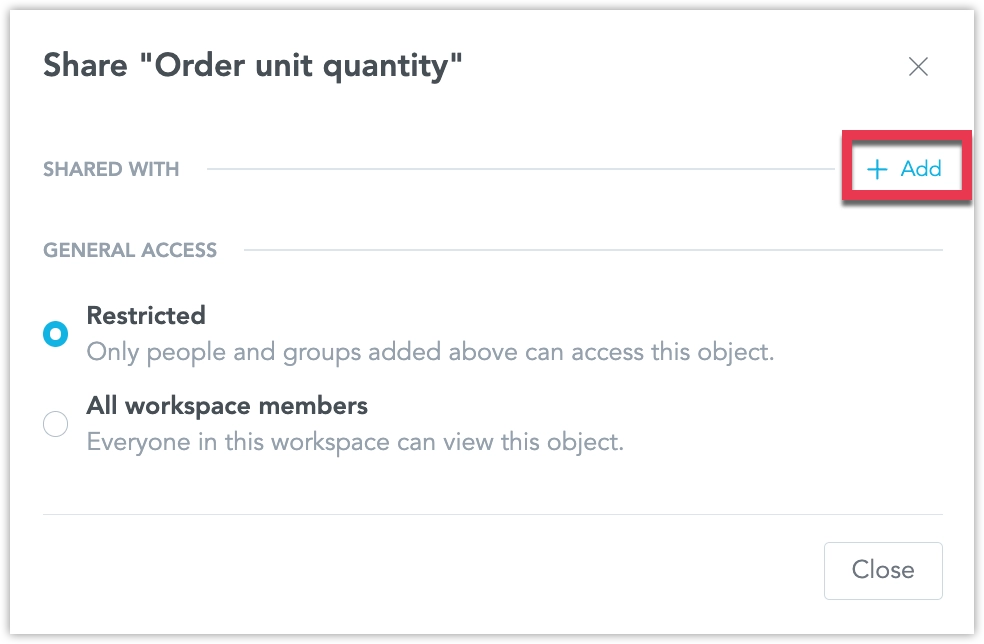
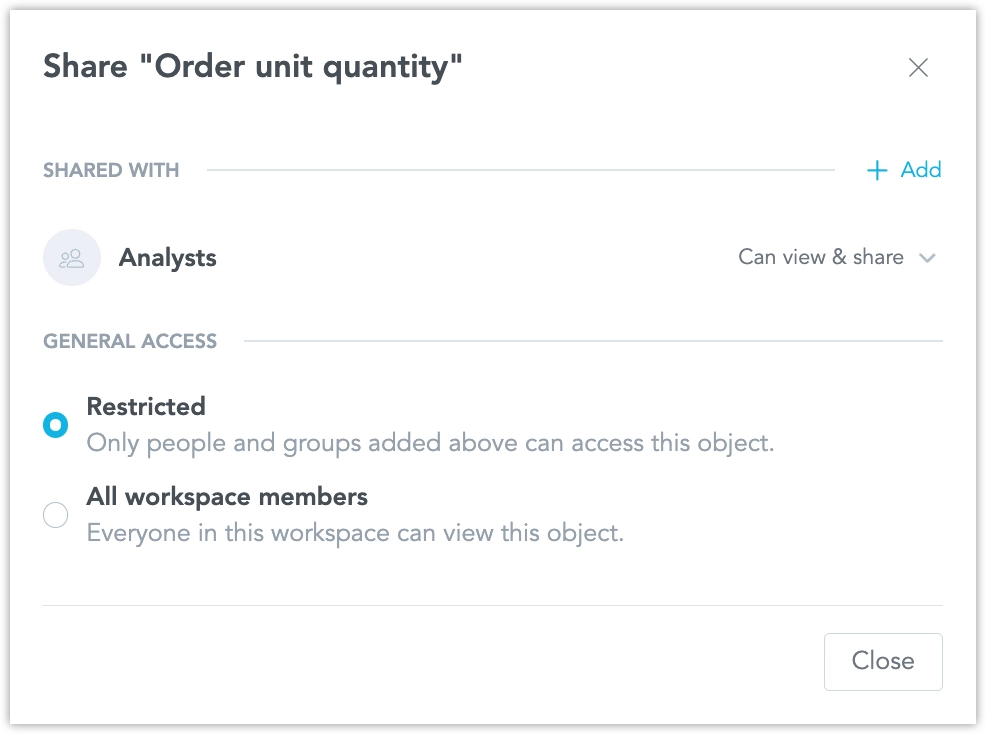
In the sharing dialog, choose the object’s general access:
- Restricted - only selected users and groups can access the object.
- All workspace members - everyone in the workspace can view the object.
To share the object with selected users or groups, click + Add.
Select a user or user group, choose their access level, and click Add.
The selected users or groups now appear in the Shared with section and have access to the object.
You can manage column-level permissions using the GoodData API.
The examples below use a fact, but the same pattern applies to other supported object types by changing the object type in the URL.
Get Object Permissions
To get the permissions of a fact, send a GET request to the permissions endpoint:
curl $HOST_URL/api/v1/actions/workspaces/<WORKSPACE_ID>/facts/<FACT_ID>/permissions \
  -H "Accept: application/json" \
  -H "Authorization: Bearer <API_TOKEN>" \
  -X GET | jq .
Example response:
{
  "rules": [],
  "userGroups": [
    {
      "id": "562854aa-64ae-4505-b99e-7d88e13de52c",
      "name": null,
      "permissions": [
        {
          "level": "SHARE",
          "source": "direct"
        },
        {
          "level": "VIEW",
          "source": "direct"
        }
      ]
    }
  ],
  "users": []
}
Update Object Permissions
To update permissions for a fact, send a POST request to the same permissions endpoint.
The following example grants a user group VIEW and SHARE access to the fact:
curl $HOST_URL/api/v1/actions/workspaces/<WORKSPACE_ID>/facts/<FACT_ID>/permissions \
  -H "Content-Type: application/json" \
  -H "Accept: application/json" \
  -H "Authorization: Bearer <API_TOKEN>" \
  -X POST \
  -d '{
      "rules": [],
      "userGroups": [
          {
              "id": "<USER_GROUP_ID>",
              "permissions": [
                  {
                      "level": "VIEW"
                  },
                  {
                      "level": "SHARE"
                  }
              ]
          }
      ],
      "users": []
  }' | jq .
To grant access to an individual user instead of a user group, provide the user in the users array:
curl $HOST_URL/api/v1/actions/workspaces/<WORKSPACE_ID>/facts/<FACT_ID>/permissions \
  -H "Content-Type: application/json" \
  -H "Accept: application/json" \
  -H "Authorization: Bearer <API_TOKEN>" \
  -X POST \
  -d '{
      "rules": [],
      "userGroups": [],
      "users": [
          {
              "id": "<USER_ID>",
              "permissions": [
                  {
                      "level": "VIEW"
                  }
              ]
          }
      ]
  }' | jq .
Check Hidden Objects
If a user does not have access to a restricted object, direct API access returns 404 Not Found. This masks the existence of the object from unauthorized users.
To inspect the HTTP status code, add -i:
curl -i $HOST_URL/api/v1/actions/workspaces/<WORKSPACE_ID>/facts/<FACT_ID>/permissions \
  -H "Accept: application/json" \
  -H "Authorization: Bearer <API_TOKEN>" \
  -X GET