Advanced Modelling Use Cases
Every database is different, and sometimes one or more of the following edge case scenarios may need to be considered when modelling the data.
Multiple Datasets Mapped to the Same Table
This is typically needed when one table represents multiple logical entities, and each entity should be represented by a separate dataset in the LDM.
While the LDM Modeler supports mapping of multiple datasets to the same table, publishing an LDM with such mapping fails.
To avoid this issue, create multiple views on top of the table and map each dataset to a separate view.
For example, you have two tables, users and tickets.
- The
userstable contains ticket creators and assignees. - The
ticketstable contains theassignee_idandcreator_idcolumns.
To avoid mapping multiple datasets to the users table, do the following:
- In the database, create two views on top of the
userstable:v_users_assigneesandv_users_creators. - In the LDM, create three datasets:
assignees,creators, andtickets. - Map the
ticketsdataset to theticketstable. - Map the
assigneesdataset to thev_users_assigneesview. - Map the
creatorsdataset to thev_users_creatorsview. - Create a relationship from the
assigneesdataset to the theticketsdataset using theassignee_idcolumn as a primary key in theassigneesdataset. - Create a relationship from the
creatorsdataset to theticketsdataset using thecreator_idcolumn as a primary key in thecreatorsdataset.
Using Multiple Data Sources in an LDM
- You can use datasets from different data sources in an LDM. They can be connected using common attribute or date dimension datasets.
- The list of data sources prioritizes those already used in the current model. You can change the data source in dataset mapping.
Limitations
- Using multiple data sources in an LDM is not compatible with the Unique Data Sources for Tenants feature.
Understanding Data Federation, Data Blending, and Data Joins
Data Federation:
Data federation creates a virtual layer that lets users access and query data from multiple sources without moving or copying it.Data Blending:
Data blending combines specific subsets of data from multiple sources for analysis in a single visualization.Data Joins:
The key difference between data blending and traditional joins is the timing of the operation:- In traditional joins, the join is usually performed before aggregation within the database.
- In data blending, the operation is typically applied after aggregation, using data that has already been processed from different sources.
Blending Data from Multiple Sources in a Single Visualization
You can create visualizations that use multiple metrics from different data sources. These metrics are blended into one common result set using shared conformed dimension attributes. This approach allows you to connect data from multiple sources in real-time, giving you a complete view of your business without the need for complex data movement.
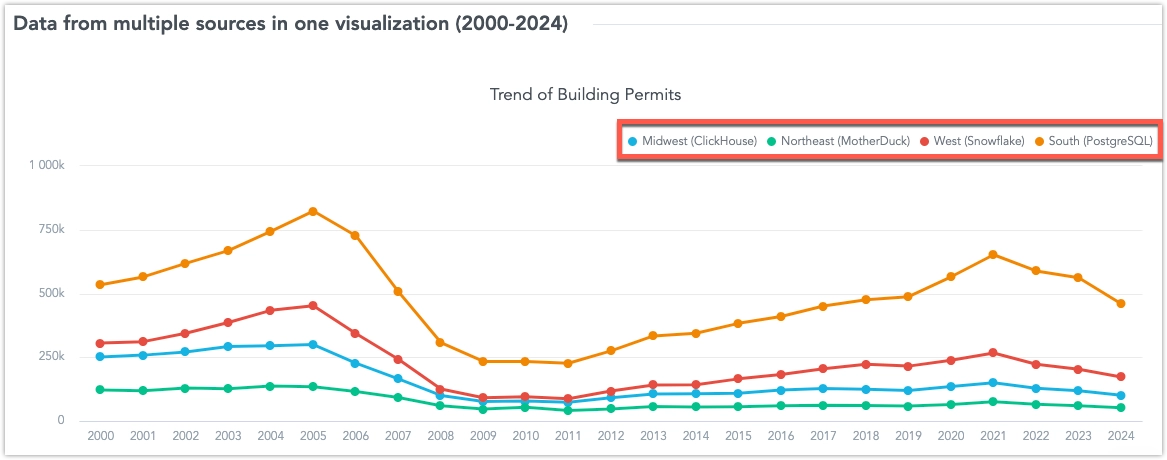
The common attributes can be:
- An attribute of a date dimension dataset referenced in each data source used for data blending.
- An attribute defined as a primary key in a dimension dataset, present as a foreign key in each data source used for data blending.
These common dimension attributes can be used for breaking down metrics, grouping, slicing, or filtering in a visualization that uses blended data.
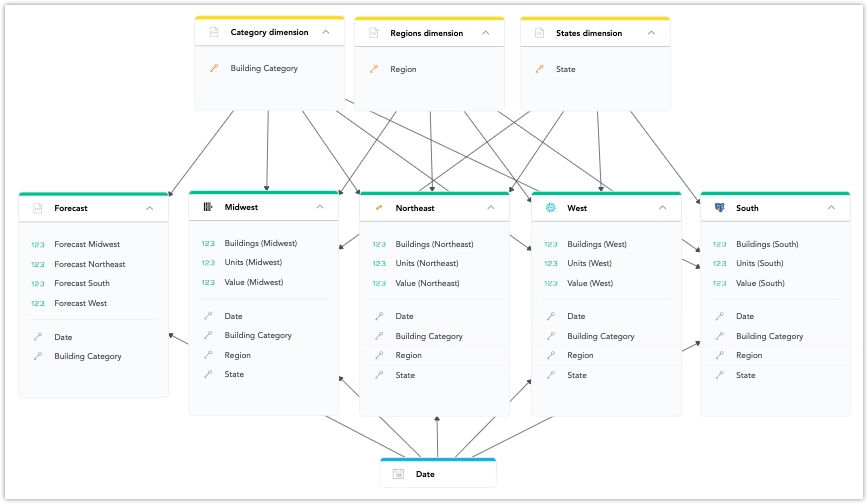
Attributes are defined by their primary label (e.g., Federal Information Processing Standard state code). Optionally, you can define a secondary label (e.g., a user-friendly display name like “California”) in the dimension dataset. In this case, blended visualizations will display this label, even if the secondary label is not present in all data sources.
However, using secondary labels for common attributes requires retrieving all dimension attribute values during queries, which can slow down processing. For this reason, we recommend avoiding secondary labels for attributes with high cardinality.
Limitations
Metrics from different sources can only be sliced or filtered using attributes that are:
- References to common dimension datasets.
- Present in each data source involved in the visualization.
Only fact-based metrics can be used.
The Show as Percent feature works only with a single non-date attribute.
A fact table can be directly linked to a dataset, but there can only be one data source change in a single path of relationships.
For example:
Country (Snowflake) -> County (BigQuery) -> City (Snowflake) -> Facts (Snowflake)
In this example, the path changes data sources twice (from Snowflake to BigQuery and back to Snowflake), which is not supported.
NULL Joins
You can define null-handling behavior for selected logical data model (LDM) objects using the isNullable and nullValue fields.
These fields are available for facts, aggregated facts, attributes, labels, and reference sources. When NULL joins are enabled, they allow rows with NULL values on both sides of a join to match.
Without a null-safe comparison, results that share an empty attribute value may appear as separate rows instead of being grouped into one row.
NULL joins are disabled by default. Go to Settings > SQL generation > Null-safe joins to enable them. The nullValue field is stored in the model regardless of whether NULL joins are enabled. When NULL joins are disabled, GoodData uses the standard equality operator (=).
Important Notice
NULL-safe comparisons can make queries slower. Define column nullability accurately in the LDM to limit null-safe comparisons to joins that may contain NULL values.
If either compared column has isNullable set to false, GoodData uses the standard equality operator (=). If NULL joins are enabled and both compared columns can be nullable, GoodData can use a null-safe comparison. The exact comparison depends on the database.
Supported LDM Objects
You can use these fields on the following LDM object types:
- fact
- aggregated fact
- attribute
- label
- reference source
isNullable
The isNullable field is an optional boolean that describes whether the underlying database column can contain NULL values.
Possible values:
true: the database column can containNULLfalse: the database column does not containNULLnullor omitted: the nullability of the database column is unknown
This field describes the expected nullability of the source column. If either column used in a comparison has isNullable set to false, GoodData uses standard equality for that comparison.
Set isNullable accurately, especially for attribute columns. Marking columns that cannot contain NULL as false reduces the performance impact by avoiding null-safe comparisons where they are not needed.
Example
{
  "id": "order_status",
  "type": "attribute",
  "sourceColumn": "order_status",
  "isNullable": true
}
nullValue
The nullValue field defines a value that can be used when generating null-safe join conditions for databases that require it.
GoodData automatically prefills nullValue during physical data model scans and SQL dataset scans. You can overwrite the generated value if it does not work for your data. The value is editable in the modeler.
The nullValue must be compatible with the real physical data type in the database. If the value cannot be used with the column data type, the database returns an error when the query is executed.
Columns that are compared in a NULL join must have the same nullValue. If the values differ, GoodData returns a user error.
Example
{
  "id": "customer_region",
  "type": "attribute",
  "sourceColumn": "region",
  "isNullable": true,
  "nullValue": "UNKNOWN"
}
How Null-Safe Joins Work
When NULL joins are enabled and the compared columns can be nullable, GoodData generates a null-safe comparison.
For databases where GoodData uses nullValue, the comparison can be generated in this form:
COALESCE(left_column, leftNullValue) = COALESCE(right_column, rightNullValue)
AND (left_column IS NULL) = (right_column IS NULL)
Alternatively, GoodData can use a database-specific null-safe equality function:
COALESCE(left_column, leftNullValue) = COALESCE(right_column, rightNullValue)
AND EQUAL_NULL(left_column, right_column)
The additional null-safe condition prevents incorrect matches when the configured nullValue also appears in real user data.
For example, if UNKNOWN is used as nullValue, a real value of UNKNOWN is not incorrectly matched with a NULL value because the comparison also checks whether both original values are NULL.
For some databases, GoodData uses a native null-safe equality operator and does not use nullValue in the generated query. The nullValue still remains stored in the model.
This applies to the following databases:
- Vertica
- Microsoft SQL Server
- Azure SQL
- Snowflake
- Databricks
- DuckDB
- MotherDuck
- MySQL
- Oracle
- StarRocks
This list may change as GoodData evaluates database-specific behavior and performance.
Format Requirements for Date and Timestamp Values
If you use nullValue with date or timestamp columns, the value must use the correct format:
- dates:
yyyy-mm-dd - timestamps:
yyyy-mm-dd hh:mm:ss
Date Example
{
  "id": "ship_date",
  "type": "label",
  "sourceColumn": "ship_date",
  "isNullable": true,
  "nullValue": "2099-12-31"
}
Timestamp Example
{
  "id": "processed_at",
  "type": "label",
  "sourceColumn": "processed_at",
  "isNullable": true,
  "nullValue": "2099-12-31 23:59:59"
}
Period Granularity Behavior
If period granularity is required and nullValue is set, the configured value is not used directly. In this case, nullValue is replaced with -1. This applies regardless of the actual configured string value.
When to Use These Fields
Use isNullable and nullValue when rows with NULL values on both sides of a join should match.
This can prevent query results from showing multiple separate rows with empty attribute values when those rows should be grouped under one empty value.
This feature does not change how optional dataset relationships are handled.
Current Limitations
The following limitations apply:
- NULL joins are disabled by default.
- NULL-safe comparisons can make queries slower. Accurate
isNullablevalues reduce the impact by allowing GoodData to use standard equality for columns that cannot containNULL. - When NULL joins are disabled, GoodData uses the standard equality operator (
=), even ifnullValueis present in the model. - Compared columns must use the same
nullValue. - The
nullValuemust be compatible with the physical database data type. - Some databases do not use
nullValuein the generated query because GoodData uses a native null-safe equality operator instead.