Permission Hierarchies
Use workspace and user-group hierarchies to manage access across multiple audiences. Workspace hierarchies distribute shared analytics to child workspaces. Nested user groups let you grant permissions to several audiences through a parent group.
The workspace and object permission rules below describe GoodData Cloud. Start with Choose What to Protect for the overall access model, or Set Up Multiple Tenants to plan a tenant environment.
Understand What Is Inherited
| Mechanism | Effect on access |
|---|---|
| Workspace grant scope | A local grant applies to one workspace. A hierarchy grant applies to that workspace and its descendants. |
| Inherited objects | Grants on inherited columns, metrics, visualizations, and dashboards follow those objects into child workspaces. A child can add access but cannot lower access granted by its parent. |
| Nested user groups | Members of a child group receive permissions granted to its parent group. Group nesting and workspace nesting are separate relationships. |
A grant added to an inherited object in a child workspace does not apply to the parent or a sibling workspace. Edit an inherited object’s definition in the workspace where it was created. An All workspace members grant made in the parent refers to the parent’s membership; check access for child-only users separately.
User groups belong to the organization. Nesting groups does not by itself grant access to any workspace or object. Review the permissions assigned to a parent group before adding a tenant group beneath it. See Workspace Hierarchies for grant scope and inherited-object rules.
Combine Content Access with Data Filters
Sharing an inherited dashboard does not share its dependencies. Check access to each saved visualization, the metrics it uses, and all required facts, attributes, and secondary labels, including inputs used in filters and sorting.
Content grants determine which objects an audience can use. Configure workspace data filters for tenant rows in child workspaces and user data filters for further restrictions on particular users or groups. Neither group membership nor object inheritance selects tenant rows by itself.
For a complete setup with separate tenant groups and grants in each child workspace, see Share Analytics Across Tenant Workspaces. The example below shows a different sharing pattern: grant access to common content through a parent user group, while each child group retains access to its own workspace.
Example: Make Dashboards Easily Sharable With Everyone
Use nested groups and SEE to make a shared audience available in the sharing dialog. This example covers a dashboard and its visualizations, metrics, and columns. Here, everyone means the members of the two child groups you explicitly include in the parent group.
SEE makes a recipient discoverable. It does not give the author permission to share an object or give the recipient access to any analytics.
Scenario
Suppose you have the following workspace hierarchy:
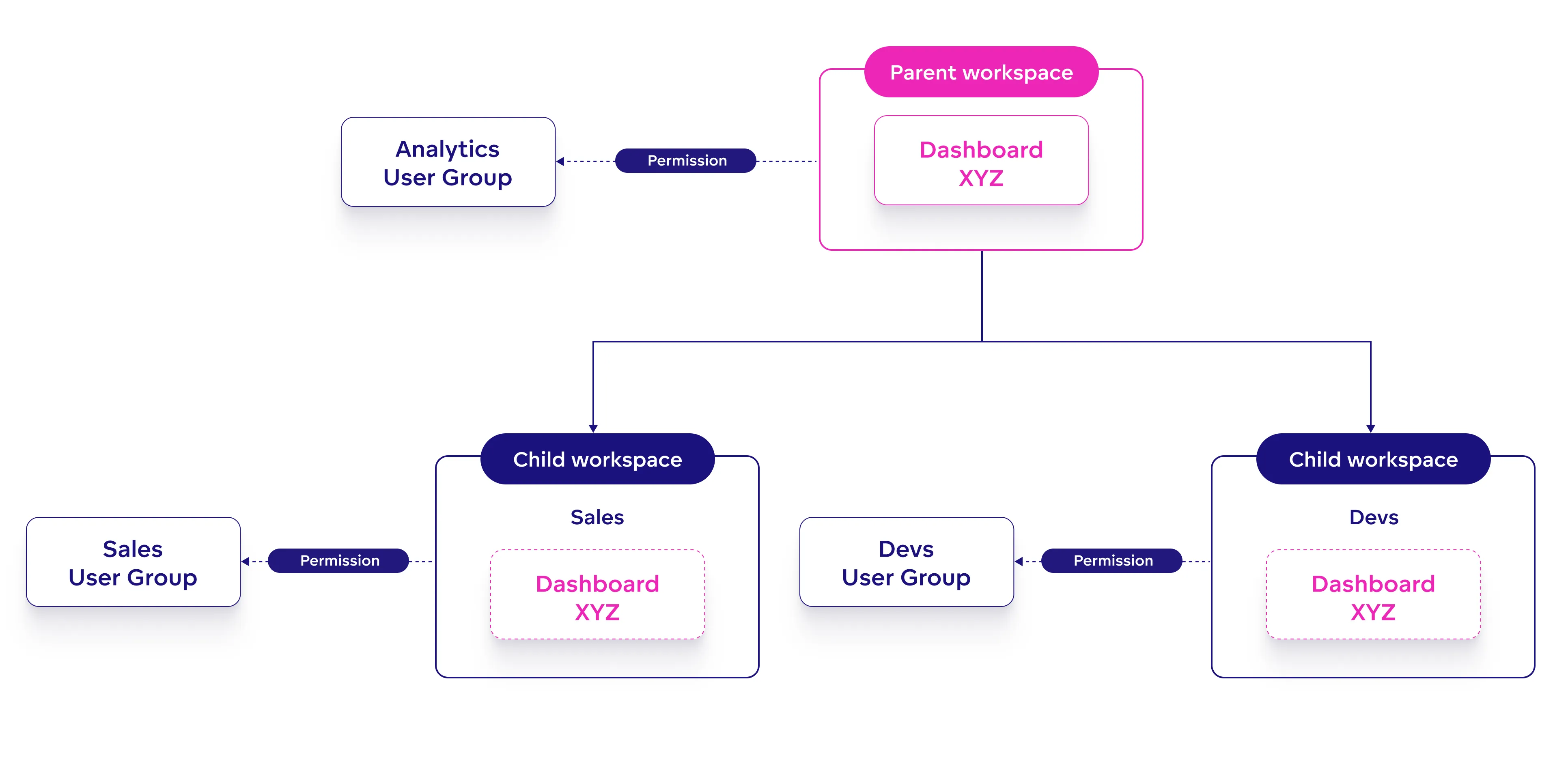
The parent workspace contains a dashboard, its saved visualizations and metrics, and the underlying logical data model. The Sales and Devs child workspaces inherit these definitions.
Configure these organization-level groups:
| Group | Workspace access | Additional requirements |
|---|---|---|
Analytics (analytics_group) | Local ANALYZE on the parent workspace. | SHARE or EDIT on each existing object the group should share, or applicable administrator access. Add CREATE_METRIC if these authors should also save new metrics. |
Sales (sales_group) | Local VIEW on the Sales workspace. | Access to the inherited dashboard and every required dependency. |
Devs (dev_group) | Local VIEW on the Devs workspace. | Access to the inherited dashboard and every required dependency. |
ANALYZE opens authoring tools and includes some creation capabilities; it does not allow editing or sharing every existing object. The Sales and Devs groups do not need access to the parent workspace to use inherited analytics in their own workspaces.
The goal is to let Analytics authors share common content with both audiences through one recipient, while each audience keeps access to its own workspace and data.
Implement a Solution
First, use an organization administrator account to configure the groups and recipient discoverability:
- Create a user group with the ID
super_group. See Create a User Group. - Make
super_groupthe parent ofsales_groupanddev_group. - On the
super_groupresource, assignSEEtoanalytics_group. This lets Analytics authors findsuper_groupas a sharing recipient. See Make Users and Groups Available for Sharing.
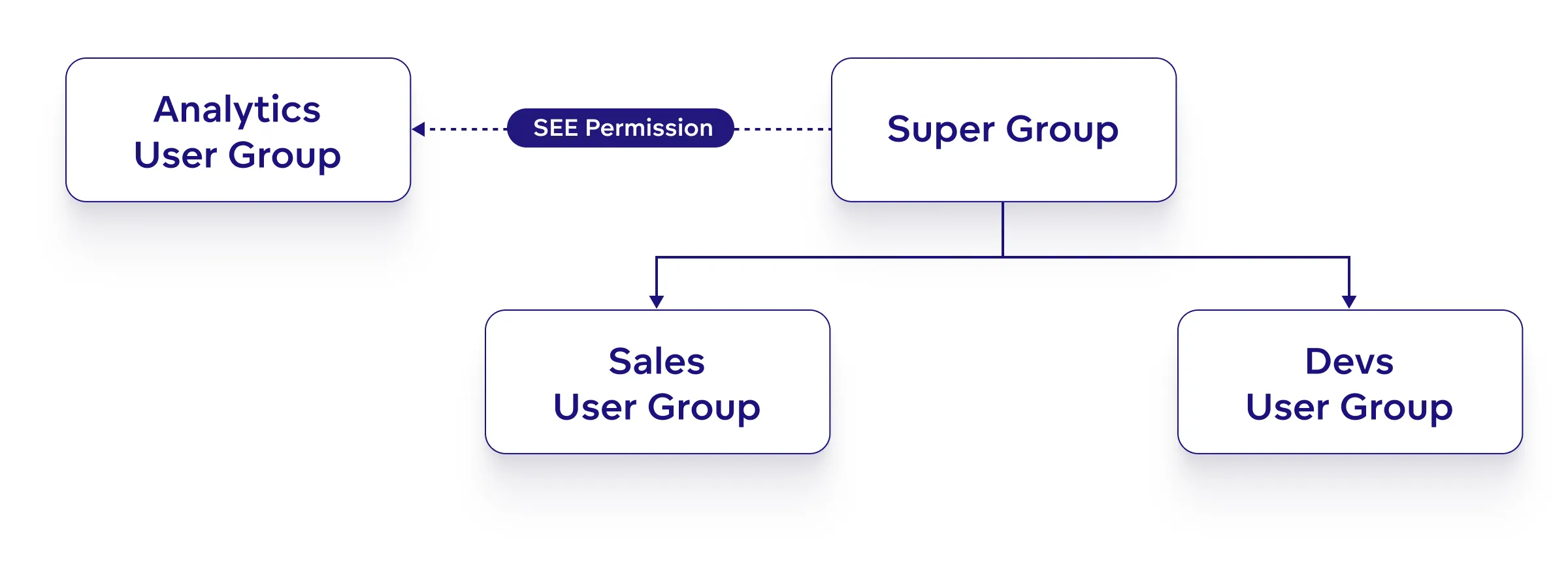
The SEE grant and a content grant belong to different resources:
| Purpose | Resource | Assignee | Permission |
|---|---|---|---|
| Let Analytics authors find the shared audience | super_group | analytics_group | SEE |
| Let that audience view a shared object | The dashboard, visualization, metric, or column being shared | super_group | VIEW |
Retrieve the user-group layout with GET /api/v1/layout/userGroups to inspect the configuration. The relevant group definitions can look like this; the array is illustrative and does not include unrelated groups or settings from your organization:
[
    {
        "id": "analytics_group",
        "permissions": []
    },
    {
        "id": "sales_group",
        "parents": [
            {
                "id": "super_group",
                "type": "userGroup"
            }
        ],
        "permissions": []
    },
    {
        "id": "dev_group",
        "parents": [
            {
                "id": "super_group",
                "type": "userGroup"
            }
        ],
        "permissions": []
    },
    {
        "id": "super_group",
        "permissions": [
            {
                "assignee": {
                    "id": "analytics_group",
                    "type": "userGroup"
                },
                "name": "SEE"
            }
        ]
    }
]
The permissions arrays here describe grants on the user-group resources, such as recipient discoverability. Workspace and object grants are configured on those resources separately. An empty array here does not mean the group has no access to analytics.
Update the group layout
You can configure the group relationships and SEE grant through /api/v1/layout/userGroups. Retrieve the current layout with GET, edit the relevant group definitions, and apply the complete updated layout with PUT. Preserve all unrelated groups, relationships, and grants. Do not replace your organization’s layout with the illustrative array alone.
Share the Complete Analytics
Once the recipient is discoverable, an authorized Analytics author can share the common content from the parent workspace:
- Grant
super_groupVIEWon the dashboard. - Grant it
VIEWon every saved visualization the dashboard uses. - Grant it
VIEWon the required metrics and the full chain of referenced metrics and columns, including filter and sorting inputs. Existing applicable grants can already provide some of this access. - Configure and verify data filters so Sales and Devs users see only their intended rows. Keep workspace access assigned separately to
sales_groupanddev_group; this example givessuper_groupno workspace grant.
Grant access through super_group only for content intended for both audiences. For audience-specific content, use the appropriate child group and workspace, and check for broader grants that still provide access. A child workspace cannot narrow an object grant inherited from its parent.
Use the object sharing procedure for the UI and API request format. For dashboards, the API endpoint is /api/v1/actions/workspaces/<workspaceId>/analyticalDashboards/<dashboardId>/managePermissions; the linked procedure lists the corresponding endpoints for other object types.
Result
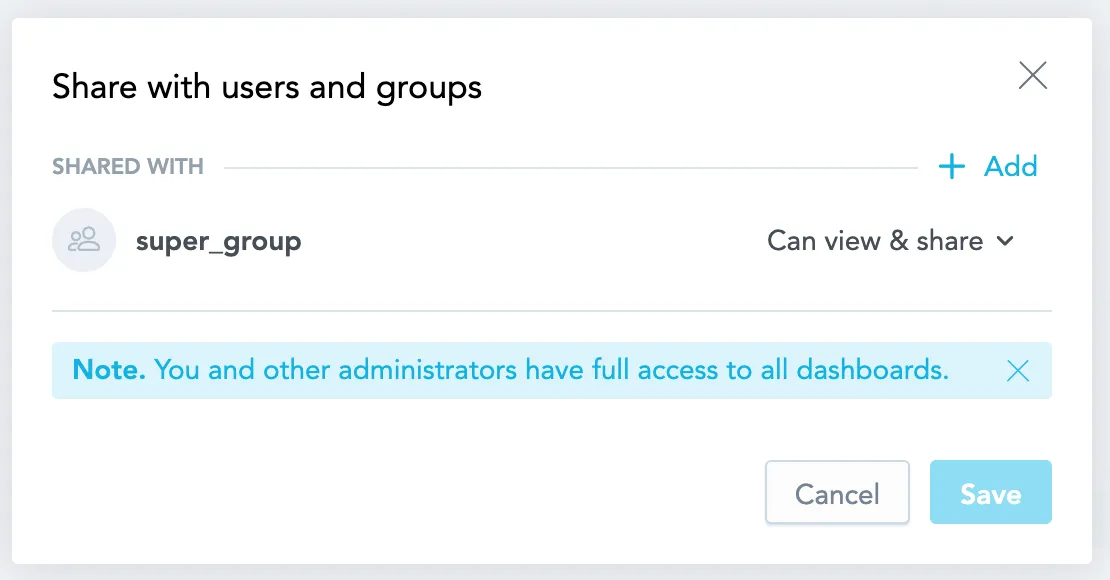
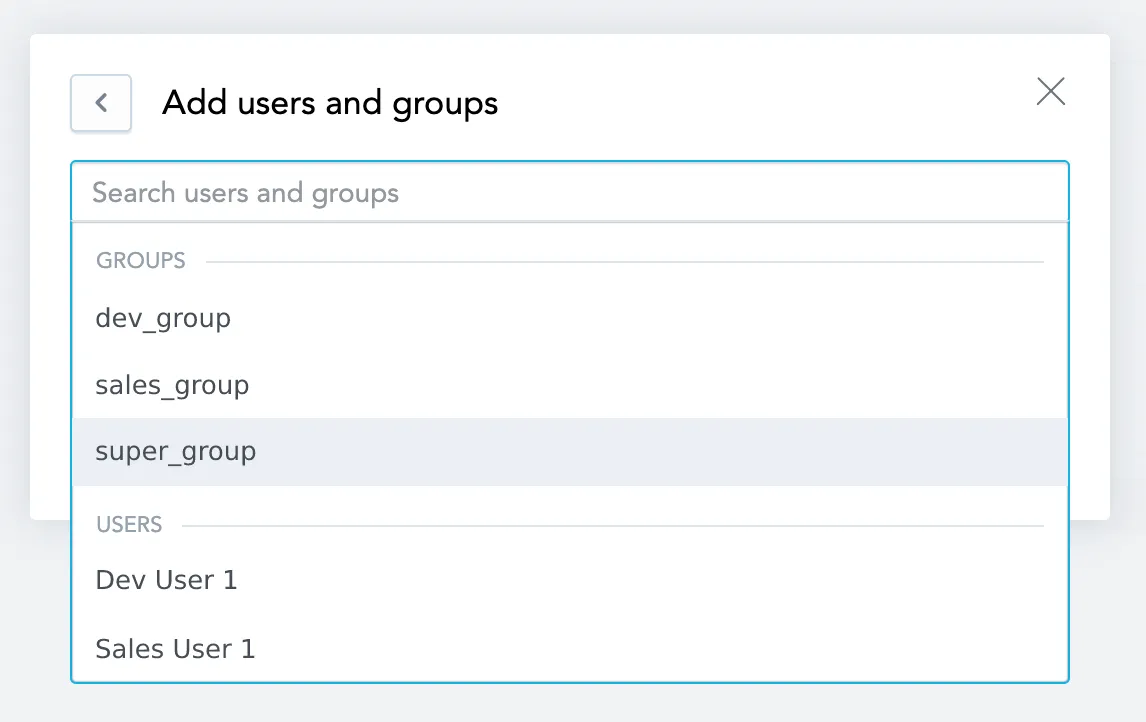
Analytics authors can select super_group as a sharing recipient. Members of Sales and Devs receive the object permissions granted to that parent group, then use the inherited objects in the workspace they can access. Data filters determine the rows available in their results.
The following screenshots illustrate selecting a recipient in the dashboard sharing dialog. Share the dashboard’s dependencies separately using their own sharing controls.
Verify the setup with a non-administrator from each child group:
- The user can open the dashboard and use its visualizations and required inputs in their own workspace.
- The returned data contains only the rows intended for that audience.
- The user cannot enter the parent or sibling workspace unless another grant intentionally provides access.
- Content intended for only one audience remains unavailable to the other.
For different content by subscription plan, see Offer Different Analytics by Subscription Plan.