Set Up Data Filters in Workspaces
Workspace Data Filters (WDF) allow you to limit the data available in child workspaces. By setting a WDF, you can define what subset of the data from a parent workspace will be available in its child workspaces. For example, a parent workspace may contain a visualization displaying the data from all company departments, but a child workspace will see only the Sales department-related data in this visualization.
Child workspaces inherit WDF definitions from their parent workspace the same way they inherit other entities through the workspace hierarchy. WDF values are resolved along the workspace chain, from the querying workspace up to the workspace where the WDF is defined.
Only organization administrators can set up WDFs.
The main differences between Workspace Data Filters (WDF) and User Data Filters (UDF) are the following:
Propagation
- WDFs apply to a specific dataset and affect only that dataset.
- UDFs are distributed across datasets following the relationships defined in the Logical Data Model (LDM).
Default Visibility
- A WDF is automatically enabled for all workspace users if it’s enabled at the workspace level.
- UDFs must be configured explicitly for individual users or groups.
Complexity
- A WDF is a single setting per workspace, affecting all its users.
- UDFs are defined through MAQL and can vary for different users within the same workspace.
Before You Start
Only users with the Organization.MANAGE permission or the WorkspaceMANAGE hierarchyPermission can create, read, update, or delete WDFs through the API. However, in the UI, this action is restricted to users with Admin permissions.
Permissions and WDF Security
Users with the Workspace.MANAGE permission can change the Logical Data Model (LDM). Therefore, they can bypass WDFs by modifying or adding datasets. For this reason, users of child workspaces should not have the Workspace.MANAGE permission. Not restricting the permissions of such users poses a risk of data leaks.
How Workspace Data Filters Work
A WDF relies on the following information:
- The parent workspace that holds the data that is to be limited in the child workspaces
- The child workspaces to apply the filter to (those can be direct child workspaces as well as their respective child workspaces at any hierarchy level downwards)
- The filter value assigned to a child workspace that acts as a condition for distinguishing whether the data should be available in this workspace
- Mapping rule that defines the column to look for in tables in a connected data source that holds the values to be compared to the filter value
Filter Values and Matching Data
The WDF uses the filter value assigned to a child workspace to distinguish what data should be made available in this workspace. The WDF compares the filter value to the values in the specified column in the data source tables.
If the filter value matches the column value for some data record in a table, this record is made available in this workspace. The data records not matching the filter value are not available in the child workspace.
The LDM definition must contain mapping rules that explicitly define which filter value is to be applied to which dataset. These filter mapping rules can be added in the data modeller and then activated in the dataset details.
- Data records with no value in the specified column are treated as not meeting the filter condition and are not available in the workspace.
- If a WDF is set up and no value is resolvable anywhere from the querying workspace up to the workspace where the WDF is defined, report executions in child workspaces result in a 400 status code error with a prompt to specify the filter value.
- If a child workspace has no local value but a parent has a value for the same WDF, the child workspace inherits that value and the query returns data filtered by the inherited value.
- If a WDF is set on a column in a dataset but a report is created without using this dataset, the filter won’t have any impact and no data will be filtered by it.
Data filtering based on date/time granularity (day, year, hour, minute, …) is not supported.
Automatic Mapping and WDF Columns
The data modeler automatically creates mapping rules between the dataset and the WDF if the dataset’s underlying table or SQL query contains a column defined in the WDF. This process eliminates the need for manual rule creation but only applies when creating a new dataset.
If you use the wdf__ prefix in a database column name, it prevents the data modeler from generating dataset objects (such as facts or attributes) from that column. Its values are therefore not available for building insights. However, the column remains accessible for WDFs. This approach enables the automatic creation of a dataset with a linked WDF without converting the filtered column into a dataset object.
WDF Inheritance and Value Resolution
WDF definitions and values are resolved along the workspace hierarchy. When a query runs in a workspace, GoodData evaluates the WDF values set on that workspace and its parents up to the workspace where the WDF is defined. Child workspaces below the querying workspace are never consulted.
A WDF does not filter the workspace where it is defined. This workspace is the owner of the WDF and always returns all rows for that WDF. WDF values are set on child workspaces.
When values for the same WDF are set at multiple hierarchy levels, GoodData applies them together. The effective result is the intersection of the values from the current workspace and its parents. This means a child workspace cannot access values outside the scope allowed by its parent.
If a child workspace has no local WDF value, it can still inherit a value from a parent. This is expected behavior. To restrict the child further, set an explicit value on that workspace or on an intermediate workspace.
The following example shows a WDF defined at L1 and mapped to a column. The workspace hierarchy is L1 -> L2 -> L3. The WDF owner is L1, so L1 is never filtered by this WDF. Values can be set on child workspaces, such as L2 and L3.
| Value Set At | L1 Result | L2 Result | L3 Result |
|---|---|---|---|
| L2 only | All rows. The owner workspace is not filtered. | Filtered by L2. | Filtered by inherited L2. |
| L3 only | All rows. The owner workspace is not filtered. | 400 error. No value is resolvable from L2 up to L1. | Filtered by L3. |
| L2 and L3 | All rows. The owner workspace is not filtered. | Filtered by L2. | Filtered by the intersection of L2 and L3. |
| None | All rows. The owner workspace is not filtered. | 400 error. | 400 error. |
Two different 400 errors can occur:
- If no value is resolvable from the querying workspace up to the workspace where the WDF is defined, GoodData returns a missing-value error similar to:
Workspace data filter values for workspace='<workspace_id>' are empty and the current workspace='<workspace_id>' does not match the WDF workspace. - If values are set at multiple hierarchy levels for the same WDF and they do not have any shared value, GoodData returns an error similar to:
Workspace data filters for one column must have at least one shared value.
Column Mapping
A WDF value has no effect unless the WDF is mapped to a column in the dataset used by the query. If a value is set but the filter column is not mapped in the logical data model, GoodData does not apply the filter and no error is raised.
Make sure the WDF column exists and is mapped for every dataset that must be filtered. A dataset that does not have the WDF mapped is not restricted by that WDF, even if a value is set on the workspace.
This is especially important when you add a WDF in the middle of a workspace hierarchy. For inherited datasets, mapping the WDF in a child workspace may require the API and datasetExtensions, because the UI modeler cannot edit inherited dataset mappings.
WDF columns are often technical columns used only for data separation. If you do not want users to see them as regular labels in Analytical Designer or dashboard filters, use your WDF column naming convention to prevent label generation, or adjust generated labels manually so users can distinguish them from business labels.
Example: Multi-Level Workspace Filtering
Imagine that you have the following workspace hierarchy:
Head Office
  |---> Western
    |---> California
You want to define what data will be available in each workspace:
- In the
Head Officeparent workspace, all the data should be available. - In the
Westernworkspace, which is a child workspace ofHead Office, only the data related to the western United States should be available. - In the
Californiaworkspace, which is a child workspace ofWestern, only the data related to California should be available.
The following WDFs will help you achieve your goal:
A WDF that filters the data in the
Westernworkspace by regionWhen the WDF is applied, the
Westernworkspace should be able to access only the data that meets the filter condition (that is, related to the Western region).- The parent workspace is
Head Office. - The child workspace is
Western. - The filter is mapped to the column
wdf__region. - The filter value is
West.
- The parent workspace is
A WDF that filters the data in the
Californiaworkspace by stateWhen the WDF is applied, the
Californiaworkspace should be able to access only the data that meets the filter condition (that is, related to California).- The parent workspace is
Western. - The child workspace is
California. - The filter is mapped to the column
wdf__state. - The filter value is
California.
- The parent workspace is
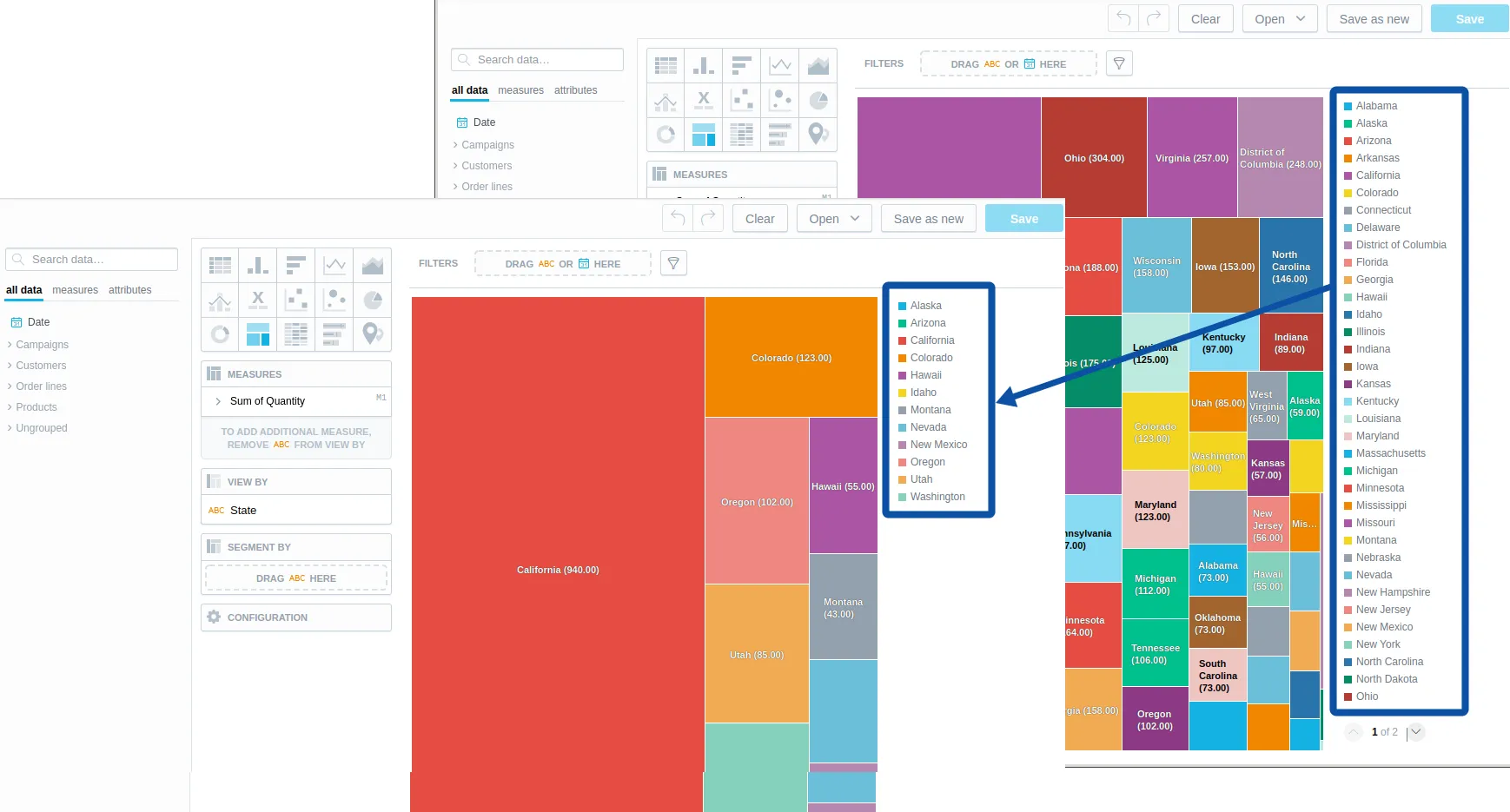
The following picture shows how a visualization in the Western workspace looks like comparing to the same visualization in the Head Office workspace when the WDF that filters the data in the Western workspace by region is applied:
Set Up Workspace Data Filters
To create the root-child workspace structure from the previous section, create a WDF wdf__region where the <parent_workspace_id> is Head Office and the <child-workspace-id> is Western.
Note that you need at least a Workspace.MANAGE level hierarchyPermission to the workspaces you are setting up the data filters for. If you are using the UI to set this up, you need the Admin permission.
Steps:
Follow these steps to create a Workspace Data Filter (WDF) for a workspace and apply it to its child workspace.
Create a WDF in the Parent Workspace
Open the workspace:
- Go to the Workspaces tab.
- Select the workspace you want to edit.
- Open the Settings tab.
- Navigate to Data Separation > Workspace Data Filters and click Manage.

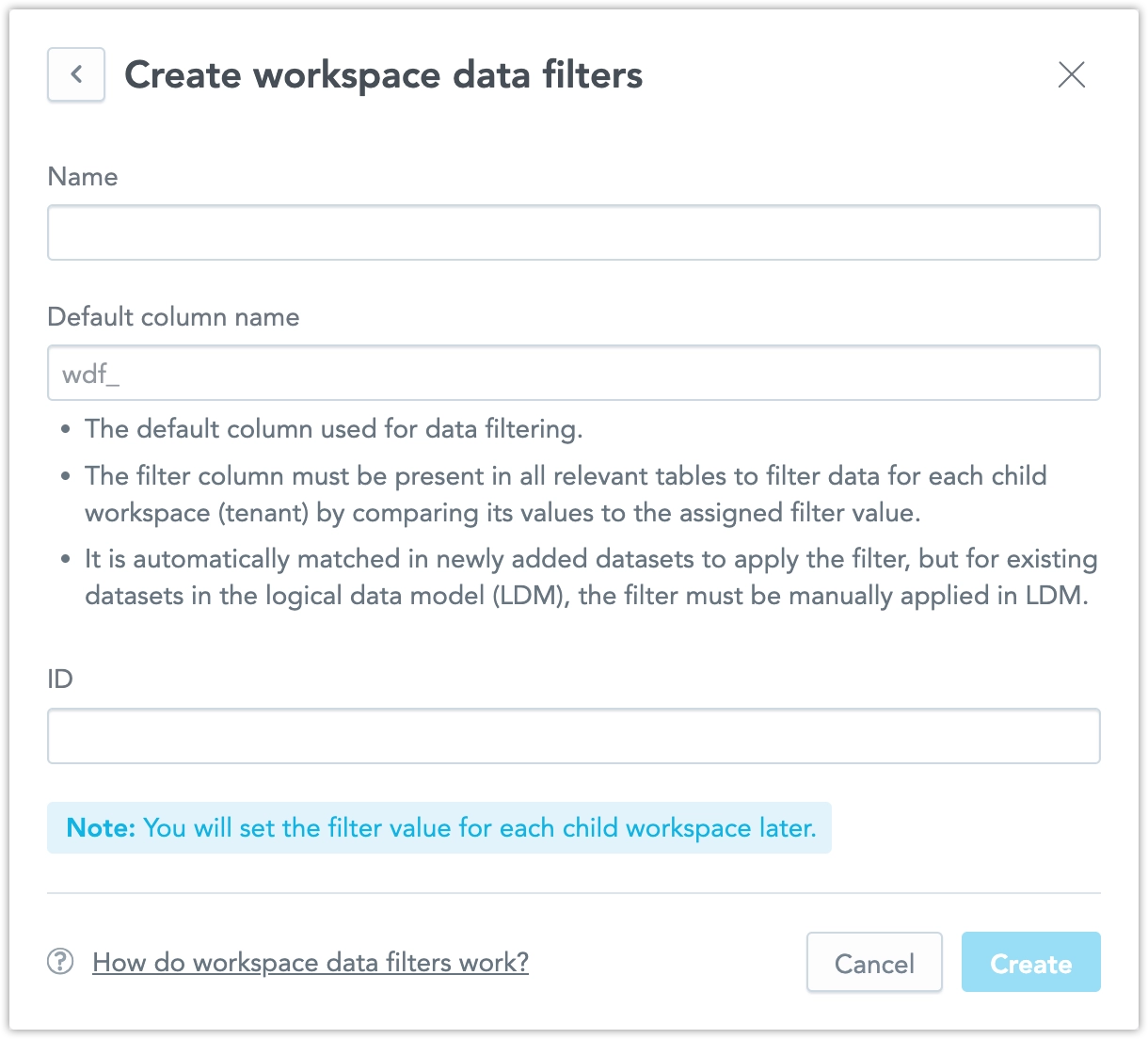
Click “Create filter” and fill out the following details:
Name – The display name of the data filter.
Default column name – The default column used for data filtering.
The filter column must be present in all relevant tables to filter data for each child workspace (tenant) by comparing its values to the assigned filter value. It is automatically applied to newly added datasets (if they contain a matching column).
For existing datasets, the filter must be manually applied in the Logical Data Model (LDM). Although this remains a required field for WDF setup, it is not used to apply filters directly to a specific column.
To do that, open the dataset’s Data Filtering tab and follow the next steps.
ID – A unique identifier for the WDF.
Apply the WDF to a Child Workspace
Open the child workspace:
- Go to the Workspaces tab.
- Select the child workspace you want to edit.
- Open the Settings tab.
- Navigate to Data Separation > Workspace Data Filters and click Manage.
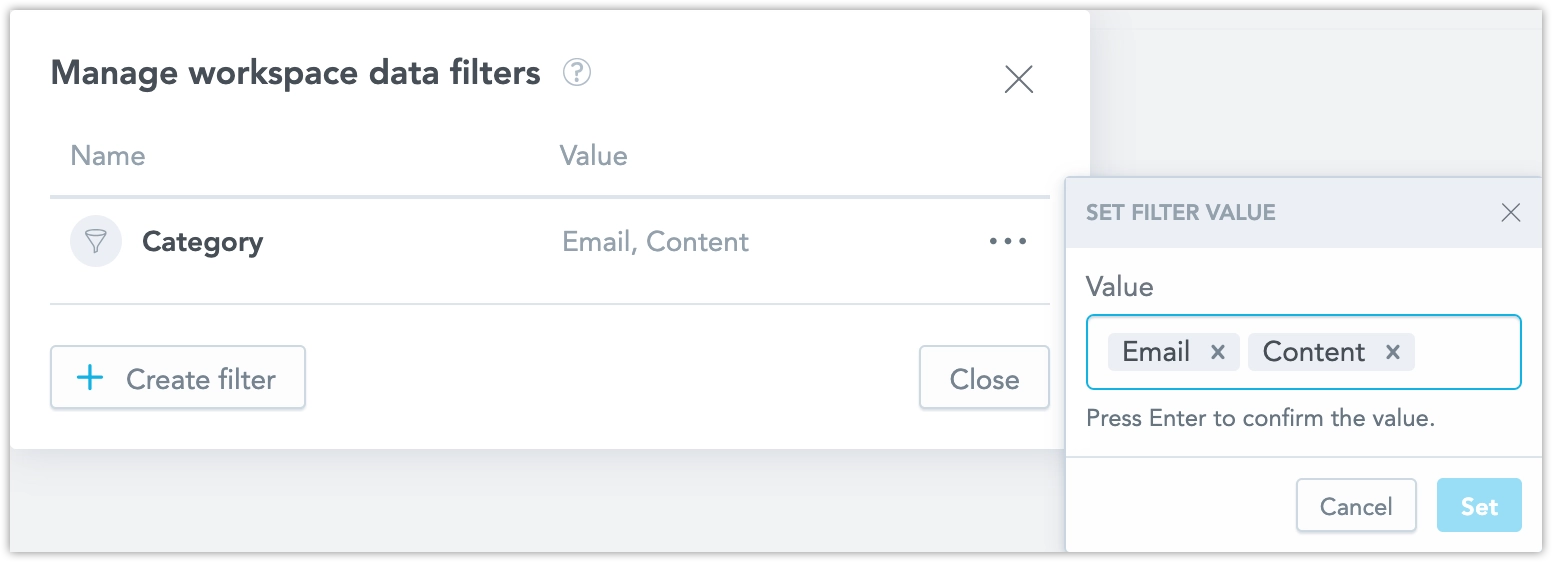
Set a WDF value for the child workspace:
- Select the WDF you want to apply.
- Click Set Value and enter the values that will be used as filter conditions.
- You can define multiple values for filtering.
- Note: The entered values are not validated against dataset content, meaning you can enter a value that does not exist in the dataset.
Hierarchical Filtering for Nested Child Workspaces
If a child workspace has its own child workspace (making it a a parent), WDF values are resolved along the hierarchy. A lower-level workspace inherits the nearest applicable values from its parents unless you set a more specific value for that workspace.
- Filter values are hierarchically narrowed down.
- The effective value is based on the values set on the current workspace and its parents up to the workspace where the WDF is defined.
- If both a parent and a child set values for the same WDF, the child values must overlap with the parent values.
- A child workspace cannot access values outside the parent’s scope.
- If no value is resolvable from the querying workspace up to the workspace where the WDF is defined, the query fails with a 400 error.
Example:
- The parent workspace filters data for California.
- A child workspace that does not set its own value inherits California.
- A child workspace can filter further, such as Los Angeles, if that value is within the parent scope.
- The child cannot contain values outside the parent’s scope, such as New York.
Follow these steps to create a new WDF for a workspace and apply it to its child workspace.
Create a new WDF and its settings using the following API call:
curl $HOST_URL/api/v1/entities/workspaces/<parent_workspace_id>/workspaceDataFilters \
  -H "Authorization: Bearer $API_TOKEN" \
  -H "Content-Type: application/vnd.gooddata.api+json" \
  -X POST -d '
{
  "data": {
    "id": "<data-filter-id>",
    "type": "workspaceDataFilter",
    "attributes": {
      "columnName": "<column-name>",
      "title": "<data-filter-name>"
    }
  }
}
  '
where:
<parent_workspace_id>is the ID of the parent workspace for whose child workspaces you are setting up the WDFs.<data-filter-id>is some unique ID for the WDF.<column-name>is currently used to automatically apply WDFs to LDMs. Its purpose will change in the future.<data-filter-name>is the UI-friendly name of the data filter.
ColumnName Usage
The attribute columnName is in the process of being repurposed. Currently, it remains a required field and is used to automatically apply WDFs to LDMs, but it is no longer used to apply filters to a specific column. To do that, you must explicitly apply the filter to a source column in the dataset’s Data filtering tab, as described in the subsequent steps.
Define the WDF value for a child workspace:
curl $HOST_URL/api/v1/entities/workspaces/<child-workspace-id>/workspaceDataFilterSettings \
  -H "Authorization: Bearer $API_TOKEN" \
  -H "Content-Type: application/vnd.gooddata.api+json" \
  -X POST -d '
{
  "data": {
    "id": "<data-filter-setting-id>",
    "type": "workspaceDataFilterSetting",
    "attributes": {
      "filterValues": [
        "<filter-value>"
      ],
      "title": "<data-filter-condition-name>"
    },
    "relationships": {
      "workspaceDataFilter": {
        "data": {
          "id": "<data-filter-id>",
          "type": "workspaceDataFilter"
        }
      }
    }
  }
}
  '
where:
<child-workspace-id>is the ID of the child workspace that the WDF with the specified condition is applied to.<data-filter-setting-id>is some unique ID for the WDF setting.<data-filter-condition-name>is the UI-friendly name of the WDF condition.<filter-value>is a value that acts as a condition for distinguishing whether the data should be available in the child workspace. You can define multiple values to filter for.
Assign WDFs to Specific Datasets
Your basic filtering is set up, but in order for it to work you still need to explicitely assign this filter to a specific dataset.
Open your parent workspace in the LDM modeler and Edit it.
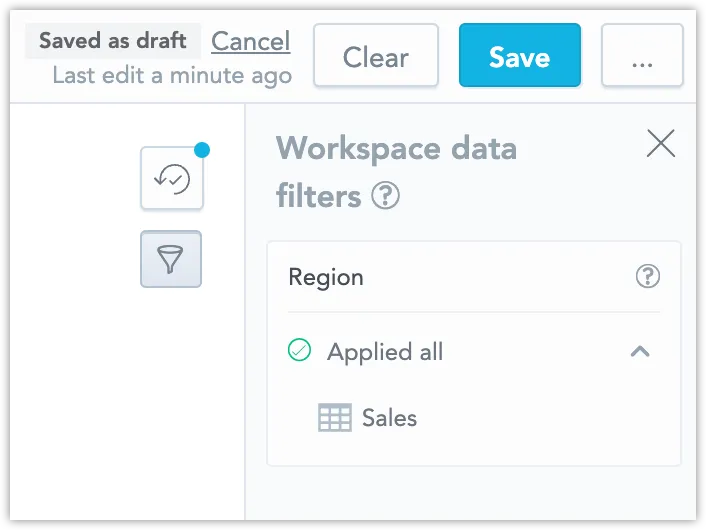
Note that a Workspace data filters panel is available in all workspaces with at least one WDF. For the purposes of this example we chose to name our WDF
Region: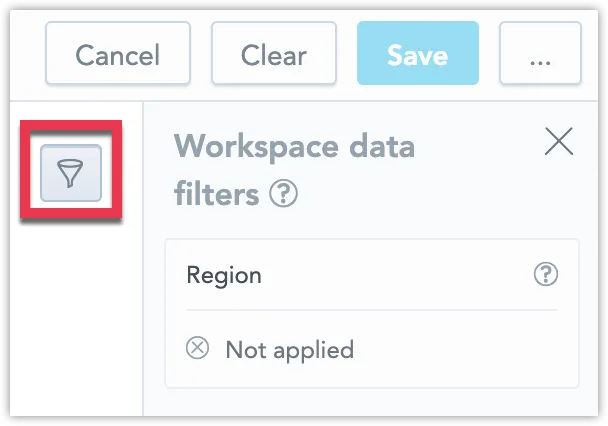
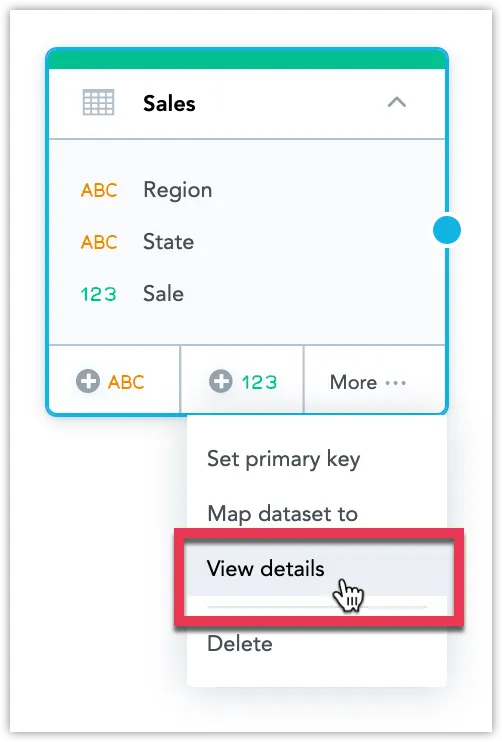
Find the dataset that you want to filter in your child workspaces and go to More … > View details.
Switch to the Data filtering tab, Enable the WDF and Map it to the appropriate source column that you want to use for your filtering.
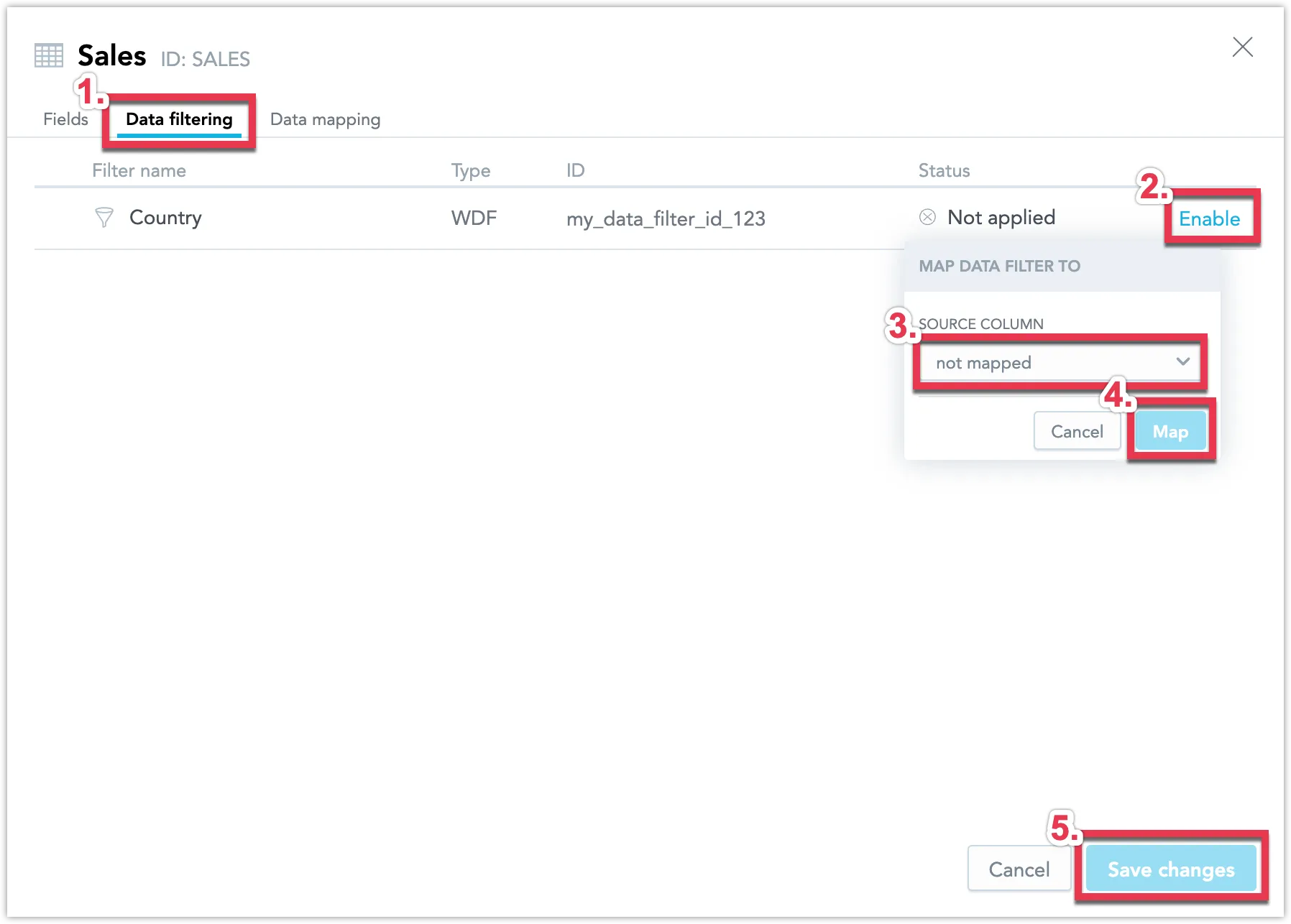
Click Save changes.
Your WDF is now applied to your dataset:
Save the changes you made to your logical data model.
Your sales data should now be filtered in your child workspace.
At the moment, it is not possible to open a child workspace in the LDM modeler and Edit it in the GUI. If you want to create the sub-child WDF wdf__state, where <parent_workspace_id> is Western and the <child-workspace-id> is California, follow the steps 1 and 2, then use the following script:
curl -v $TEST_HOST/api/v1/layout/workspaces/<parent_workspace_id>/logicalModel \
-H "Content-Type: application/json" \
-H "Accept: application/json" \
-H "Authorization: Bearer ${API_TOKEN}" \
-X PUT \
-d '{
"ldm": {
  "datasets": [],
  "datasetExtensions": [
    {
      "id": "<dataset-id>",
      "workspaceDataFilterReferences": [
        {
          "filterId": {
            "id": "wdf__state",
            "type": "workspaceDataFilter"
          },
          "filterColumn": "wdf__state",
          "filterColumnDataType": "STRING"
        }
      ]
    }
  ]
}
}'
Troubleshooting WDF Inheritance
Child Workspace Returns Data Even Though No Value Is Set on It
The child workspace may be inheriting a value from a parent. WDF value resolution uses the full chain from the querying workspace up to the workspace where the WDF is defined, not only the value set directly on the querying workspace.
To restrict the child workspace further, set an explicit value on the child workspace or on an intermediate workspace.
Value Is Set, but Data Is Not Filtered
The WDF may not be mapped to the dataset column used by the query. A WDF value has no effect until the WDF is mapped in the logical data model.
Check that the WDF column exists and is mapped for every dataset that should be filtered. If only some datasets have the WDF mapped, only those datasets are filtered.
For inherited datasets, you may need to map the WDF through the API by using datasetExtensions, because inherited dataset mappings cannot always be edited in the UI modeler.
Missing-Value 400 Error
This error means that no value is resolvable from the querying workspace up to the workspace where the WDF is defined, and the query is running from a child of that workspace.
Set a value on the querying workspace or on one of its parents up to the workspace where the WDF is defined.
Empty-Intersection 400 Error
This error means that values are set at multiple hierarchy levels for the same WDF, but they do not have any shared value.
Make the child value overlap with, or be a subset of, the parent value.
Unset Child Should Show No Data
WDF inheritance is enabled by default. If a child workspace has no local value, it can inherit a value from a parent.
To make an unset child show no data, set explicit values for each leaf workspace or introduce an intermediate workspace that narrows the branch to an empty value set.